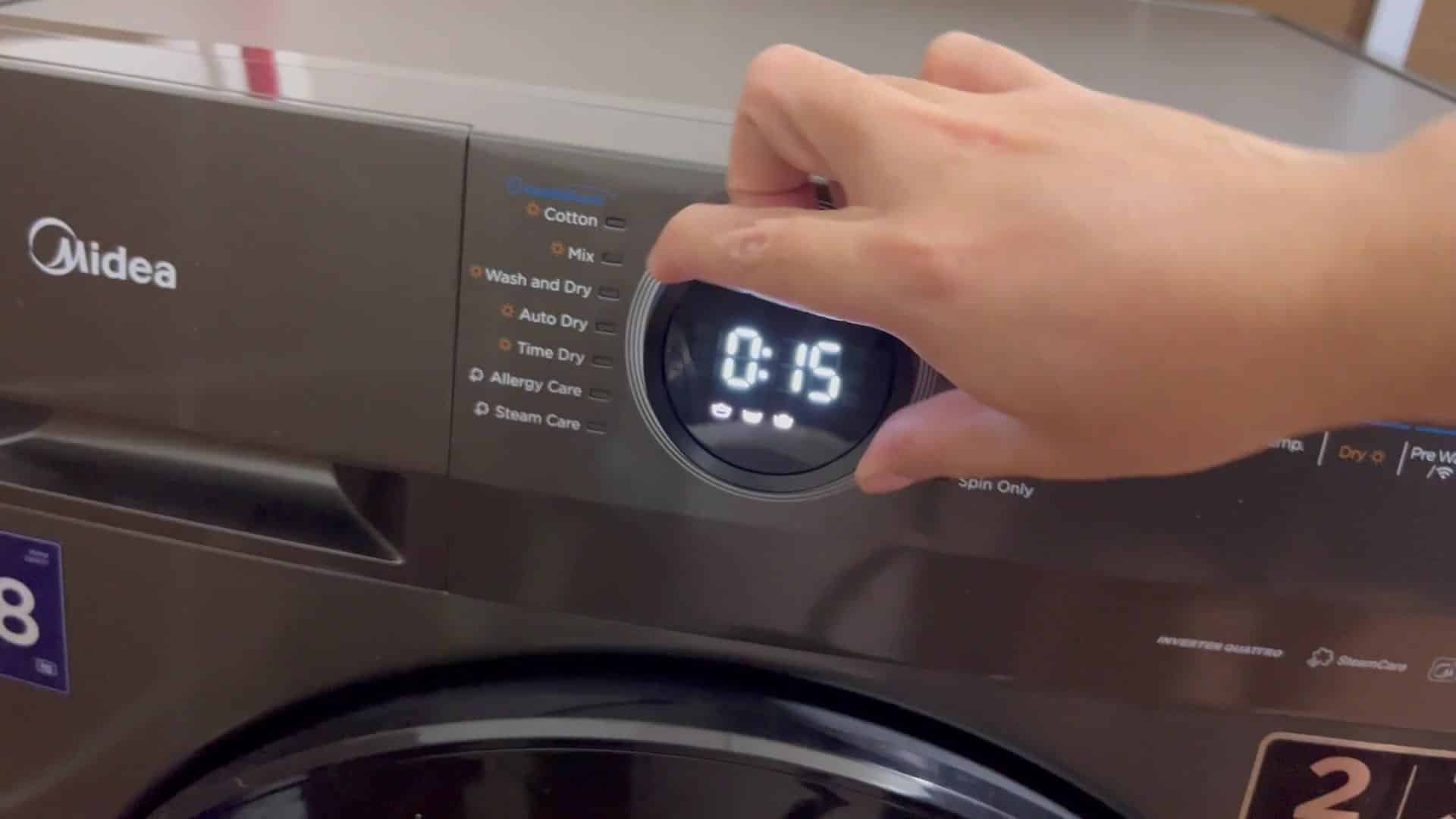
Midea washer dryers also come equip with a child lock for managing your appliance in presence of curious children. When active, this safety feature locks down your appliance’s controls so that you don’t need to fret over little fingers getting into the mix when a load is spinning. This means no accidental changes to your wash cycle, and there’s nothing too complicated about activating it.
This feature is on its own button on the control panel. That way, it should be very easily identifiable once you know what to look for.
Activating The Safety Feature
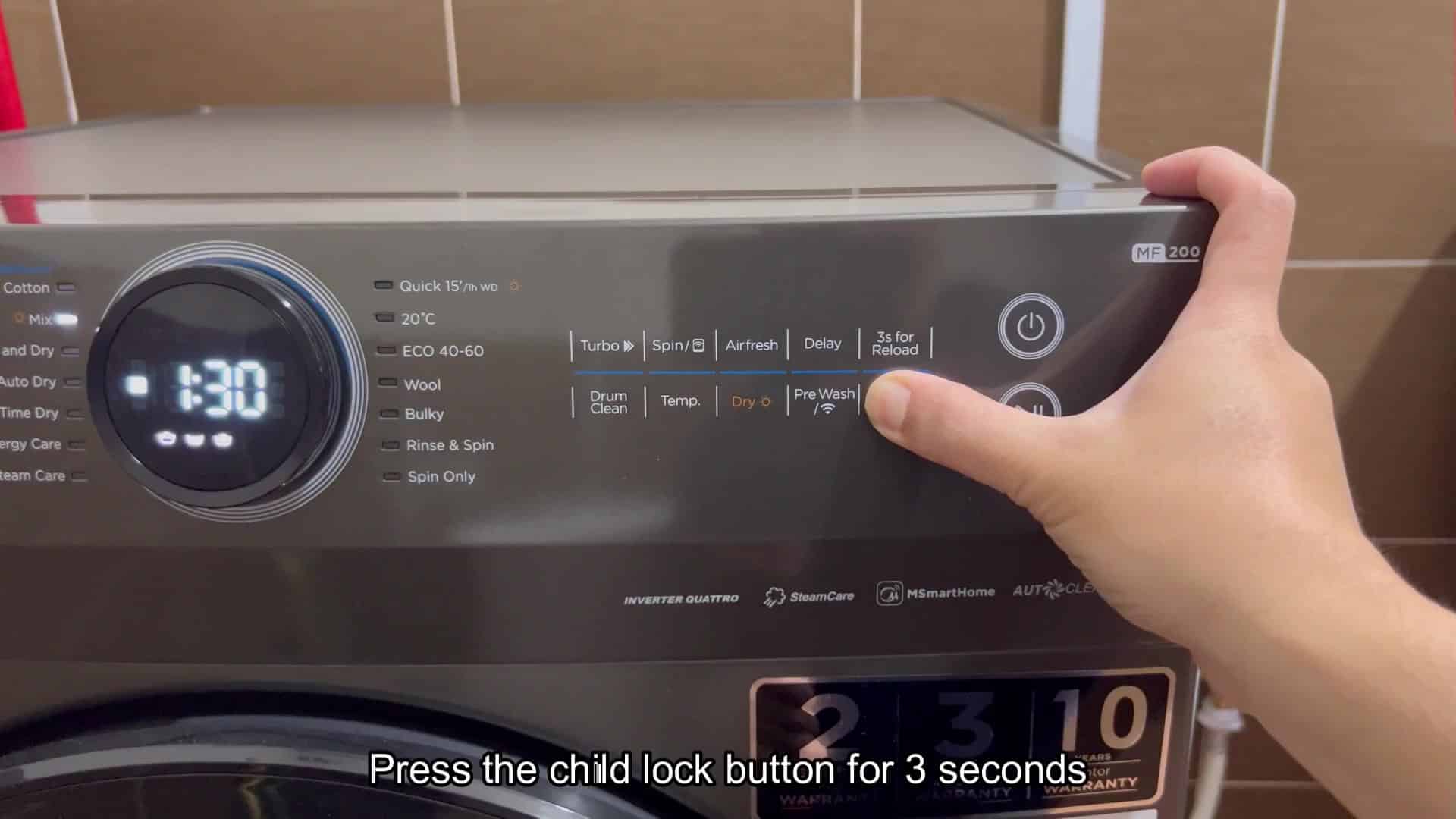
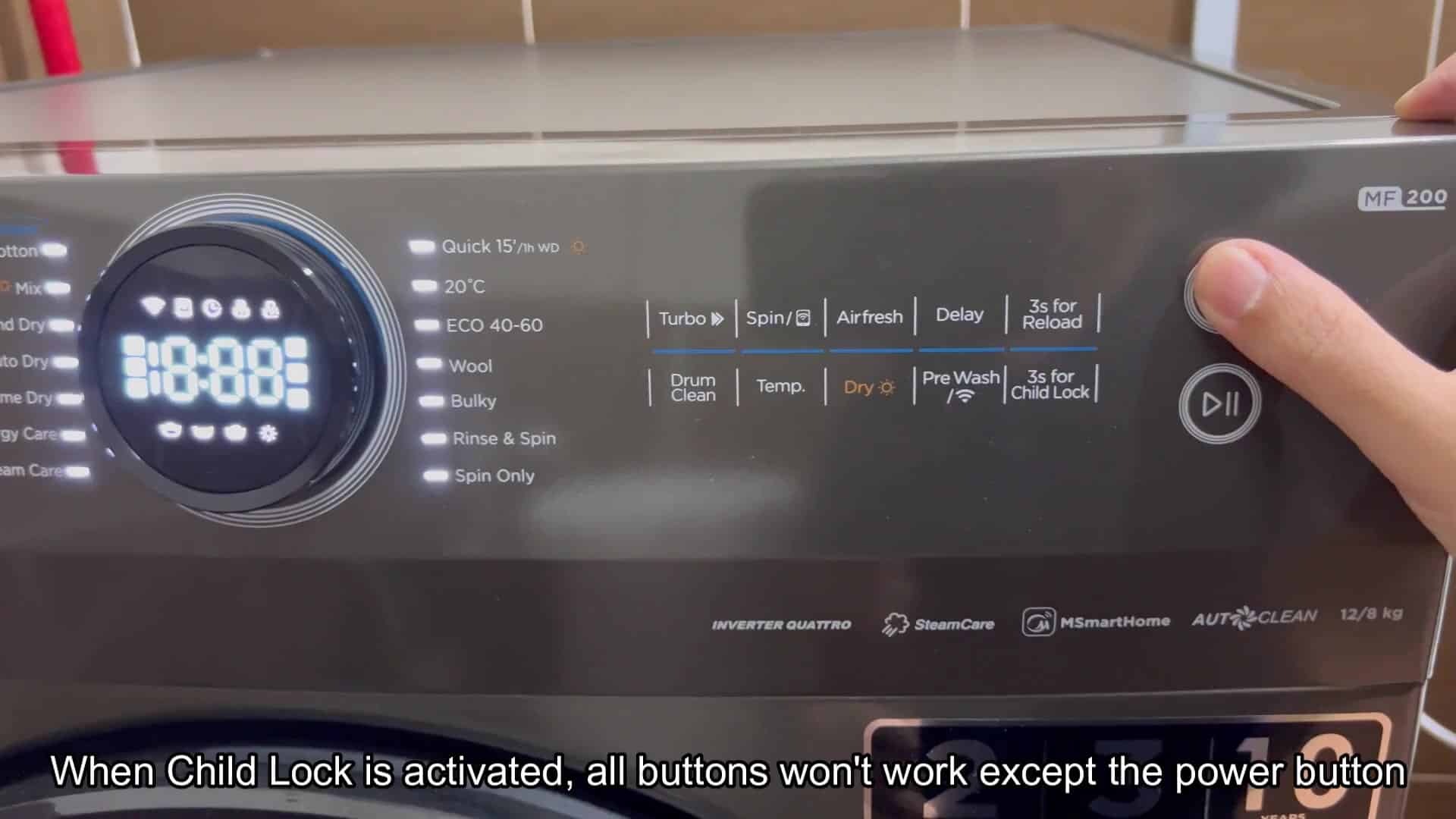
Basically, all you have to do is press and hold the button for three seconds to turn on the child lock. Press and hold firmly, your finger stays on the button and then you count to three. Three seconds is long enough but not too long so don’t worry about having to push super hard. Use just a nice, even pressure.
However, you’ll notice the digital readout shows the letter “CL,” which stands for Child Lock, and the screen instantly flips over to verify the action. You don’t have to guess because you get a clean visual confirmation that the system is locked down. The instant response show it was locked down correctly. You don’t have to stand there wondering if it worked or not.
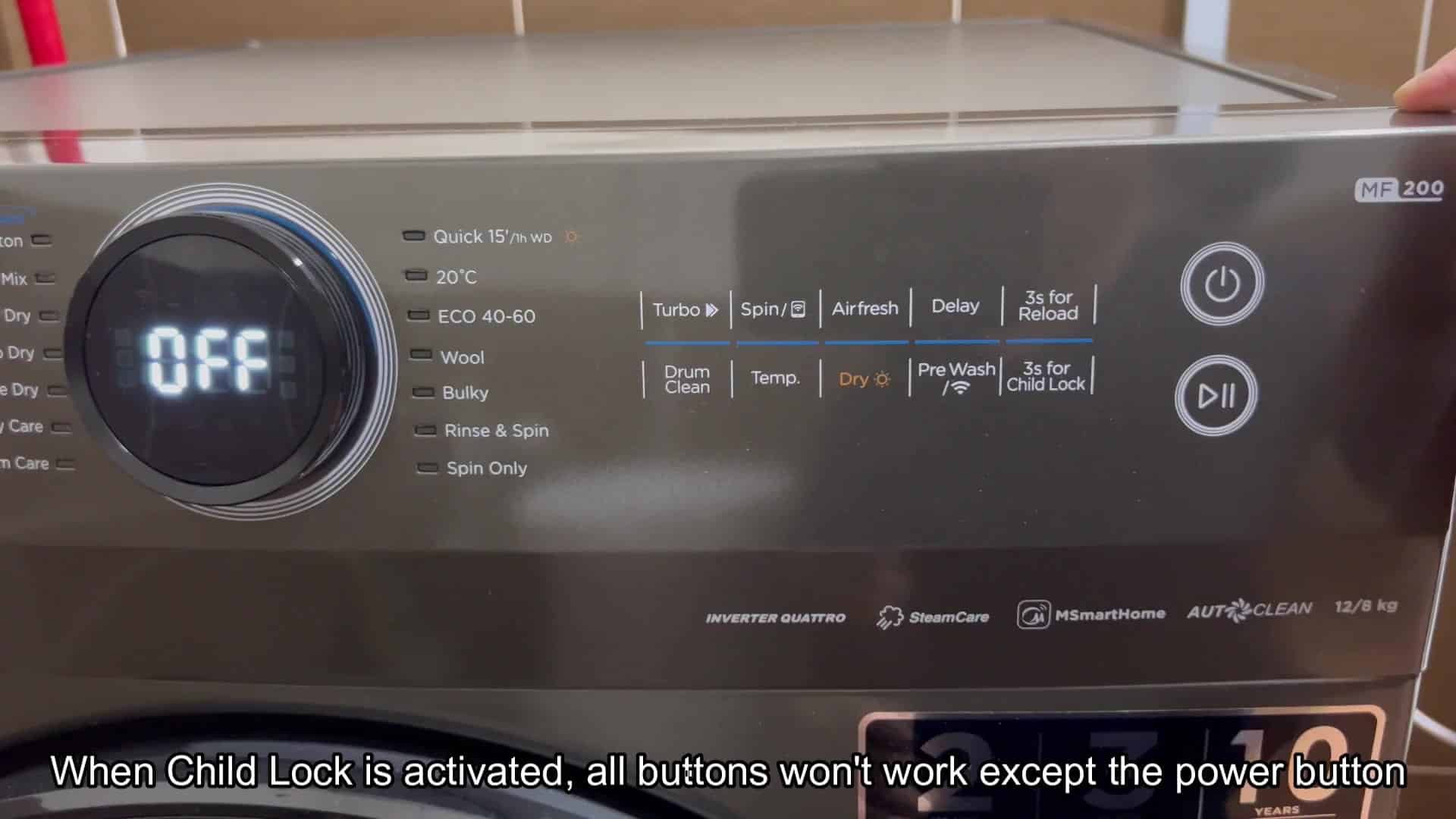
However, once it’s activated, the machine behaves very differently. Almost every button on the panel are disabled, except for the power button: You push a button for Spin, Turbo or Temp, but nothing happens. And there’s no worry about accidentally changing your wash cycle, because when you lock the settings they stay right where you had them.
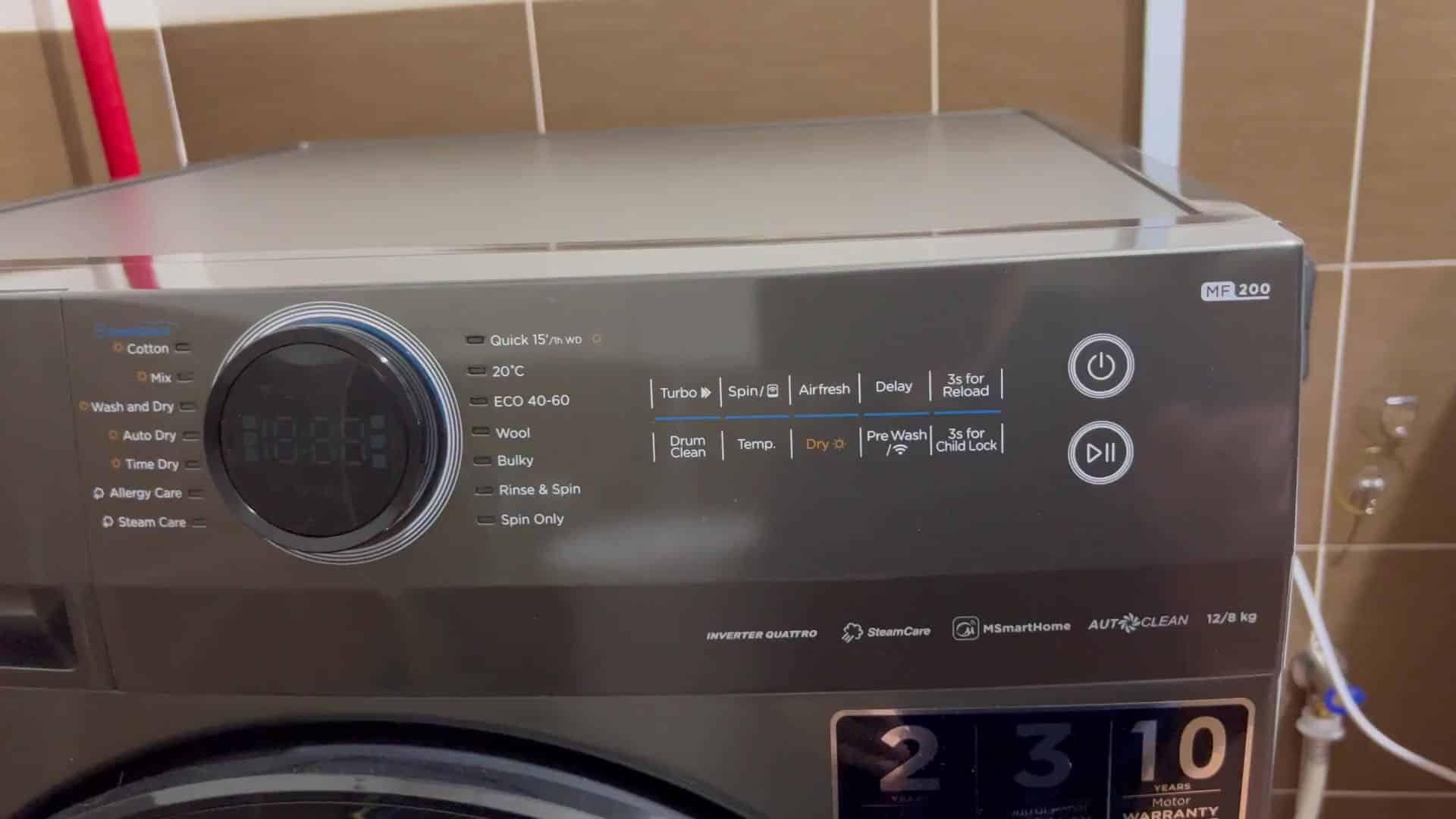
However, it’s not completely locked down, the power button always works regardless of whether the lock itself is engaged. You can turn the whole thing on or off as needed. This is nice if you want to shut down the appliance completely for whatever reason, but other than the primary power switch, its all hands-off. That makes sense in practice too; you have power controls, but your program settings is protected.
So holding the button down produces a CL for your first try, which is simple enough. And then you press some of the others to see if it will do anything. Nope. Nothing happens. No matter what you push, the screen sits there until you hit the power key; and even then, it only respond to that one button right from the start. Easy solution.
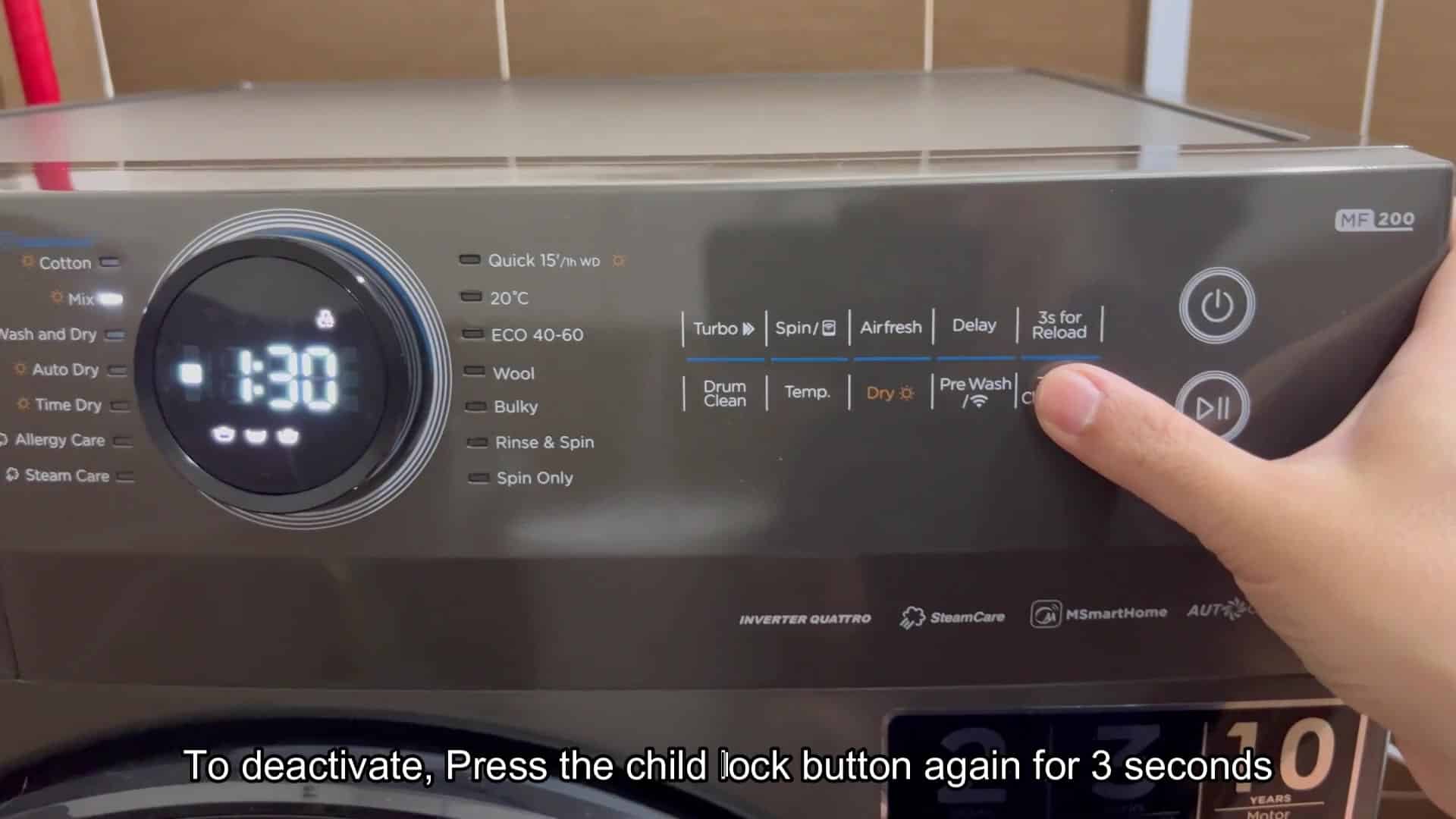
To turn the lock off, however, there’s no additional button or complicated series of clicks required: It’s as easy as turning it on. Back to that Child Lock button, and this time you click and hold it down for three seconds. Yep, it is the exact same amount of time used to activate it. Consistency counts when you’re scrambling to remember how something works.
After letting go of that button at the end of the three seconds, you’ll notice that CL has vanished from your display screen and the lock disengages. Instantly all the other buttons is now live and you’re free to modify whatever settings you want. Temperature, time, cycle options, etc., as you please.
No muss, no fuss, just full control whenever you need it, which I think is a great feeling.
This entire process is quite intuitive, unlike other machines that have you navigate menus or hold down multiple buttons at the same time. Three seconds feels like just the right amount of time; not too much than it becomes annoying, yet enough to avoid accidentally tapping the screen. It’s a good balance between convenience and security, and you’ll get the hang of it on your first attempt.
Afterwards you check and the screen has returned to normal numbers, meaning that whatever was locked is no longer locked because you can see the current progress or time. The machine is doing exactly what it should be doing with all of its lights behaving normally (no weird patterns), and if you want to change anything, you can do that too. Nothing fancy happens, it just becomes a regular old appliance interface again.
The lock is a nice addition that provides a bit of peace of mind when running loads of laundry without supervision. Kids can’t easily turn a heavy spin cycle into a delicate wash. They also can’t add time if they simply want the machine to stop sooner. Lock stays locked until you tell it otherwise.
This is a nice addition to the control scheme that’s small but worthwhile. For sure use this one.
The label says it all. Even if you don’t have a bunch of folks around to try it out, it’s simple enough that they can look at the panel and know exactly where the button is. And again, you don’t need to read a manual to find the button. Look at it and hold for three seconds. It makes perfect sense right out of the box because it’s so intuitive that anyone can follow along without any stress.
In about half a minute’s worth of work, you save yourself any possible future headache. The response time for lock/unlock is instantaneous and it’ll let you know right on the screen whether the machine is locked or not. That clear communication between user and device makes a huge difference over guessing games.
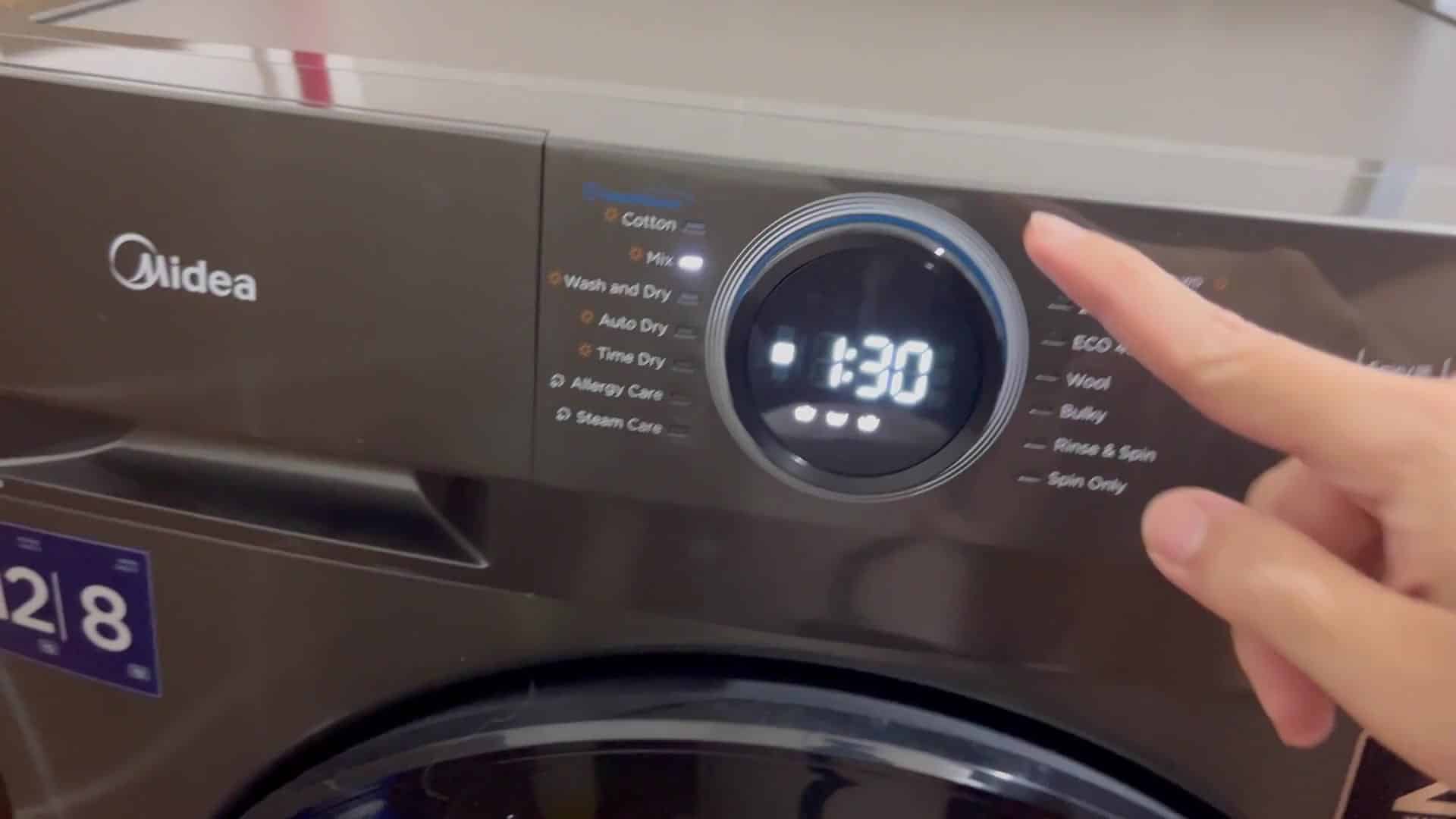
At its heart, it is simply about wanting protection without needing anything complex, and this system does exactly that. You get up and go when it starts a long drying cycle and you don’t have to worry about someone changing anything. Just walk away with confidence that everything is set right. The job is finished, no more standing there staring at the control panel wondering if someone has messed with things. It could of been much harder. This system actualy works great.