
Compatibility matters
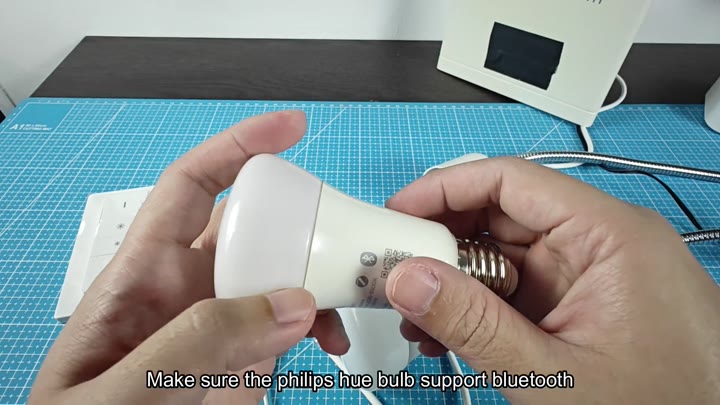
First, you’ll want to make sure the bulb itself is compatible. To do so, you simply has to take a closer look at your bulb. If it’s got Bluetooth support, there will be a symbol on its side showing that. Without this, the system won’t work.
Before doing so, however, check to make sure that it is correct.
Installing the App
The other thing is that you’ll need to check if your hardware support whatever type of connection method you want. Older ones may not supports it. I didn’t notice that when I first looked at it, but a quick look at the box (or even at the bulb) will tell you.
The wireless aspect is really important here. It’s all part of the set up, and there’s no additional hardware involved.
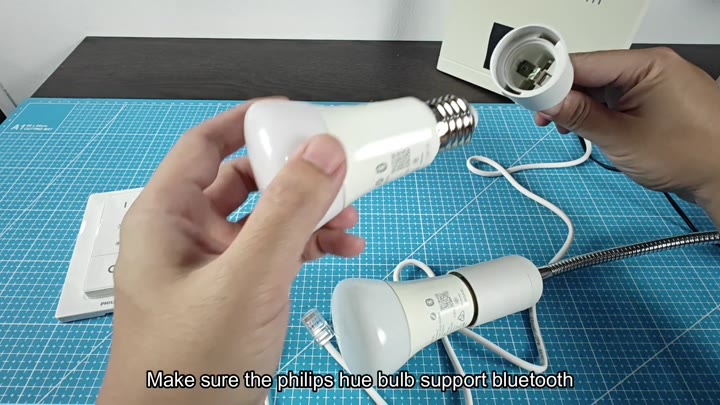
It’s cheaper because, well, no bridge.
Getting the right app is pretty easy. Basically you get the Philips Hue Essentials app on your phone. That’s the one that does the direct Bluetooth connection.
In the past it confused people because sometimes it would look for a bridge first (the regular Hue app), but switching apps solved that instantly.
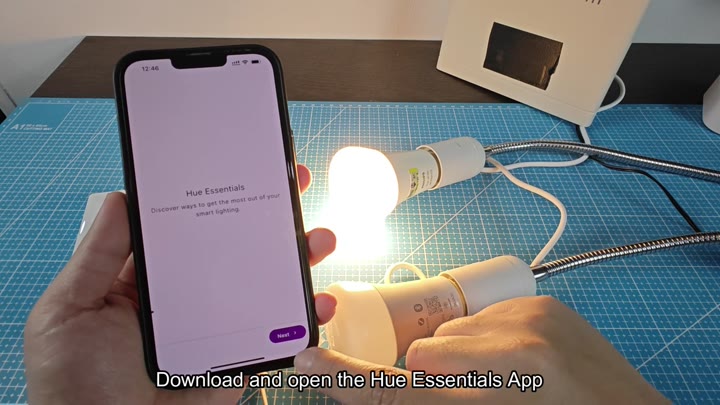
Because it is designed for direct links, the interface feel lighter and faster.
Then, when you open up the app it’ll show you the setup menu. Then you’re prompted to pick which Bluetooth set up you have. Next you are prompted with what kind of connection you want.
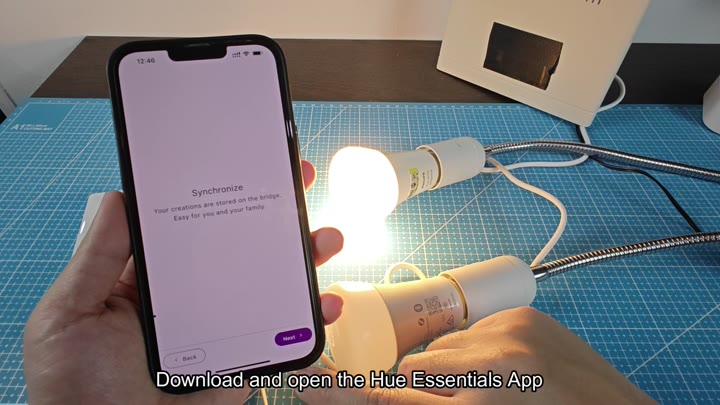
Here you will select the direct link option. That means no central hub is needed. It’s really easy and far less complicated than before as you don’t need to search for a bridge.
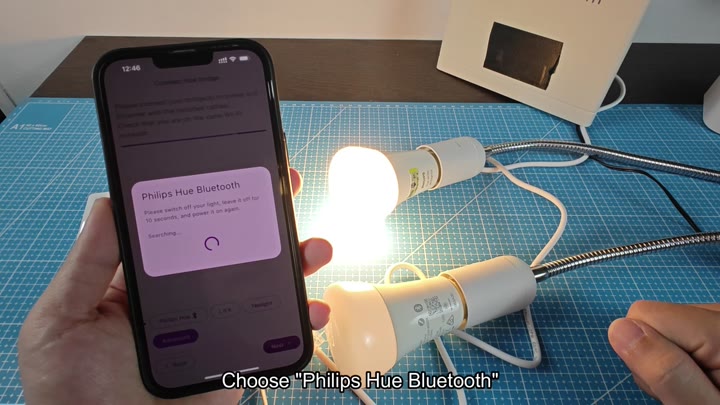
Verify compatibility, install the app, and cycle the power to pair.
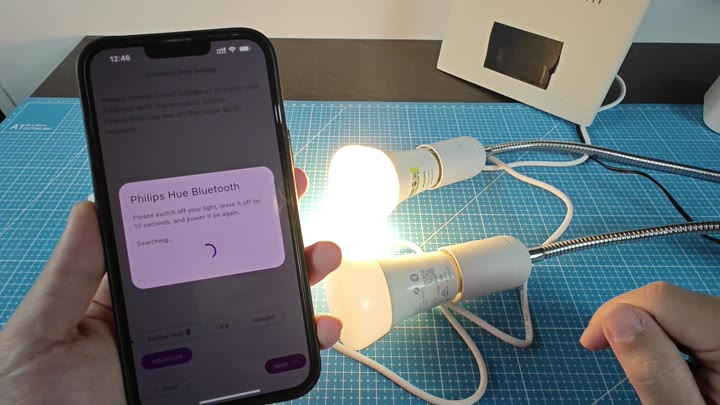
Power cycle the bulb,” the app tells me. “Turn the light off, turn the light on.”
That does it; it triggers the pairing mode automatically. Your phone begins looking for the device. It waits a moment while the two devices connect. The progress bar indicates that it’s happening. Because there’s nothing to search for manually, your phone find the bulb in short order.
Next, you head over to the settings of your phone’s operating system. In the list of devices available via Bluetooth, there’s a new item: the one you just found. Tap on it (in my case it says Hue Lamp).
Right away, the status read connected. A lot of people skip this part and spend more time in the Hue app instead. That’s what establishes the connection, going into the system settings completes the process.
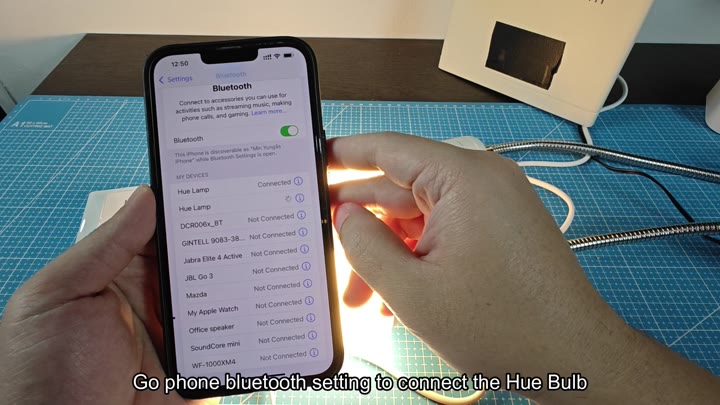
It feels secure and stable.
The app lets you control the light as well. The on-screen slider control the brightness of the bulb. It reacts quickly, in real-time when you change it. There’s no need for a bridge here either.
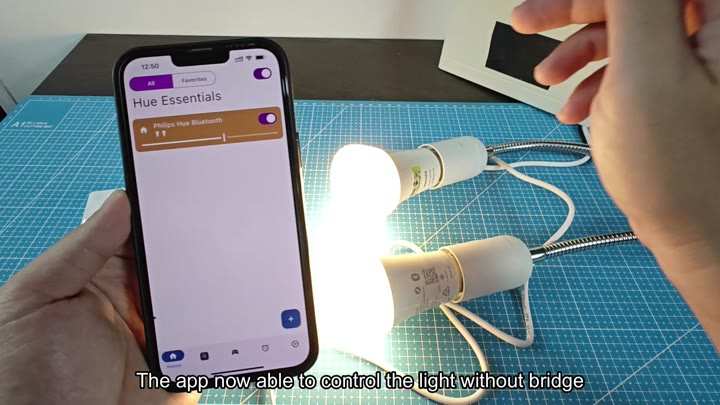
It feels very responsive, there’s virtually zero latency. The color switch is fast and smooth. When you turn it on or off, it doesn’t feel like anything more then that.
Where it shows its limitations is in testing out accessories. You test the regular old Hue dimmer switch. Nope, doesn’t work with that Bluetooth connected bulb. It only works with bulbs connected to the bridge.
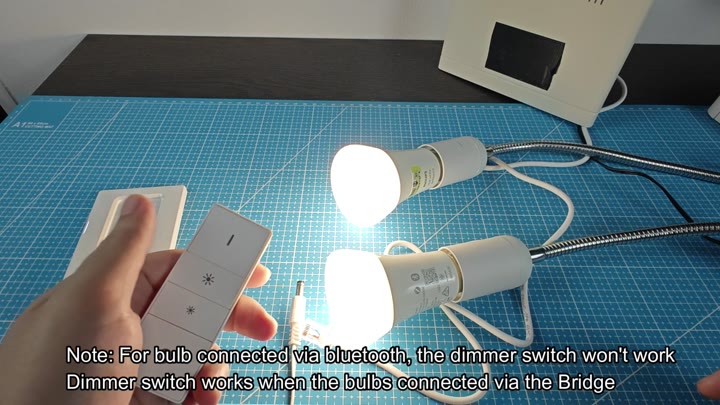
That is a sort of annoying limitation at first if you want something you can just push to control it from a distance. And it just won’t speak to it. It has fewer features through direct Bluetooth.
Direct Bluetooth has fewer features.
But that’s the trade off. It could of been better.
