
Philips’ Hue dimmer switches don’t require a router or even an app to reset them to there factory settings. It’s all about the physical hardware.
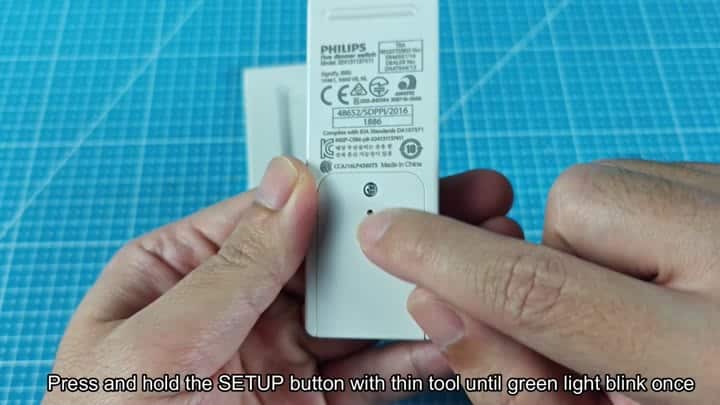
Just grab your switch and a little something to push the reset button, I used a small screwdriver, but any small object will do (a paperclip, for example). There’s a little hole on the back of the switch where the button is. This way, it won’t be easy to accidently reset a dimmer switch while adjusting light levels.
Adding the accessory back
The front of the device have four buttons.
That’s also the cool part.
Grab the white rectangle switch hard. There’s no need to verify the model number. Find the small hole marked with “Setup” on it.
Use your tool’s pointy end to poke into the hole. Then press the button down. Don’t tap it. Hold it. For a couple of seconds. Four button are on the front of the thing.
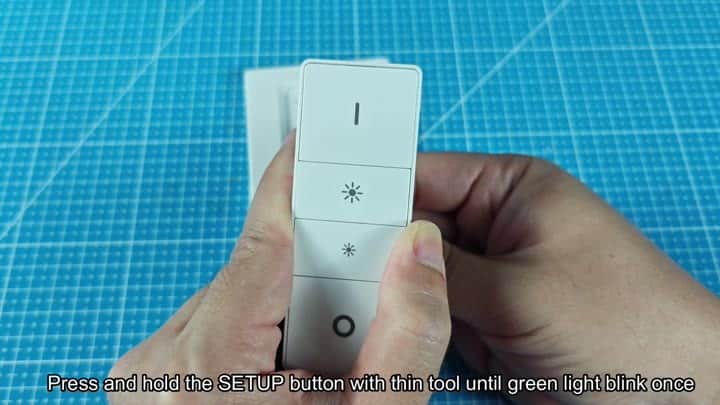
There are other buttons such as one showing a color temperature circle, two brightness symbols (sun symbols), and a vertical line. These do not impact the reset sequence. You only need back button.
Hold down the set up button using your tool. Be patient and stay firm. The LED lights on the remote will act different. They’ll start flashing. First they’ll blink green. It’s a good sign. It means it recieve the button push.
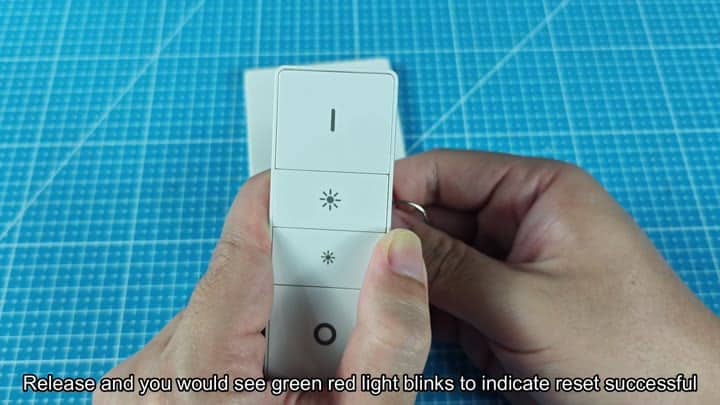
That means it’s begun.
Let go of the setup button. The LEDs will instantly start changing patterns. First, they will flash green and red simultaneously. This is a good sign that it reset correct.
It’s flashing alternately between red and green. All the old pairing information are erased. The remote is back to its factory settings.
After the colors alternate, the remote will begin blinking red. And this is okay. When a remote is alternating color while blinking red, it means that it is in pairing mode. Now it’s waiting for a new bridge.
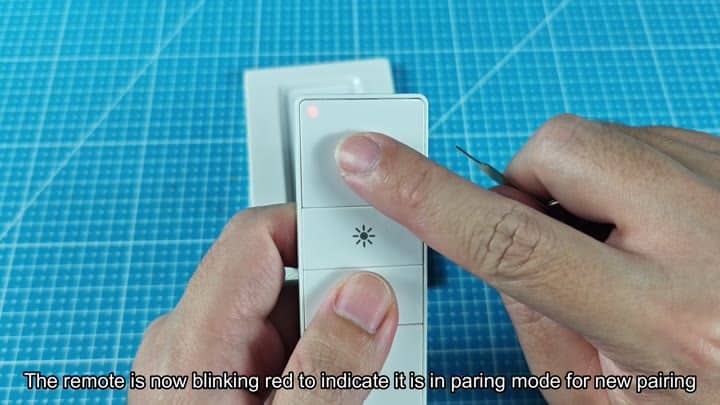
It is a fresh start.
If you see the steady blink of the red light, that means place it down. That’s it for the hardware portion of the work. Now the thing is a blank slate.
Time to add the accessory in the Hue app. And this does seem to work well every time. This is very helpfull if you are having trouble connecting.
