
Accessing your PS4’s Safe Mode is easy enough to do, as long as you’re able to time your button presses just right. First, make sure your console is fully shut off. It shouldn’t be in Rest Mode. Background processes that stays open in Rest Mode can cause issues when trying to start Safe Mode.
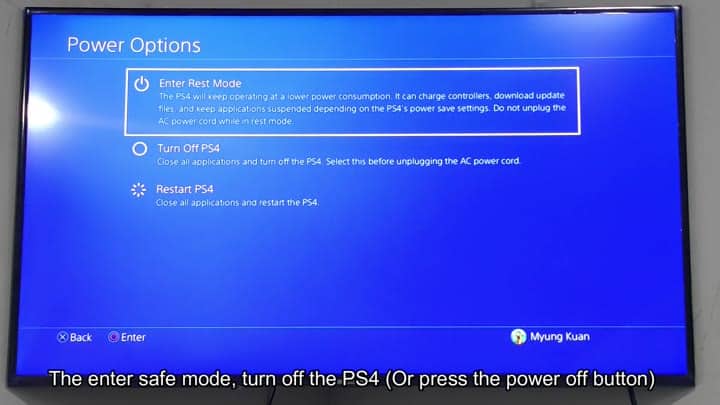
Go to your power options menu. You’ll be met with a simple set of three selections: Restart PS4, Turn Off PS4, Enter Rest Mode. Do not choose any option except for “Turn Off PS4.” Many users mistakenly choose Rest Mode which will prevent the system from entering into Safe Mode. After confirming the shutdown request, the screen refreshes.
Interacting with Safe Mode
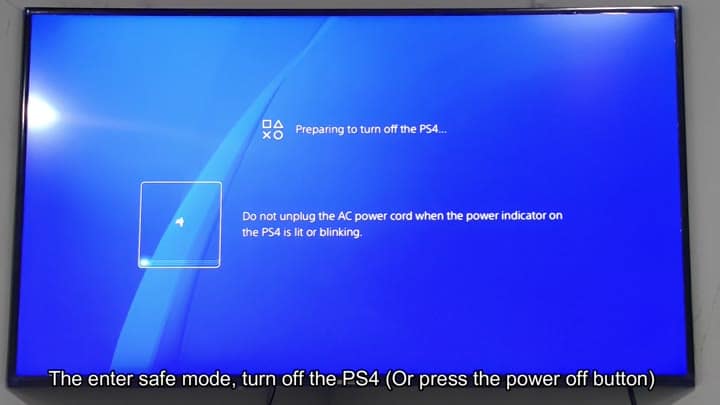
At this point, the screen changes to a blue background with a message saying it’s preparing to shut down. It also displays a warning that tells you not to remove power cord during shutdown. This is another common warning found on every PlayStation console. Let it go dark altogether.
Power down the console completely.
Turn off your console, wait until the screen goes black, and find the actual power button on the consoles front side. It’s about to get real.
Hold the power button down. Don’t let go right away. When you hear a single beep, the system is powering up correctly, but don’t stop yet. The next thing you’ll hear is what we wait for. That second sound are vital.
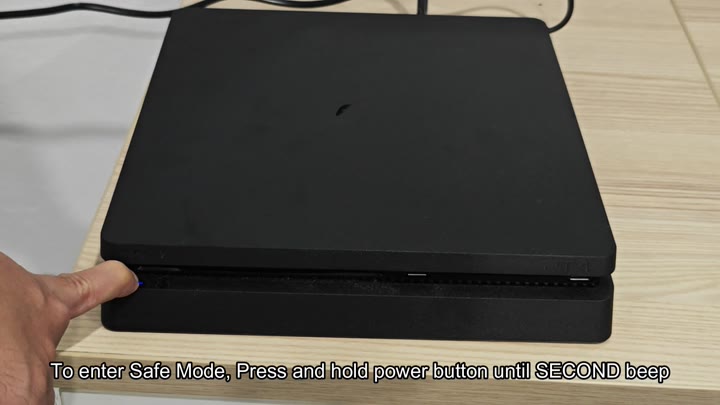
When you hear the second beep (which sounds different than the startup chime), let go of the button immediately. This is when the system enters Safe Mode. A lot depends on timing. If you let go too quickly, the system boots up normally. Letting go too late might cause a factory reset warning to displays. I typically count to 10. Better yet, just listen.
Use the controller to interact with the console next. Wireless connections won’t be recognized by the system in Safe Mode. It’s a security feature. Grab a standard USB cable and a DualShock 4 controller. Connect the controller to the system via the USB port on the front of your PS4.
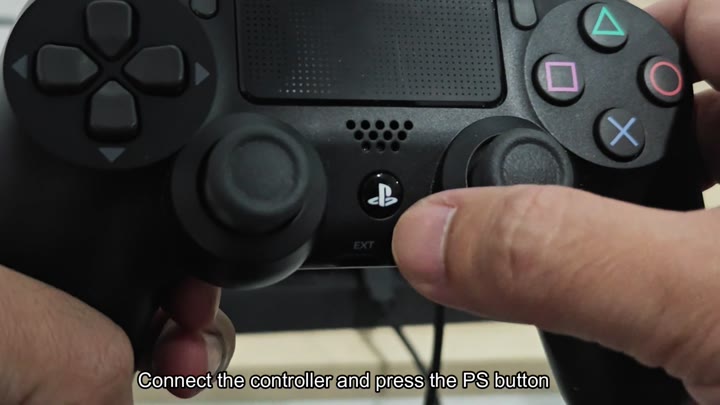
You’ll need to be using a wired connection here.
Connect your controller via cable and look for the PS button in the center of the controller. Push this button down hard. The controller will lightly vibrate to let you know that it’s being accepted by the console, that’ll bring up the Safe Mode menu on-screen.
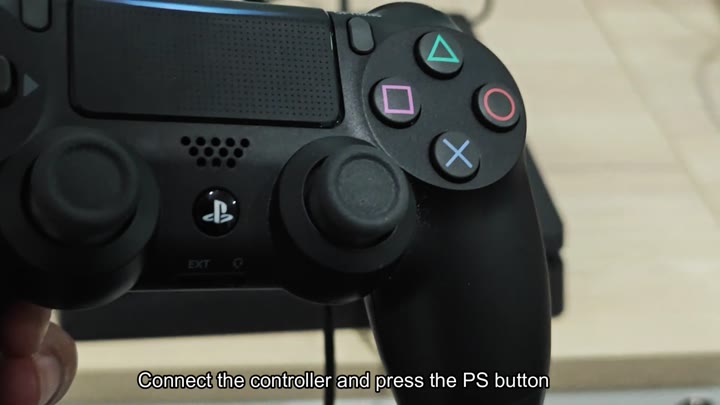
There you have it.
Now you’ll see the Safe Mode screen with the available options. You can update your system software, rebuild your database, and restore from backup. This fixes corrupt files that cause crashes. For any PS4 owner, this is a must have troubleshooting option. Learning how to do this will save you plenty of headaches.
The first annoyance is that you have to use a wired connection. I really mean that. You can’t just hold down the button and hope it pairs over bluetooth or anything like that. The system needs to see your actual wire plugged into the PS4’s USB port so it can authenticate the controller in this low-level state. Makes sense from a security standpoint, but still kinda sucks.
The hardest thing to do is wait for the second beep while holding down the power button. If you panic and release it before then, your machine will just boot up normally. Listen to the sound. The second beep is distinct. You know when you hear it because it means that the machine is in diagnostic mode on hardware level.
In Safe Mode you have few options but they’re all powerful: If your screen’s black, change some of the video output settings. And you can start the PS4 and wipe hard drive by using this option. This is a last-resort option. Most issues can be cleared by rebuilding the database.
Once you’ve got the hang of it, the entire process takes less than a minute. Turn it on. Push the button until the second beep. Plug in the USB cable. Push the PS button. This is not a soft process; this is a hard process or it won’t work.
For this reason, always have that USB cable handy for your console. It’s tiny. And it is hardly used. But it is so important. A dead unit becomes a salvageable one with it. Without it, you are stuck staring at a black screen. If you see a blank screen, you’re on your own.
Installing an update doesn’t always work the normal way. That’s where safe mode comes in. In safe mode, the system connects via the internet in a different way. Many connection errors can be avoided doing it this way. Each attempt follows a rigid sequence of steps. That is comforting. You don’t have to reread the manual again.
After a couple tries, muscle memory kicks in. The key is that beep. The second beep; that’s the portal. All of the rest is warm-up. Turn it off. The screen goes black. Push the button. Listen. Connect your controller via a USB cable. Easy things make huge differences.
