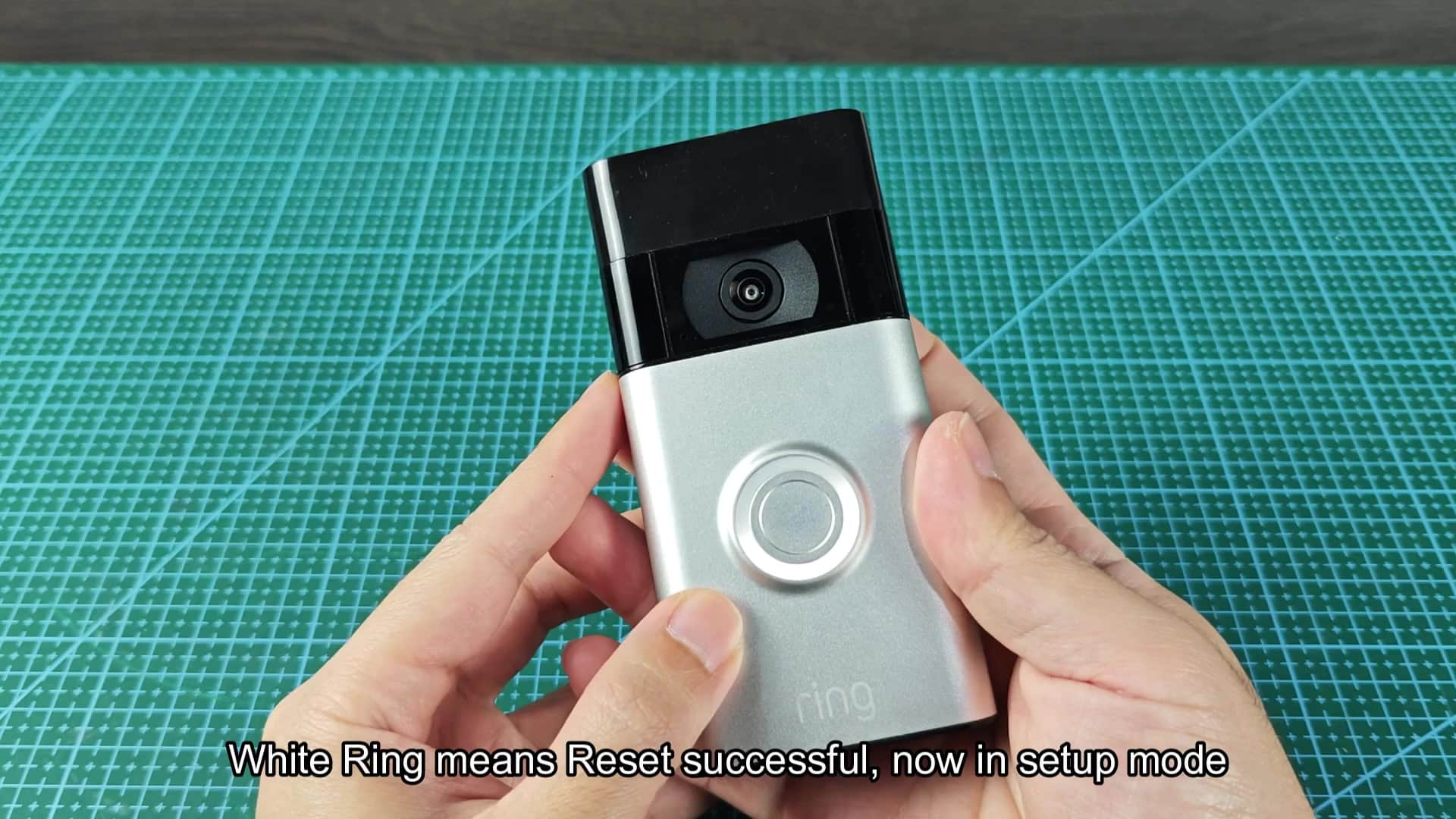
The procedure for resetting your Ring Doorbell is easier then it sounds, too. Rather than having to go through software in order to get things back up and running again, most of hard work happens at the hardware level.
Essentially, all that’s required is to find the right button on the device itself, no messing around digitally here; it’s about getting hands-on. The first thing that has to be done is removing the doorbell from the mount. You have to do this for obvious reasons. You can’t access the settings when it is mounted on your wall. So, just carefully slide it off of the wall without ripping off the wall plate or casing.
Confirming The Reset Process
With the doorbell loosened, you’ll flip it around to see the back. On the back of the unit are the labels, ports and an immediate standout: the orange button. It’s easily noticeable on the casing, so when you know where to look for it, you won’t miss it. Instead of merely tapping that orange setup button, though, you firmly push it down and hold it there for several seconds until something change visually. Like most smart home devices, this is how you perform a reset.
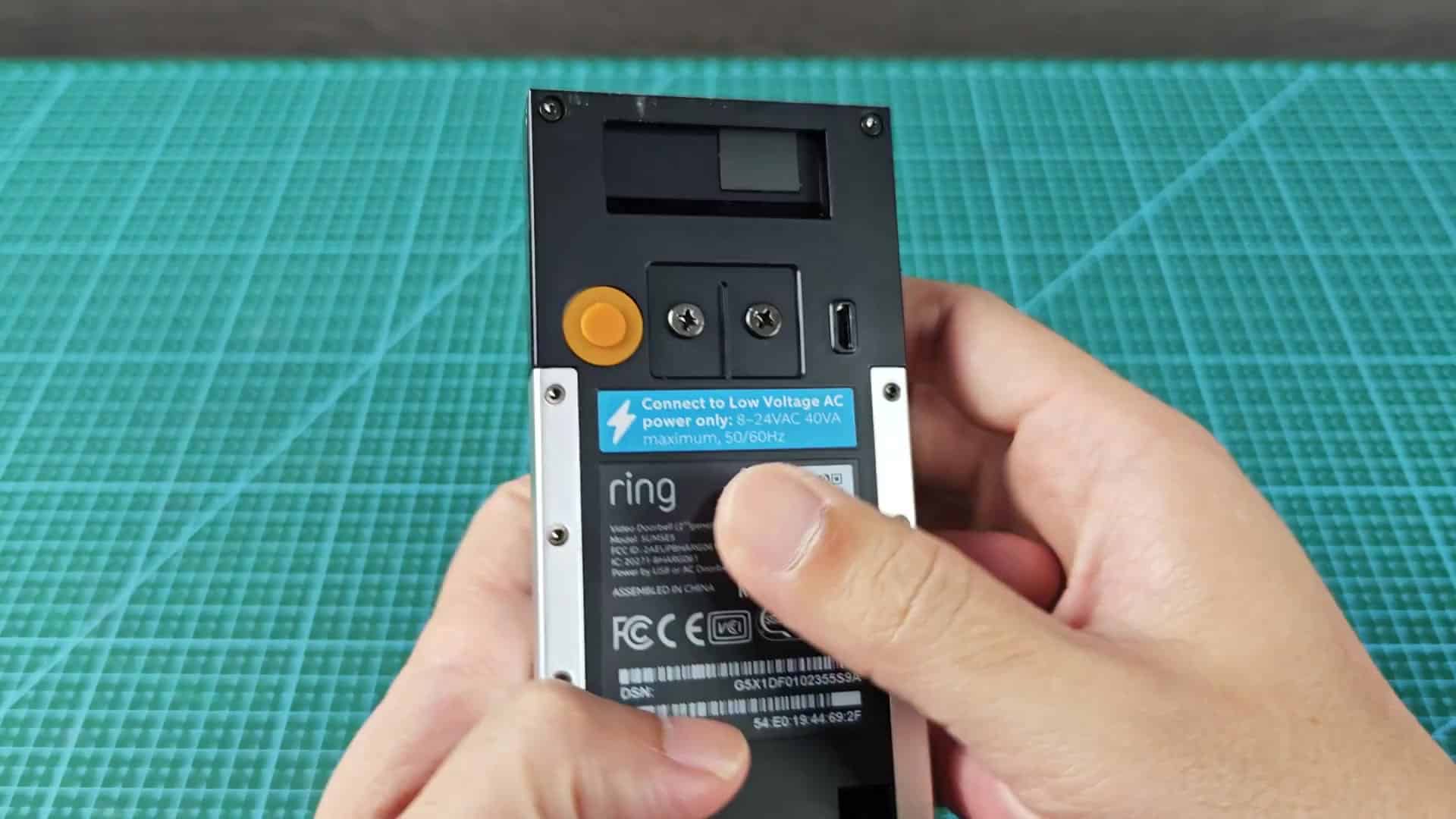
At first, nothing will happen… Again, leading to a bit of uncertainty. But then you’ll keep holding down the button. Finally, the light start to move in the right direction.
You’ll notice the button’s indicator ring spinning white. When this occurs, the device has just erased your previous configuration. This means the device has been successfuly wiped. It also means the device is ready to be configured.
You must remove the doorbell from its mount as the first step, but there is no need to deplete any battery life. Simply hold down the button and it will do everything for you. As soon as you have triggered it properly, you’ll see the light change from steady to spinning white.
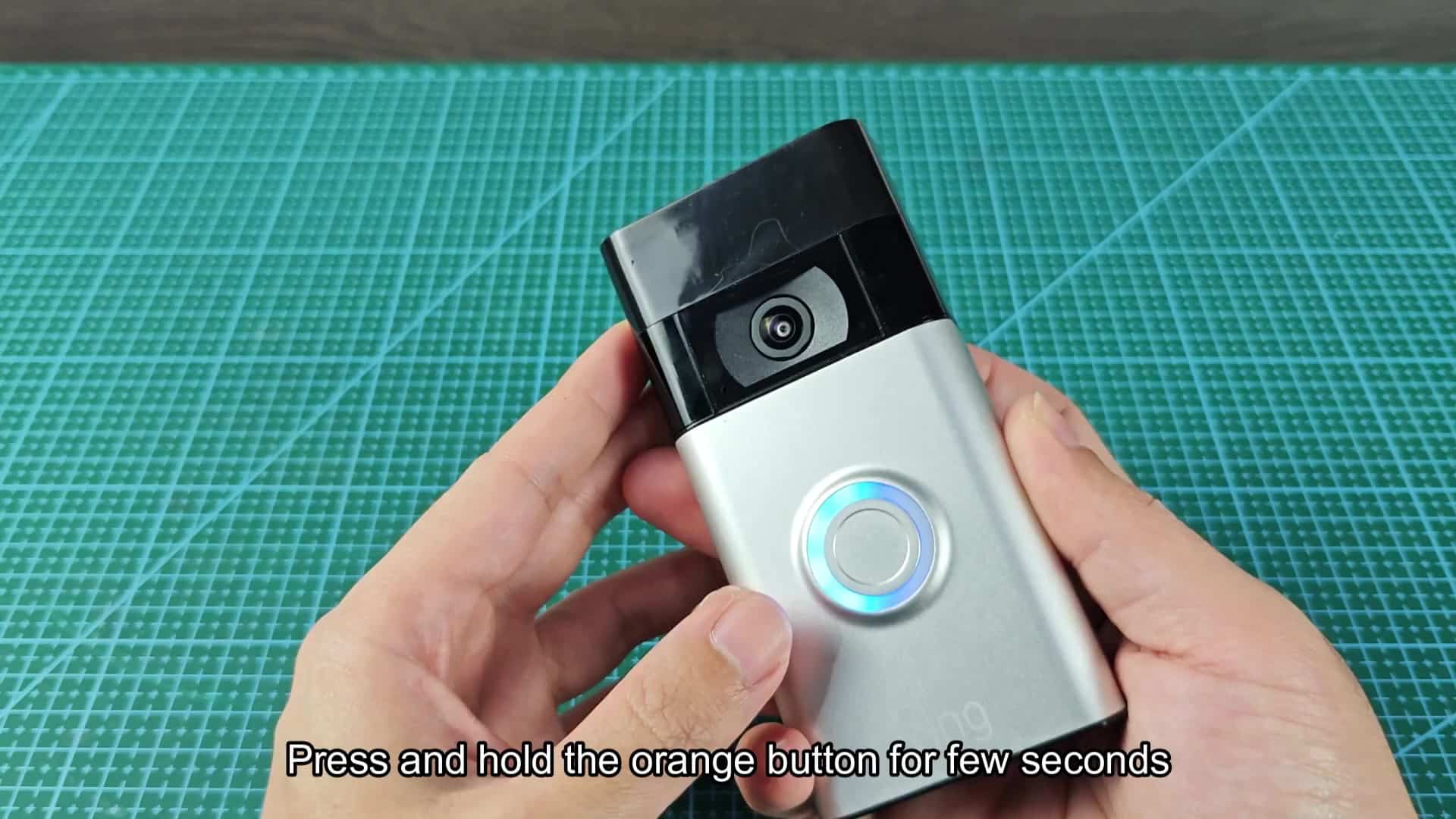
The indicator ring around the button starts spinning white.
If it’s done right, the spinning of the white light will confirm the reset. You’ll see it. This indicates all of your previous network settings is wiped clean and the old configuration has been deleted.
From now on, there’s no more worrying about old user accounts or persistent Wi-Fi passwords. It’s simply a blank slate waiting for new instructions. Clearing everything away is a simple mechanical action. To reset, just push the button down and let go when the white spin happens. It’s a quick process, literally just a couple of seconds.
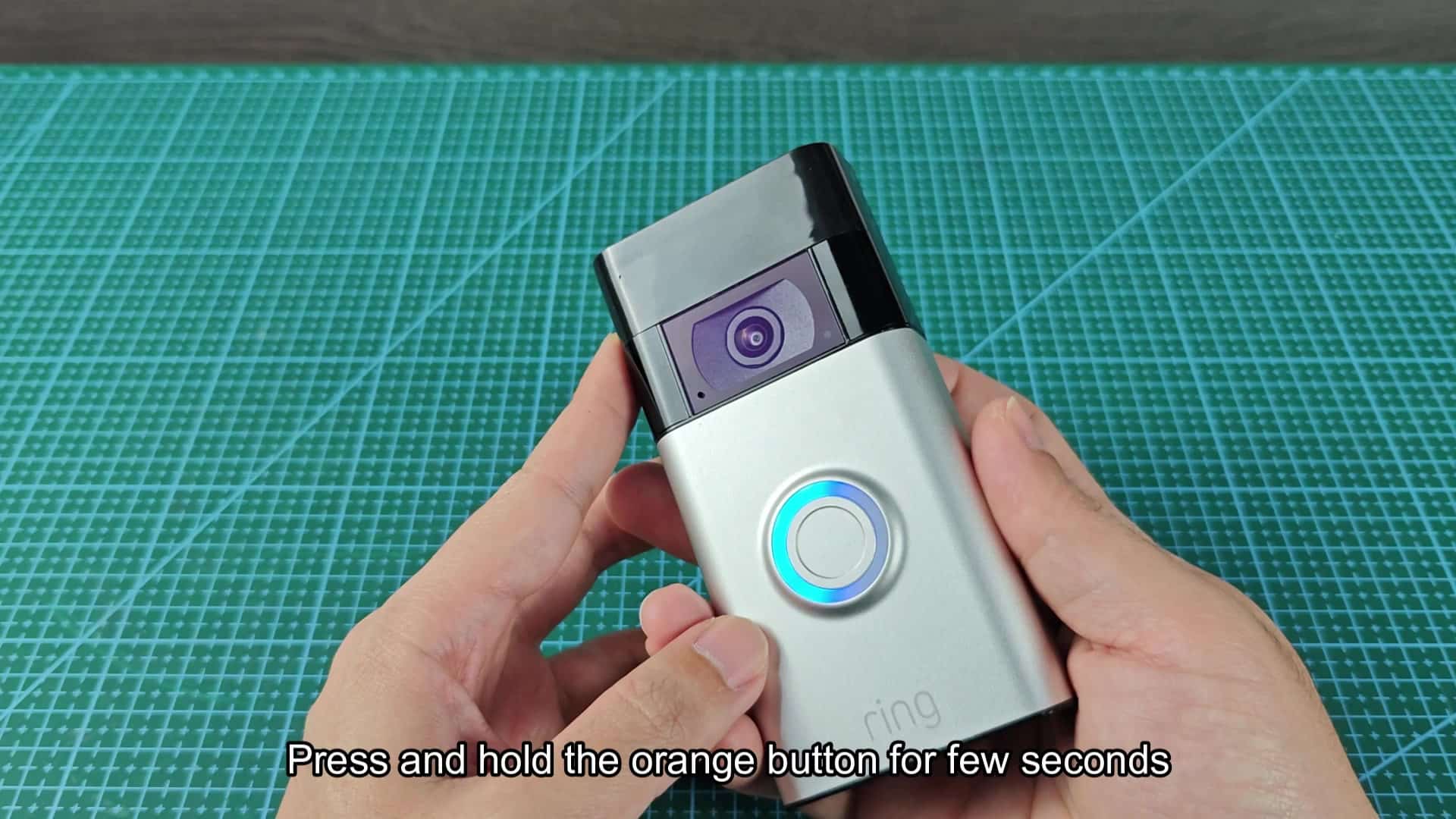
Then you can go back to your phone app and open it up. The doorbell doesn’t time out right away because it’ll stay in its ready mode until you pair with it again. That way, you have some breathing room to get to your phone app before the doorbell shuts off on you. This is better than troubleshooting connectivity issues remotely.
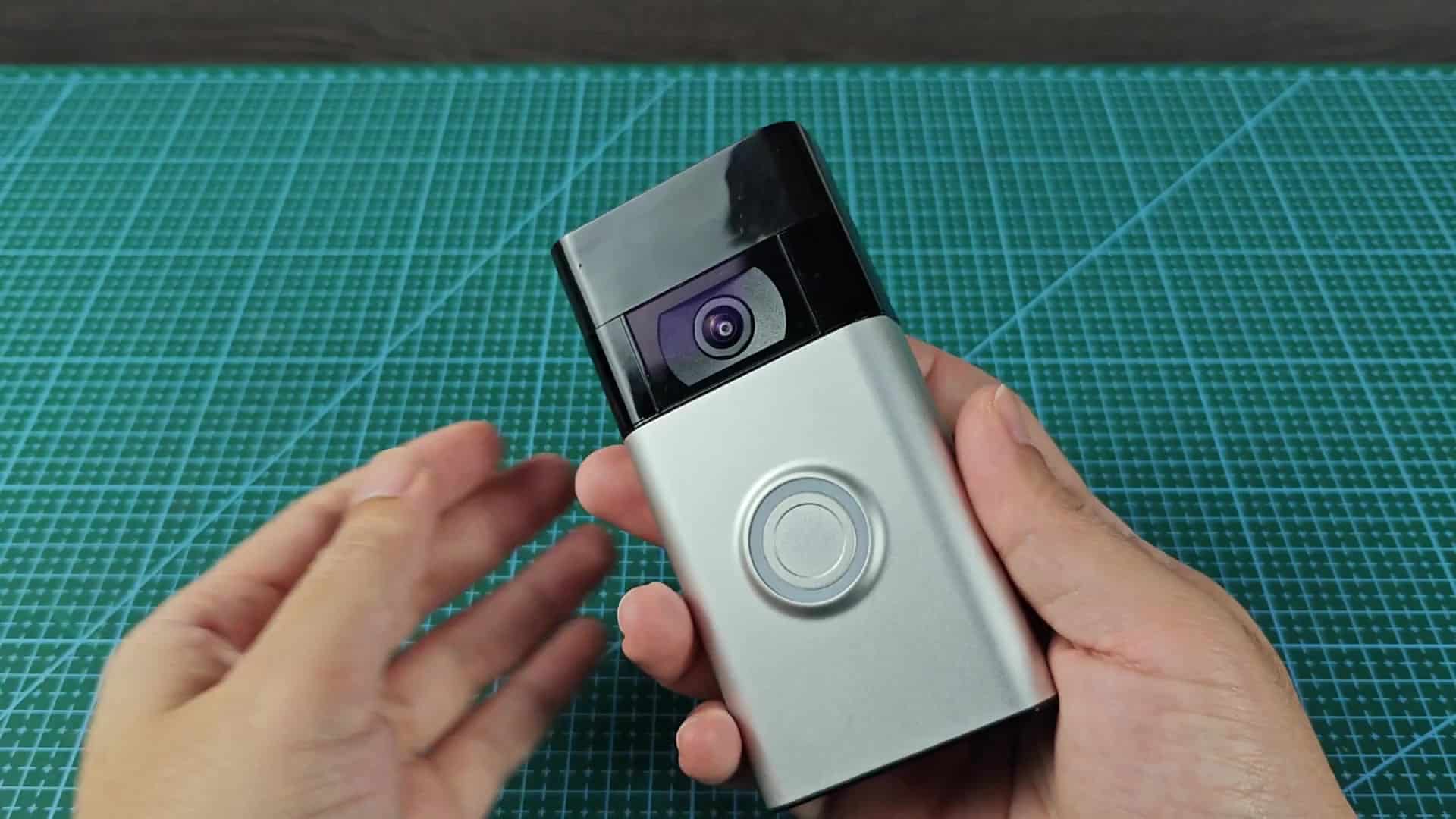
A spinning white ring confirms that everything worked correctly.
Everything was good. There’s a solid white spinning ring to confirm everything went well. No need to fret over a solid blue or solid red light at this point, white spinning is the sign of good things.
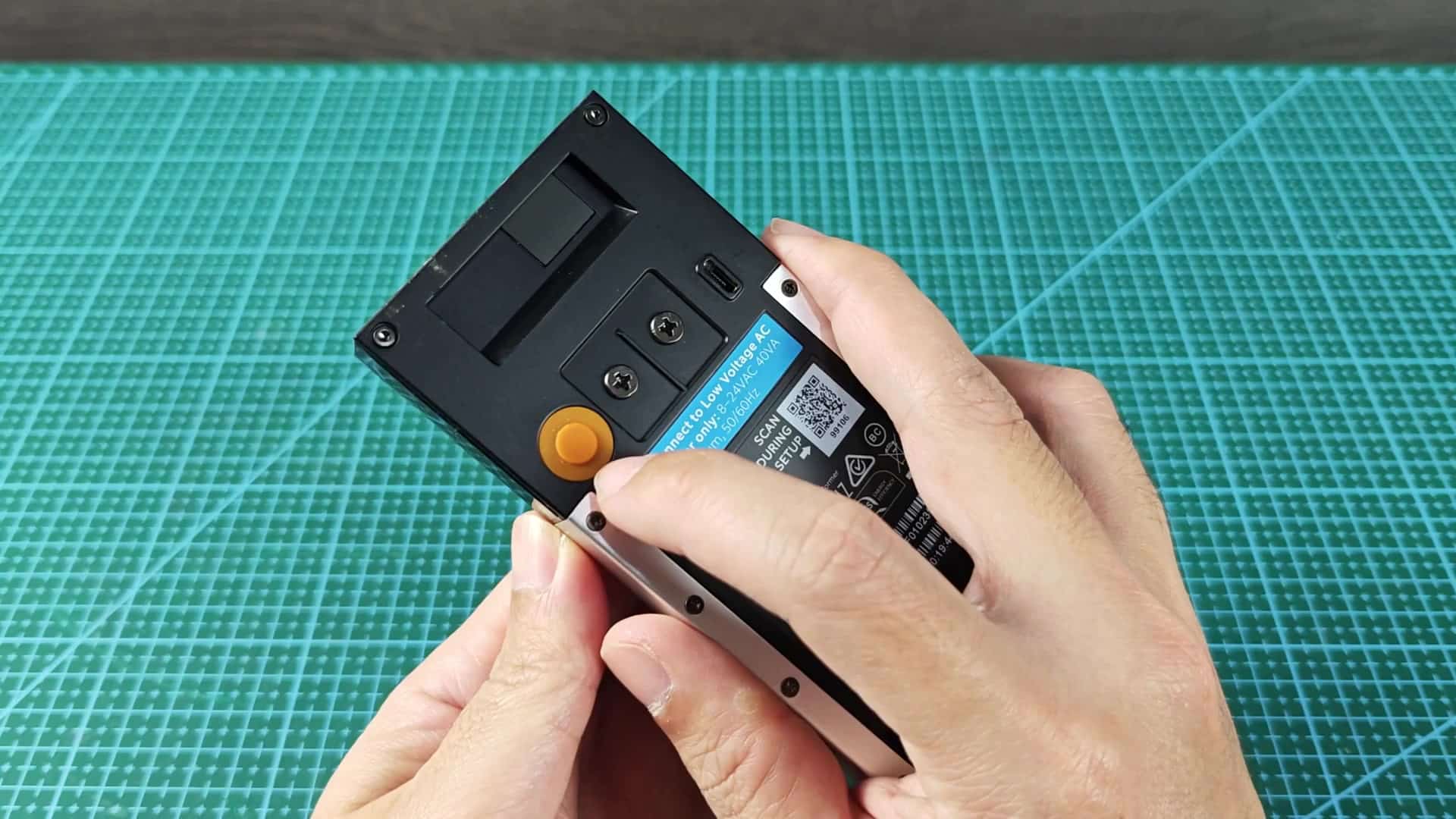
There are no glitches or errors and the hardware respond appropriately by cleanly resetting back to its starting position. Once you’ve completed the steps, you’re ready to set up your device again. It should of been easy.