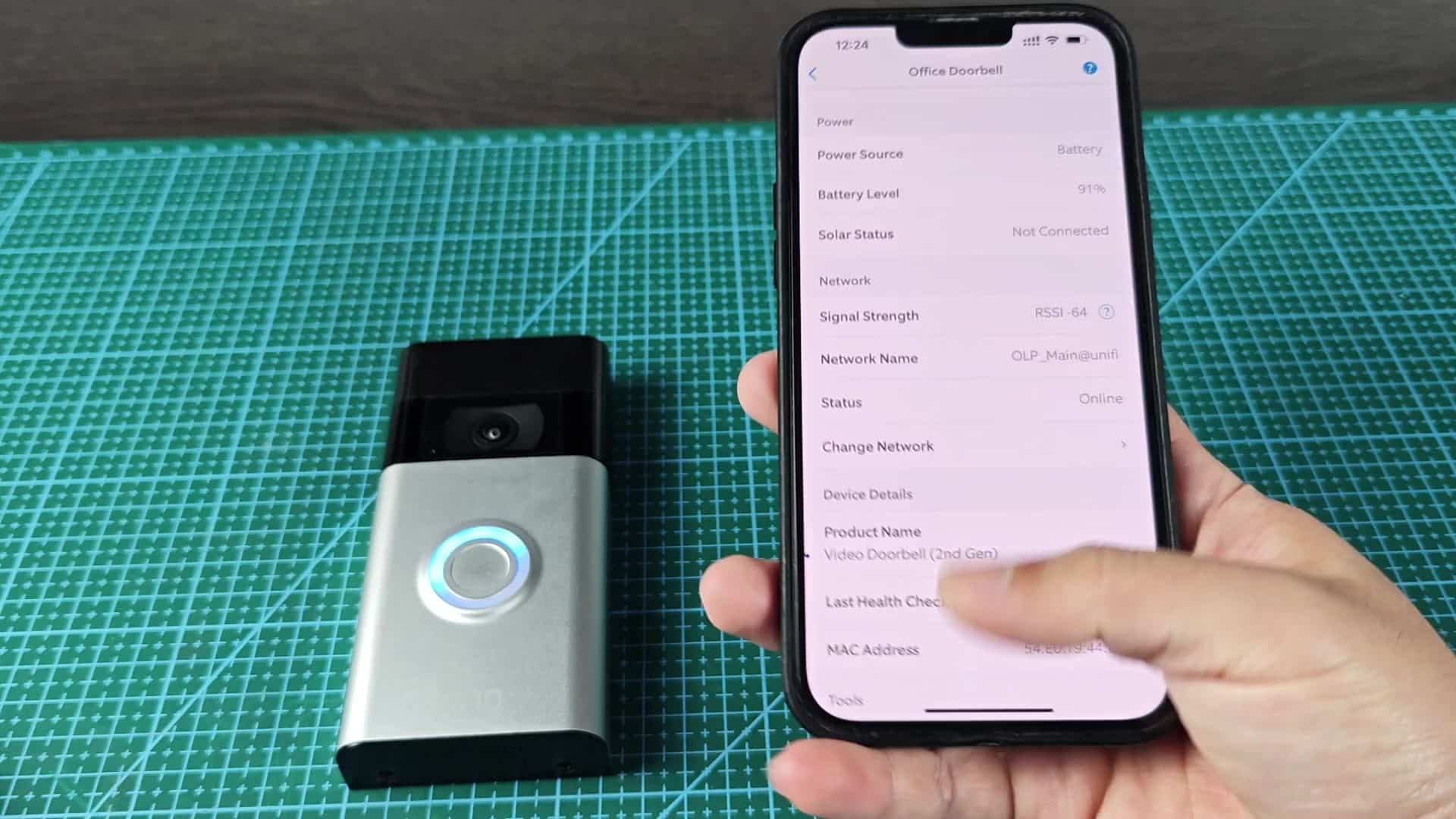
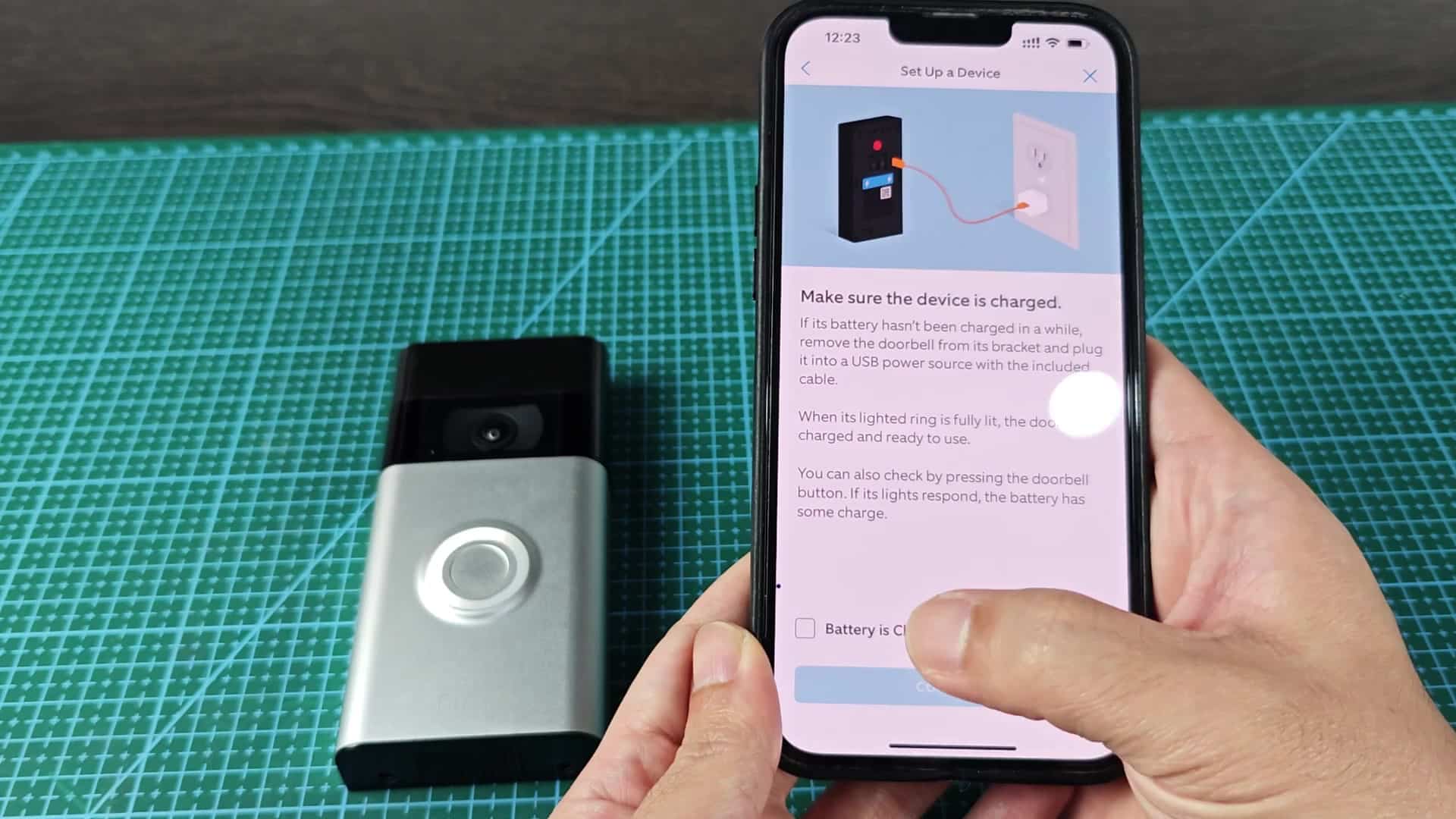
Press that reset button on your Ring doorbell until it starts to spin that little white light around. That means it’s in set-up mode and waiting for directions.
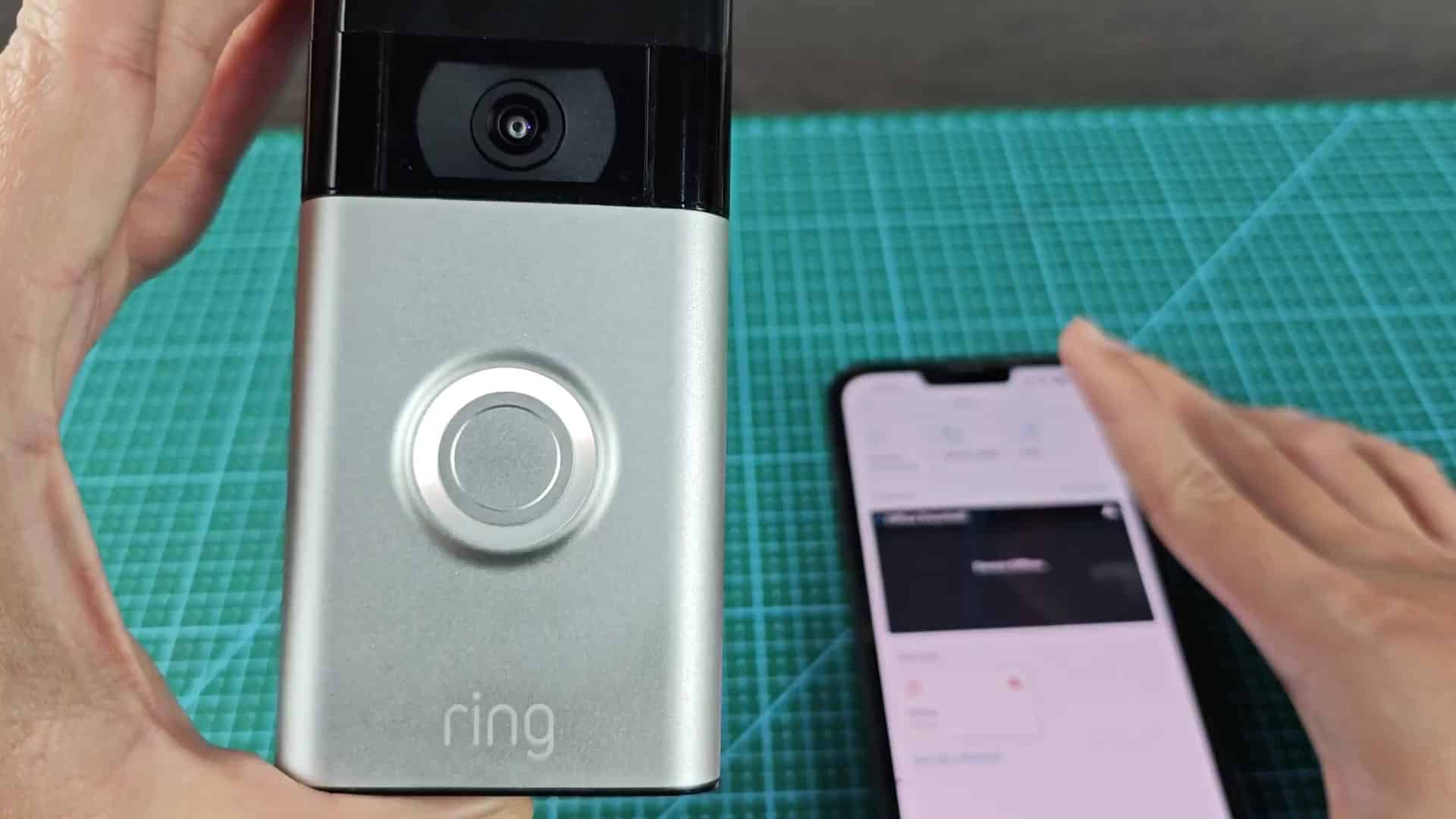
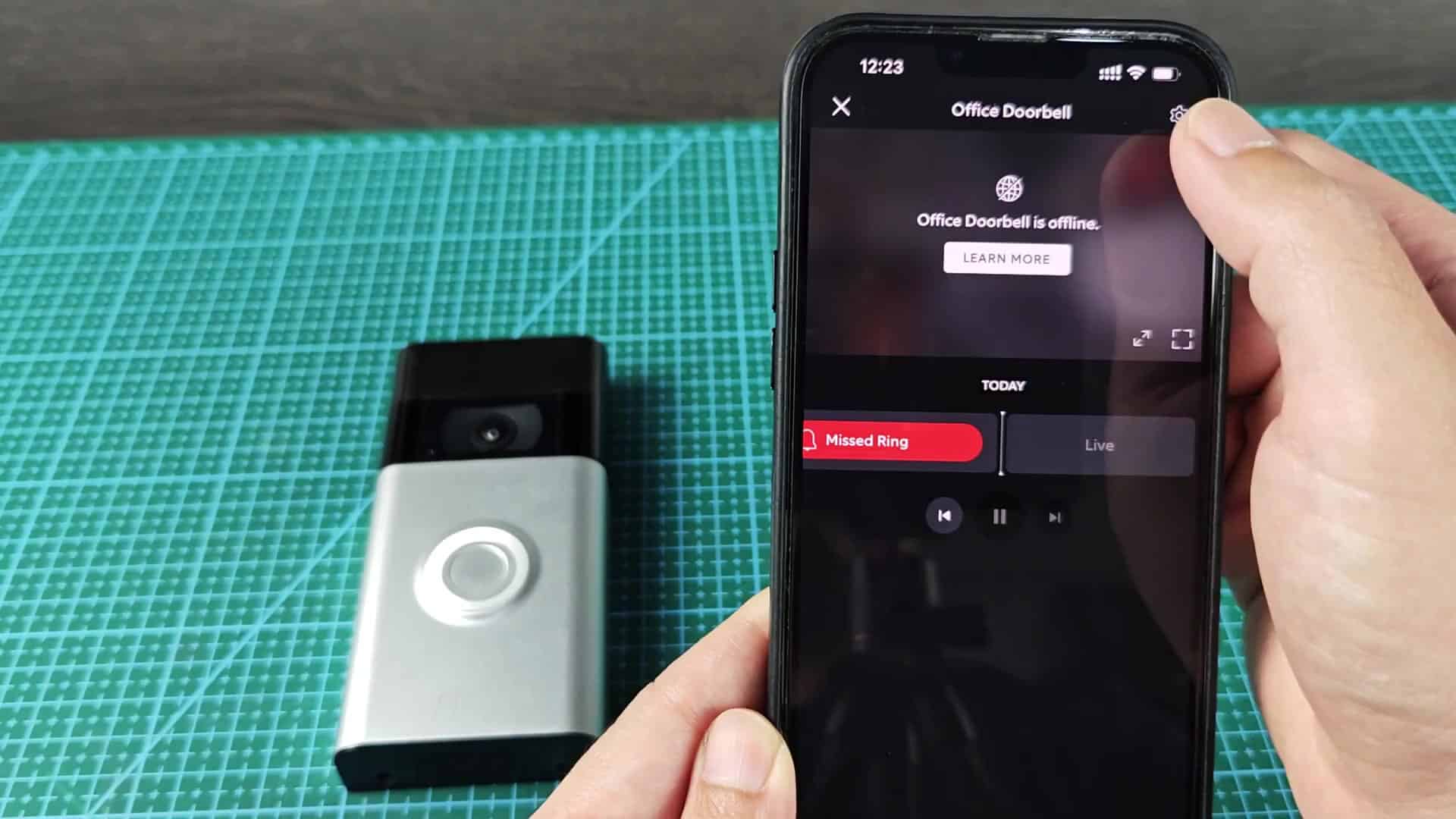
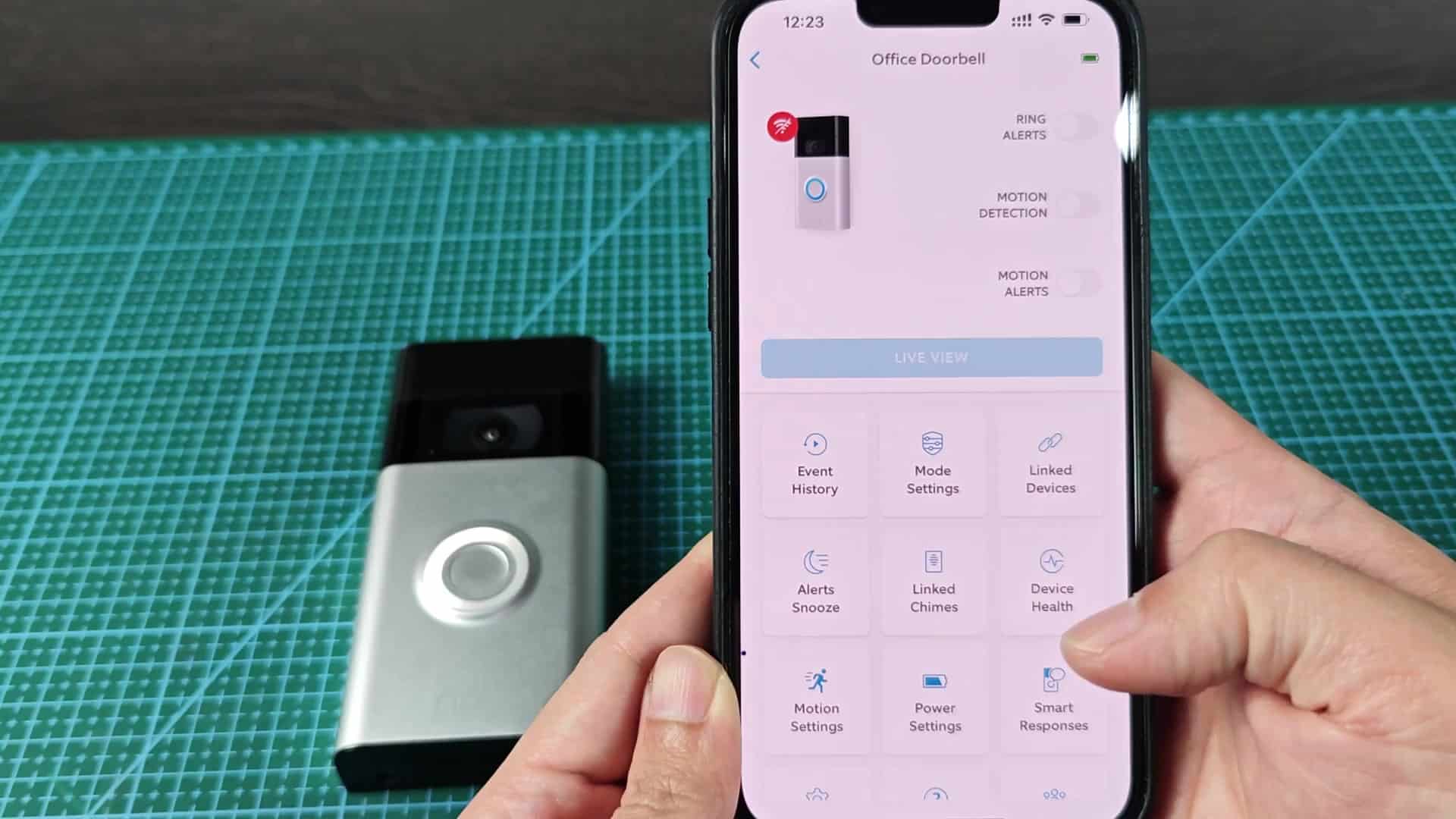
Wait ’til the light stops spinning then open up the app. After resetting the device, the app will show that it is off-line. In the menu, you click over to Device Health. Click Change Network to connect the already-set profile. (That’s different than starting with a fresh device.)
Connecting to Wi-Fi Network
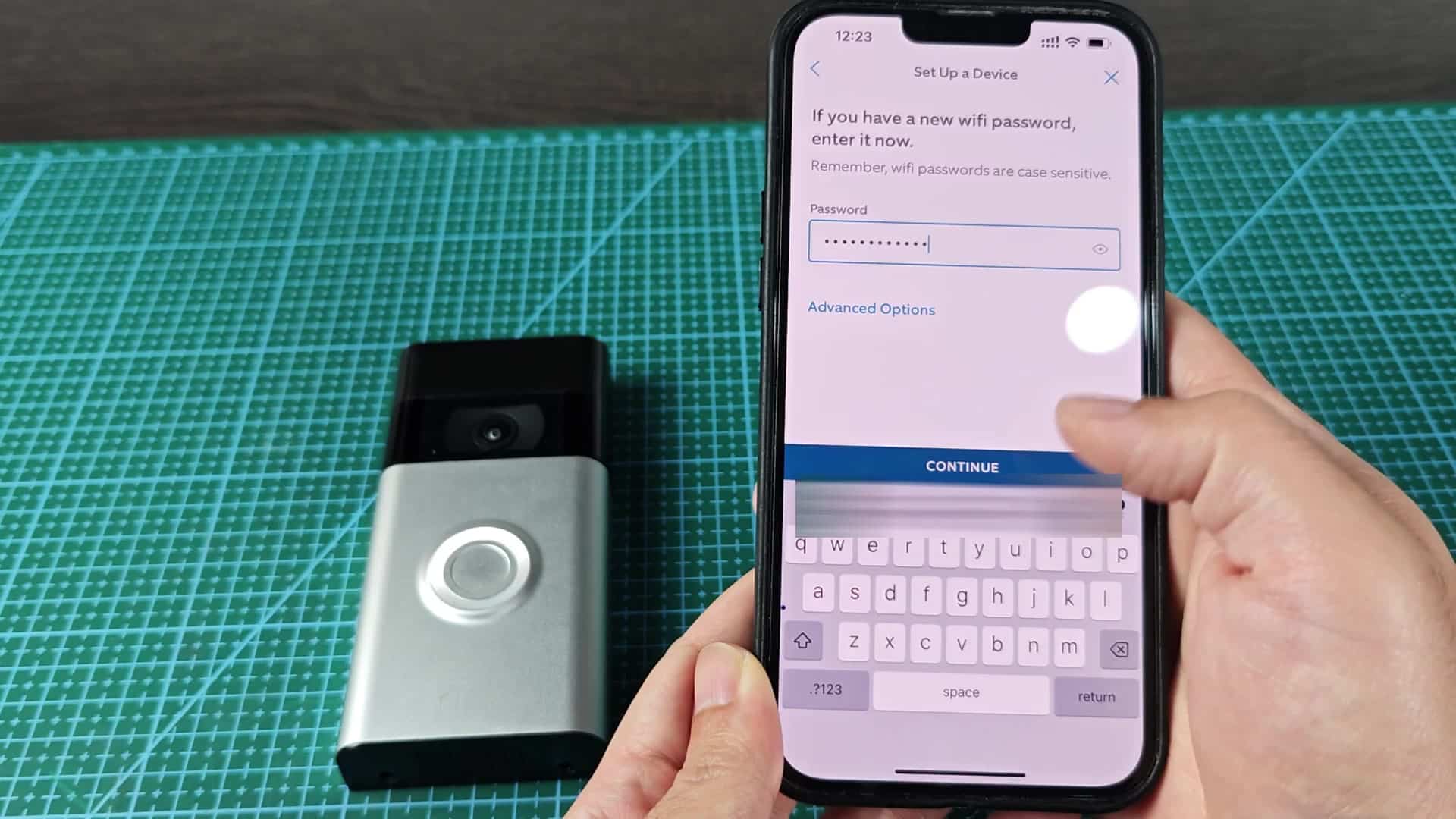
You’ll be asked about your proximity to the doorbell; in my case, I answered that I was right next to it because this tells the doorbell and phone to talk directly to each other when pairing.
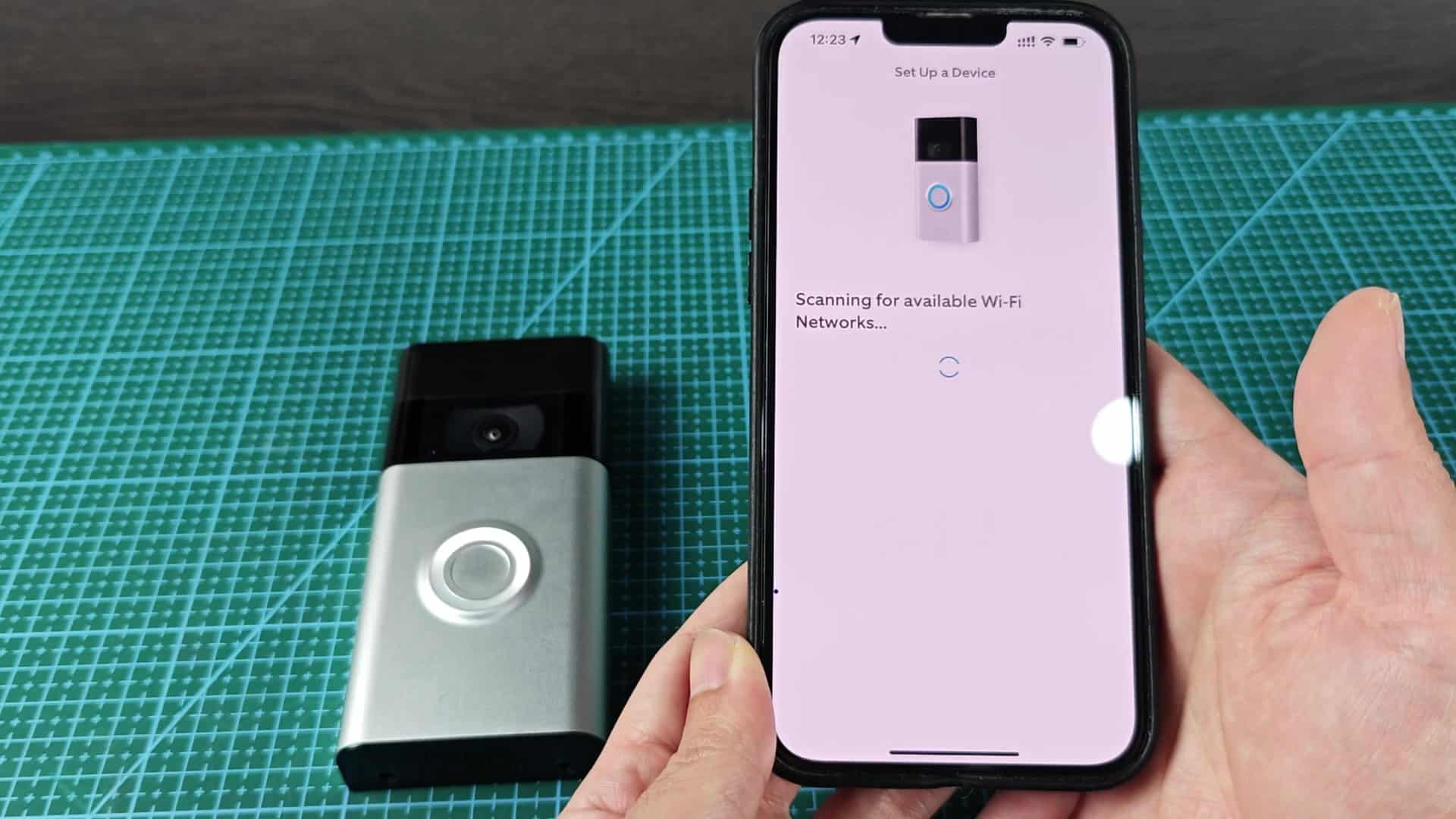
Next, choose your wifi. Tap on your house network, then tap connect. Once connected, there’s a power test. Is the doorbell powered? The answer is yes. You tap continue. There are no errors. It keep going.
Also note that Ring requires 2.4 GHz networks only. Most routers transmits on both 2.4 and 5 Ghz. Make sure the router is set for 2.4 when you try to add the device (it won’t connect if you choose the 5 GHz signal). Saved network appear at the top of the list in the app to make it faster to choose.
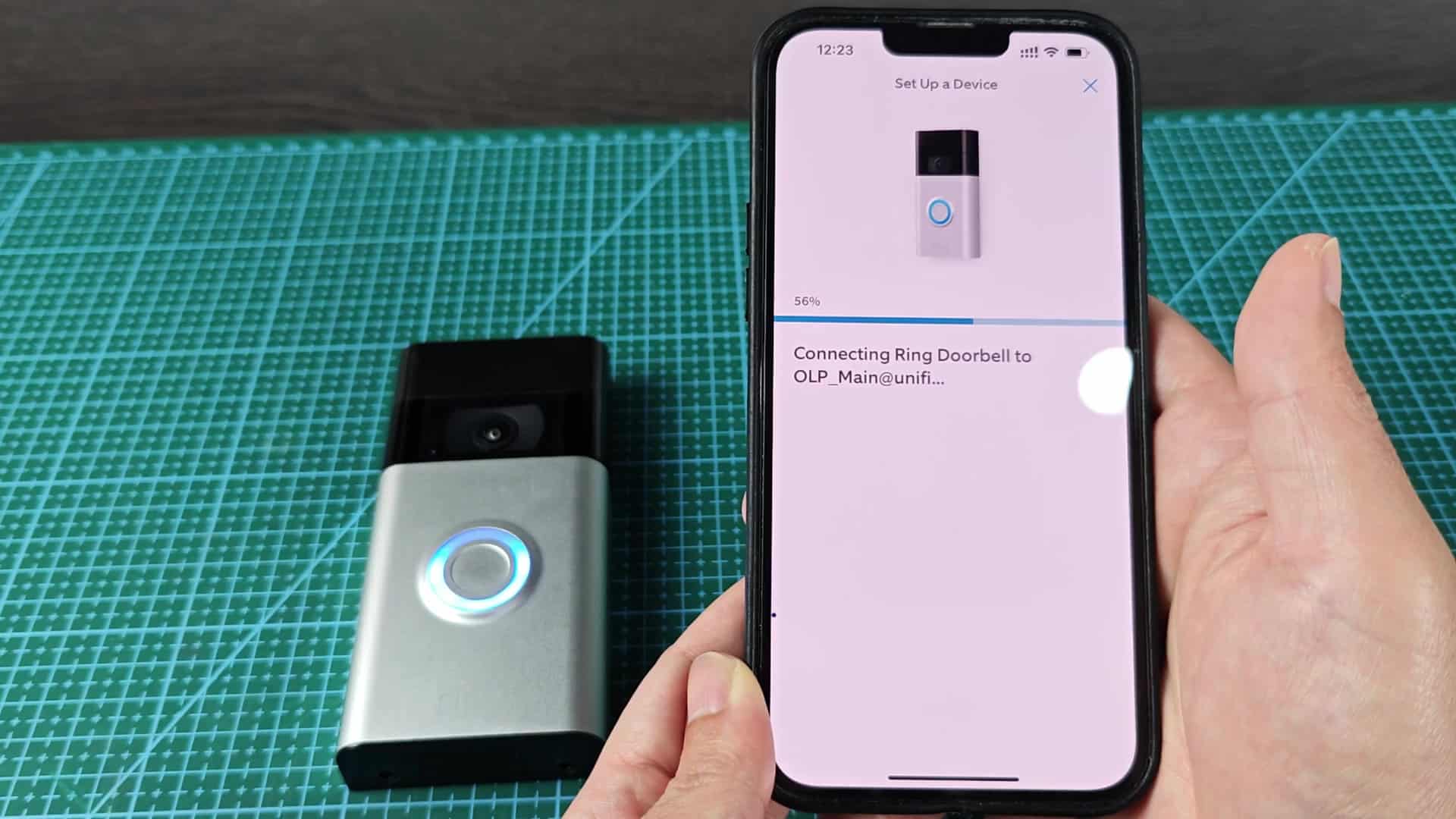
Once you start the pairing, there’s a progress bar on phone that starts at zero and increases as it pairs with the doorbell. You can also see the doorbell’s light turn blue indicating it is active. Since being paired, the connection has been solid, with no timeouts or dropped connections.
Success! The wizard concludes with a confirmation screen that you’ve set everything up right. Tap Continue to exit. The app now returns to main control screen.
The device reconnects and a notification pops up confirming the successful reconnection. Tap Got It and the alert goes away. Now you see the live view button is active and blue. That means the video stream is online again.
Next, you want to make sure recordings are working correctly so you go to the Recent Events page. All looks good here. Looks like all systems are a-go.
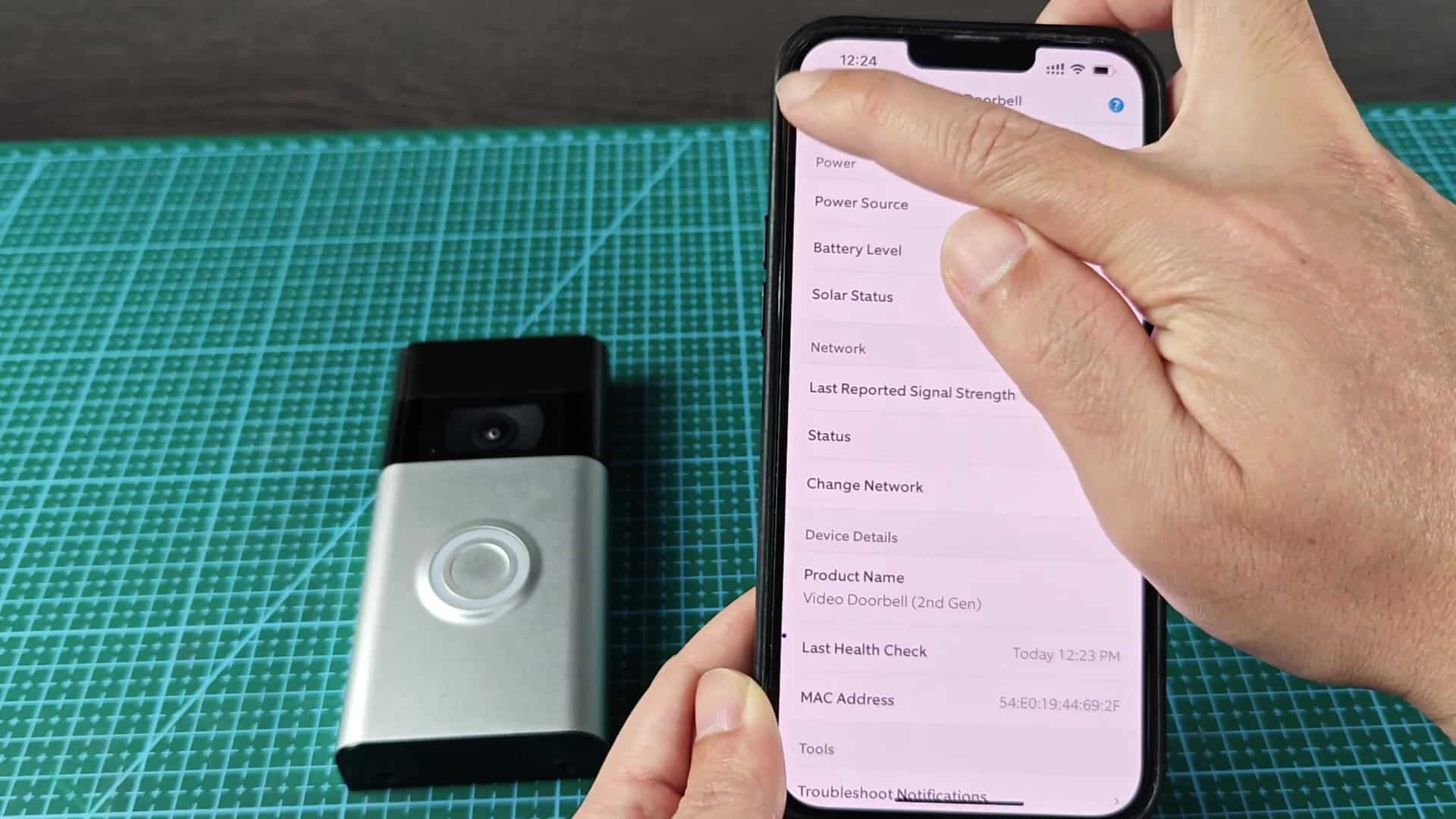
For one last look, you return to the Device Health screen. Instead of Offline, you see Online. Battery level is holding steady and signal strength looks good (i.e., a reasonable RSSI value). So that tells you that connectivity is fine.
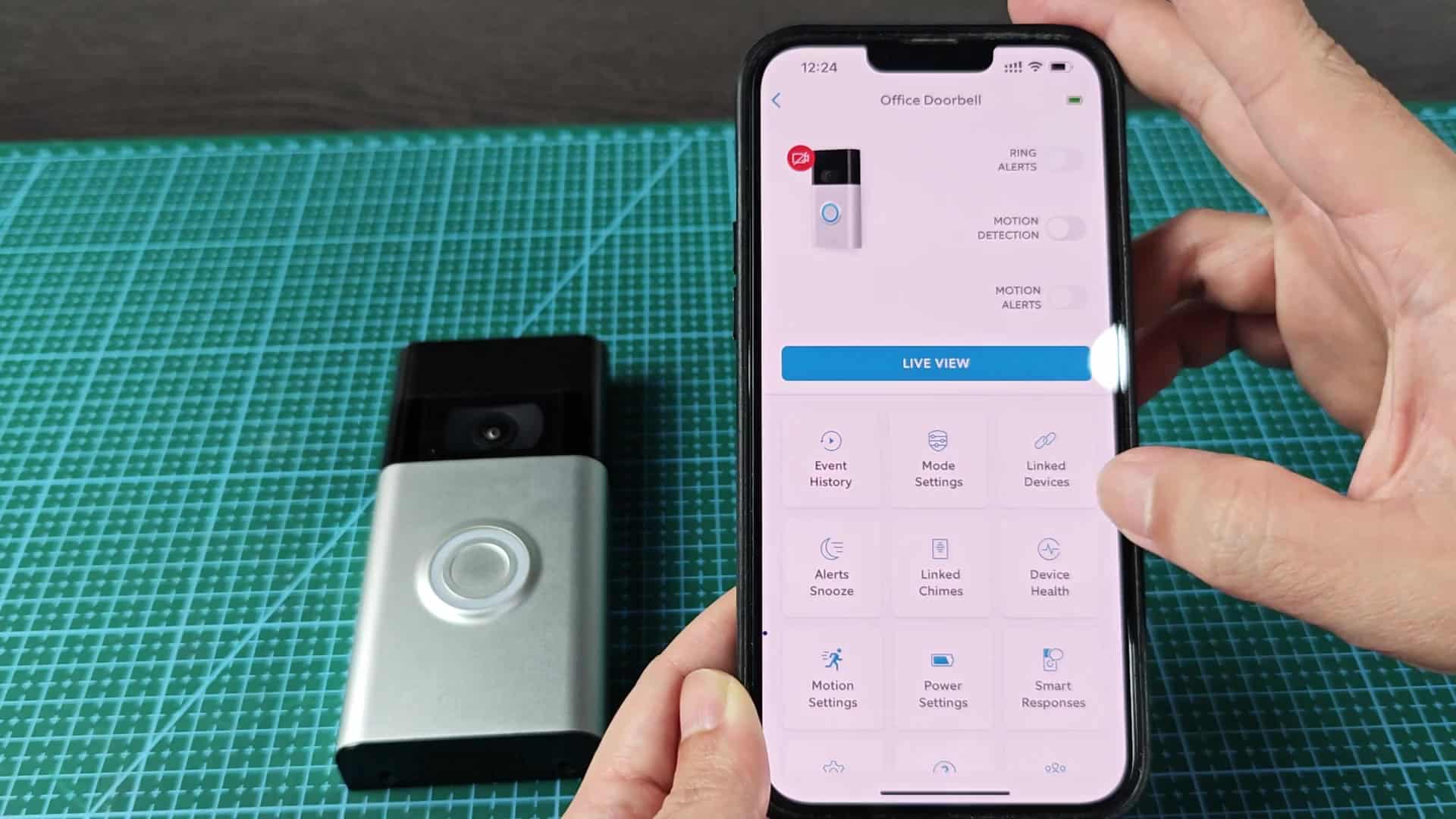
All told, it’s a pretty quick and painless procedure. It takes less than five minutes. Not as slick as setting up a new device, but it gets you where you need to be. To wrap things up, you find the Change Network button. And there you have it: The doorbell’s back online, no more troubleshooting needed. You should of seen that sooner if it was acting weirdly. Actually, it works naturaly fine now.