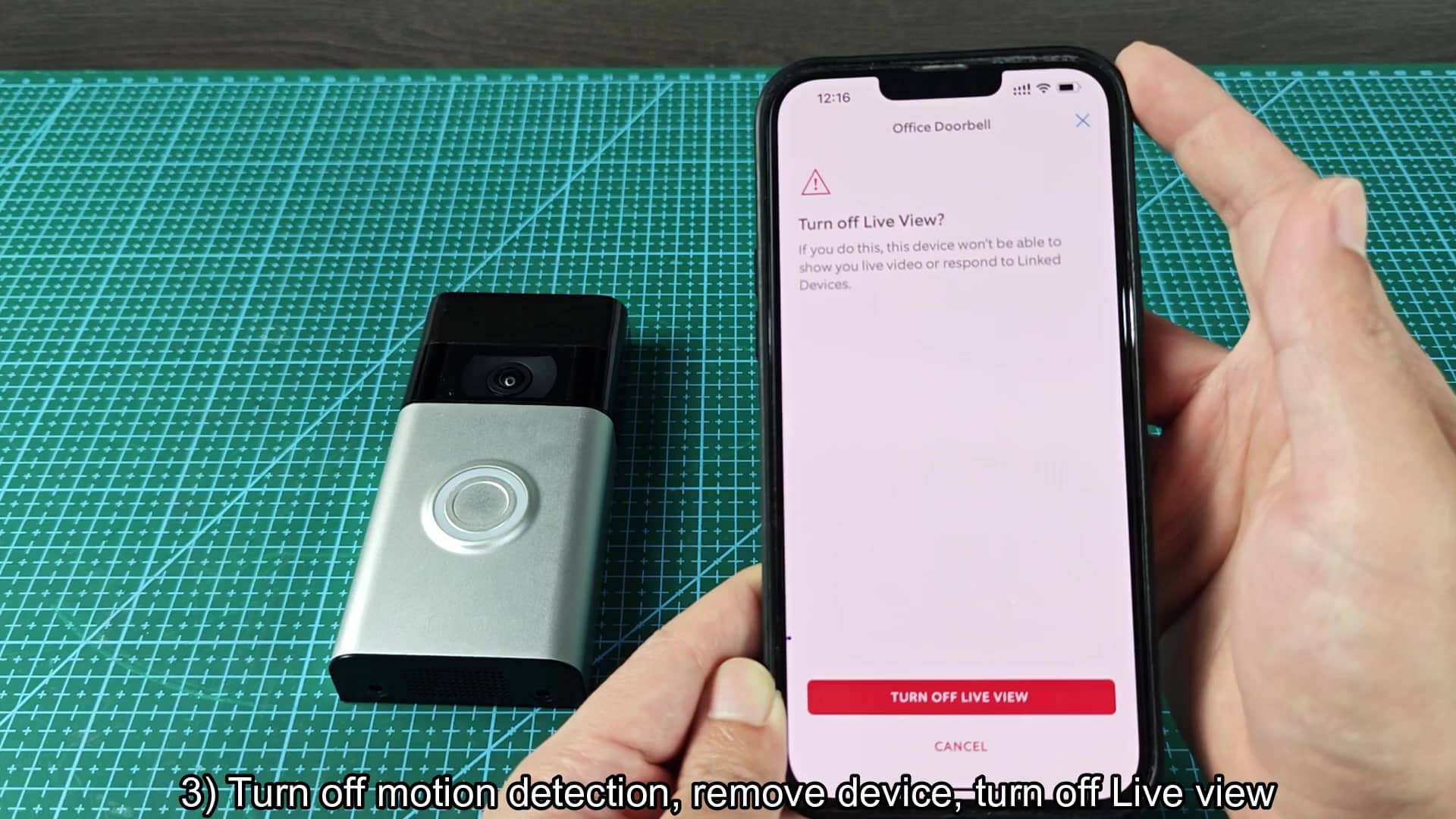
You might need to power down your Ring doorbell for maintenence, but the device lacks a physical on/off switch. That’s not normal; almost every piece of electronics come with a specific button for powering things off.
But Ring does have several ways to get this done yourself, without the need for professionals or special tools. Depending on what kind of downtime you’re looking for, each one provide a bit more control.
Method two: Use reset button
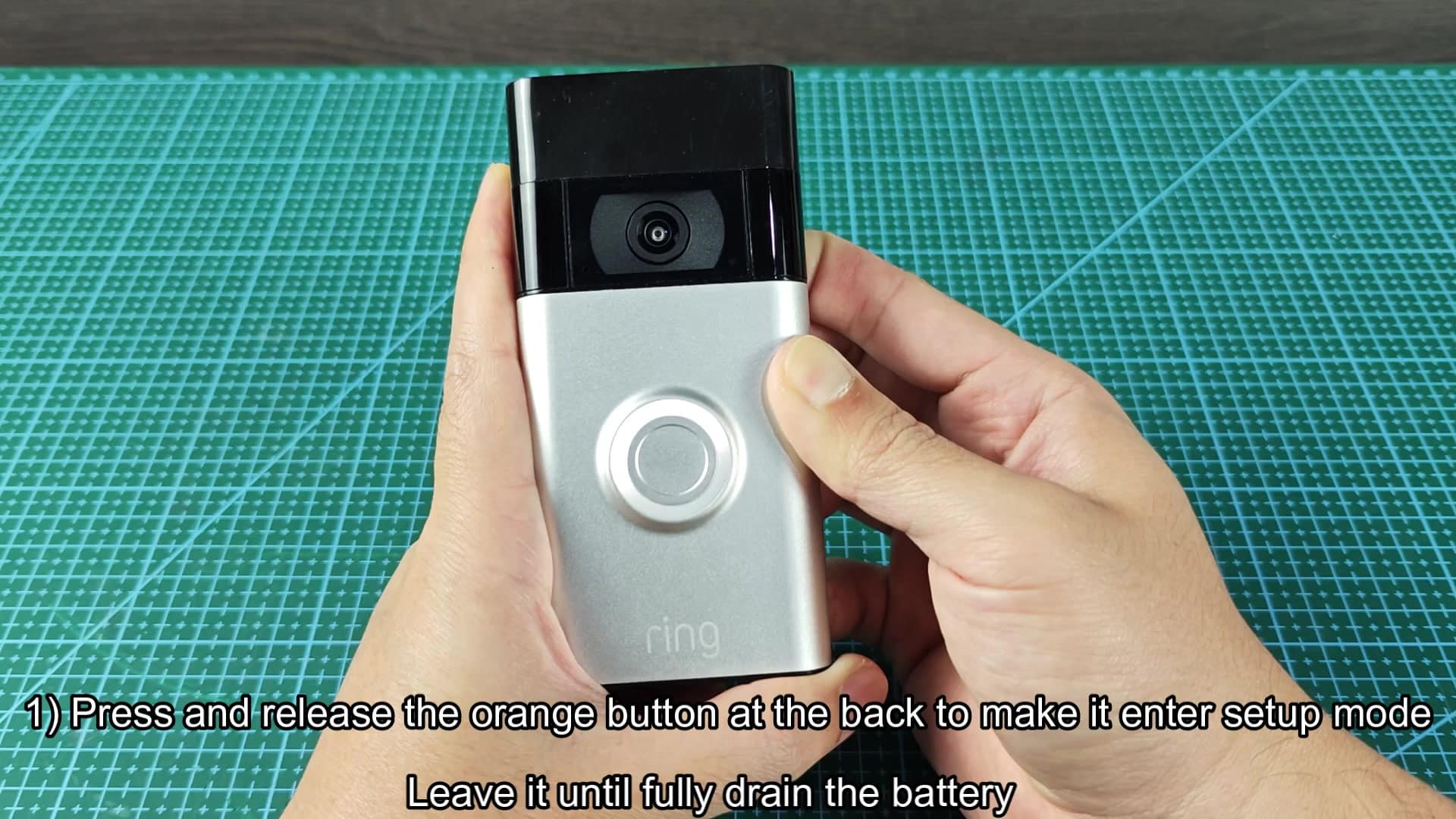
This method is the easiest, let the battery drain fully. Simply take down Ring doorbell from its mounting position on your wall and place it in a secure location. Even when it is just sitting there, the device still consume very little power, which will slowly drain the internal battery over time.
This isn’t going to be immediate. But you won’t have to do anything on your end, technically speaking. Just ignore it and wait for it to die.
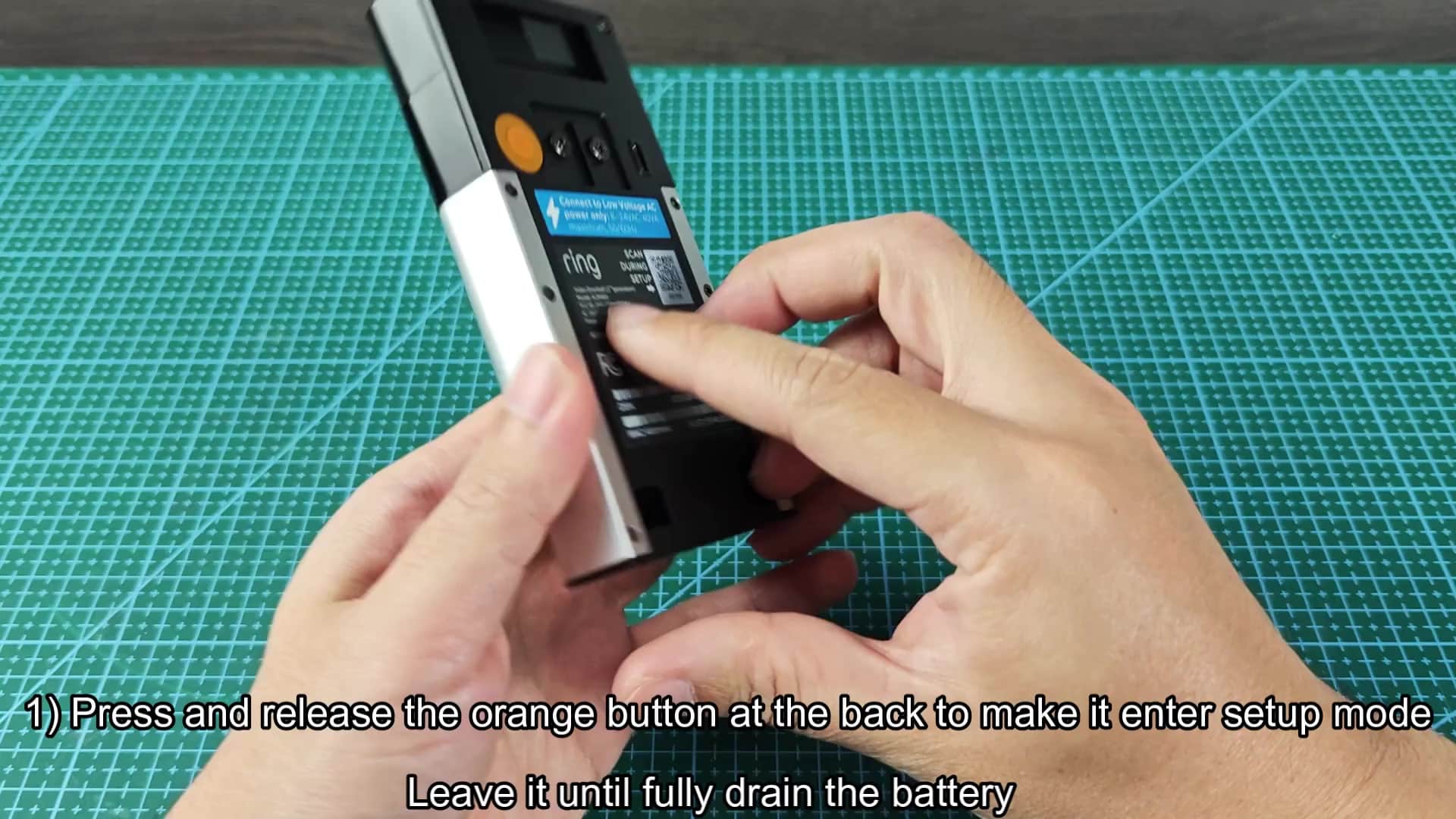
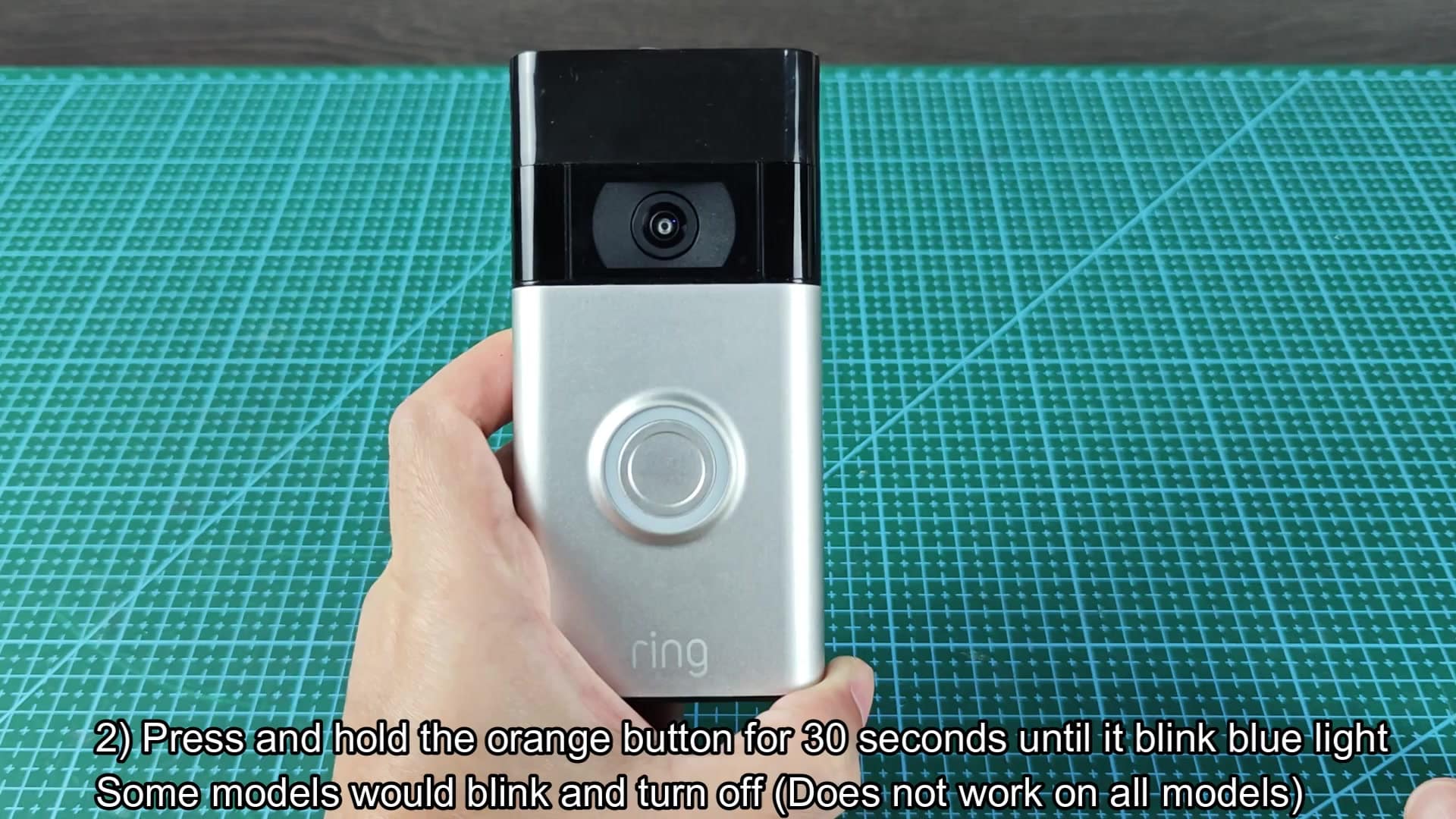
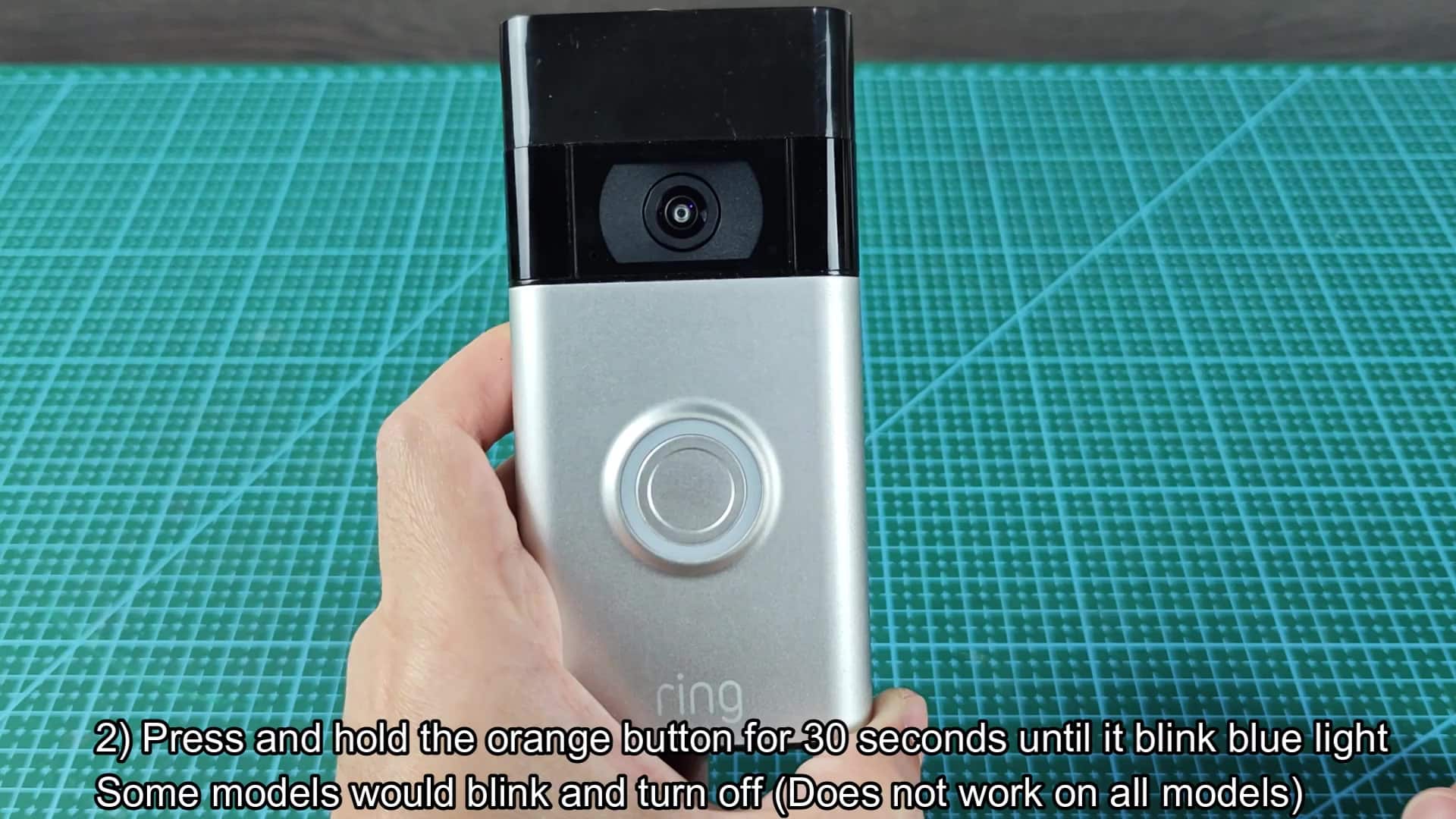
Alternatively, you can also change its setup mode to make it stop working. To do so, simply hold down your doorbell’s orange reset button found on the back panel of your unit until light turns red. If you leave it in this state without completing the Wi-Fi setup, it remains inactive. Your doorbell should now be in pairing mode, waiting to connect to Wi-Fi.
However, if you don’t finish setting up Wi-Fi, it’ll just sit there doing nothing. According to some reports from users, pressing that reset button for more than half a minute can cause it to shut down automaticly on select models. It will turn the light blue while doing so and then possibly turn it off completely.
Experiment with it on your own Ring doorbell. Keep pressing that thing for a while and see what happens. As you can probably guess by now, when you hold down the button, the indicator ring will turn blue (as programmed). You should only see it do that, which is a good visual indicator that the device has recognized that you want it to power off and is doing just that.
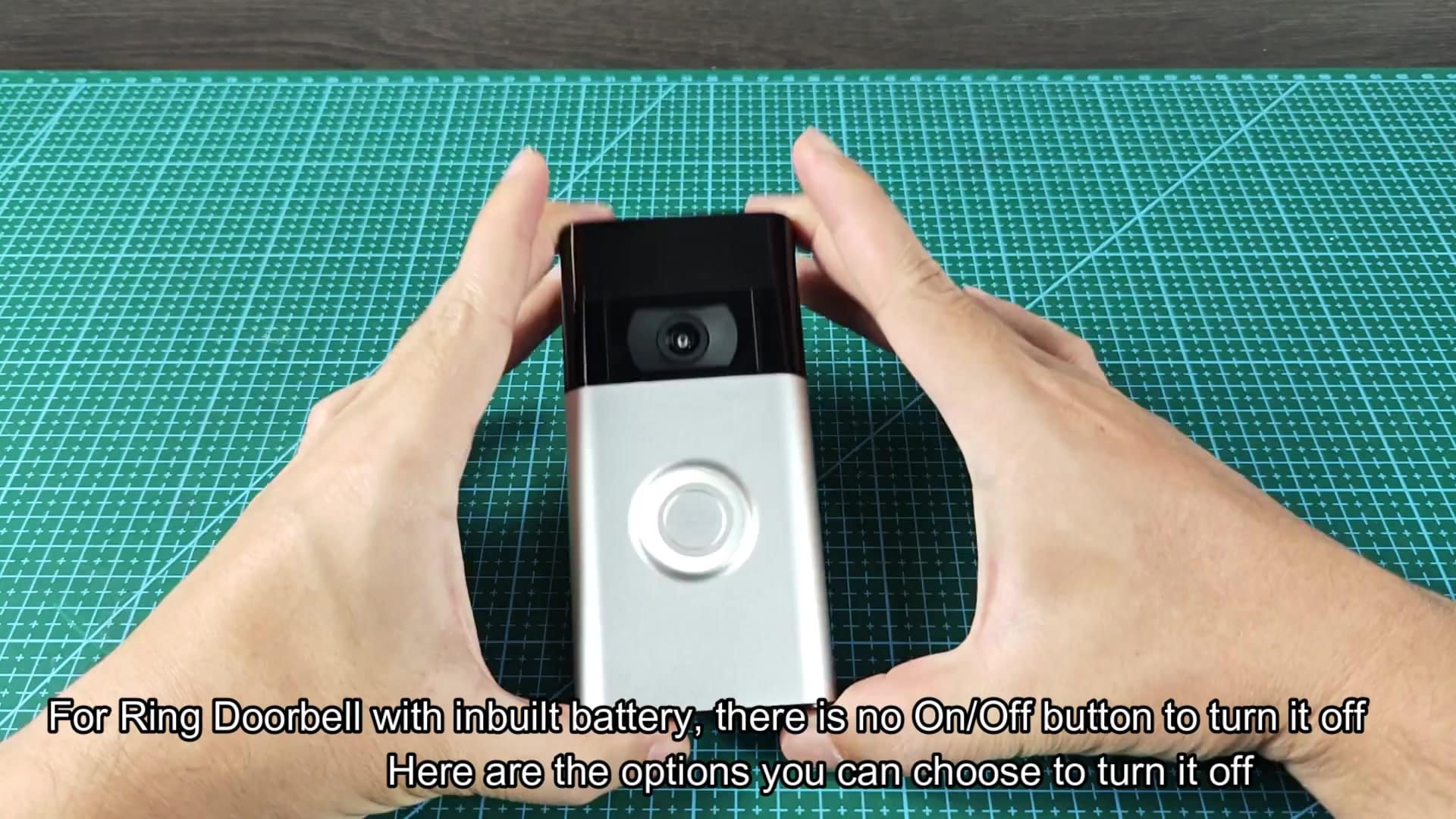
Of course, some Ring doorbells does other things here, like never actualy turning off but instead remaining in set-up mode if you hold the button down for longer than 30 seconds. It is totally random and totally dependent on your particular doorbell model.
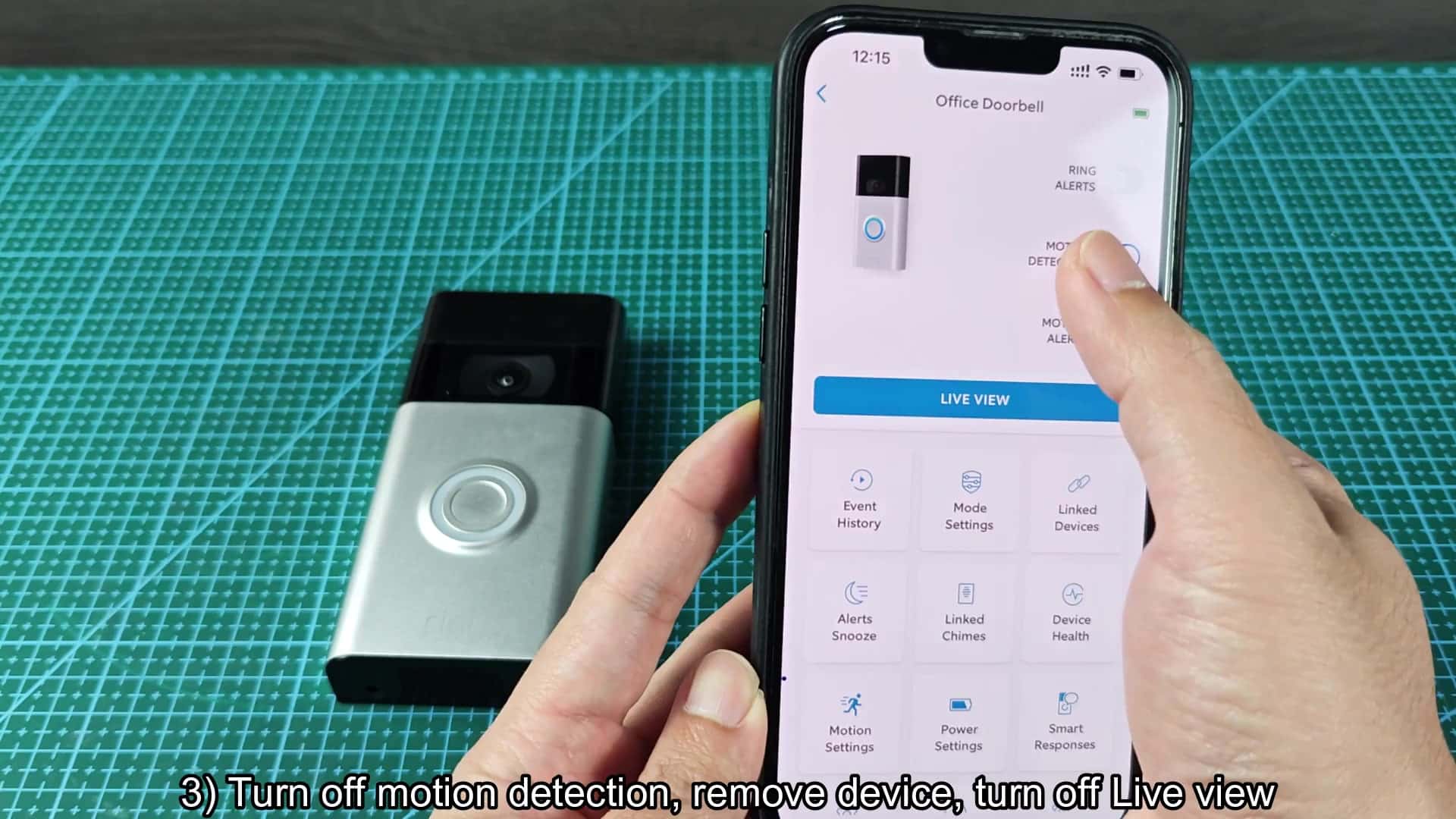
Alternatively, if you’re more digitally inclined, disabling these features through the app works wonders. That way, you can have the thing physically installed but not really working. Simply go into your Ring app and find your way to the device page.
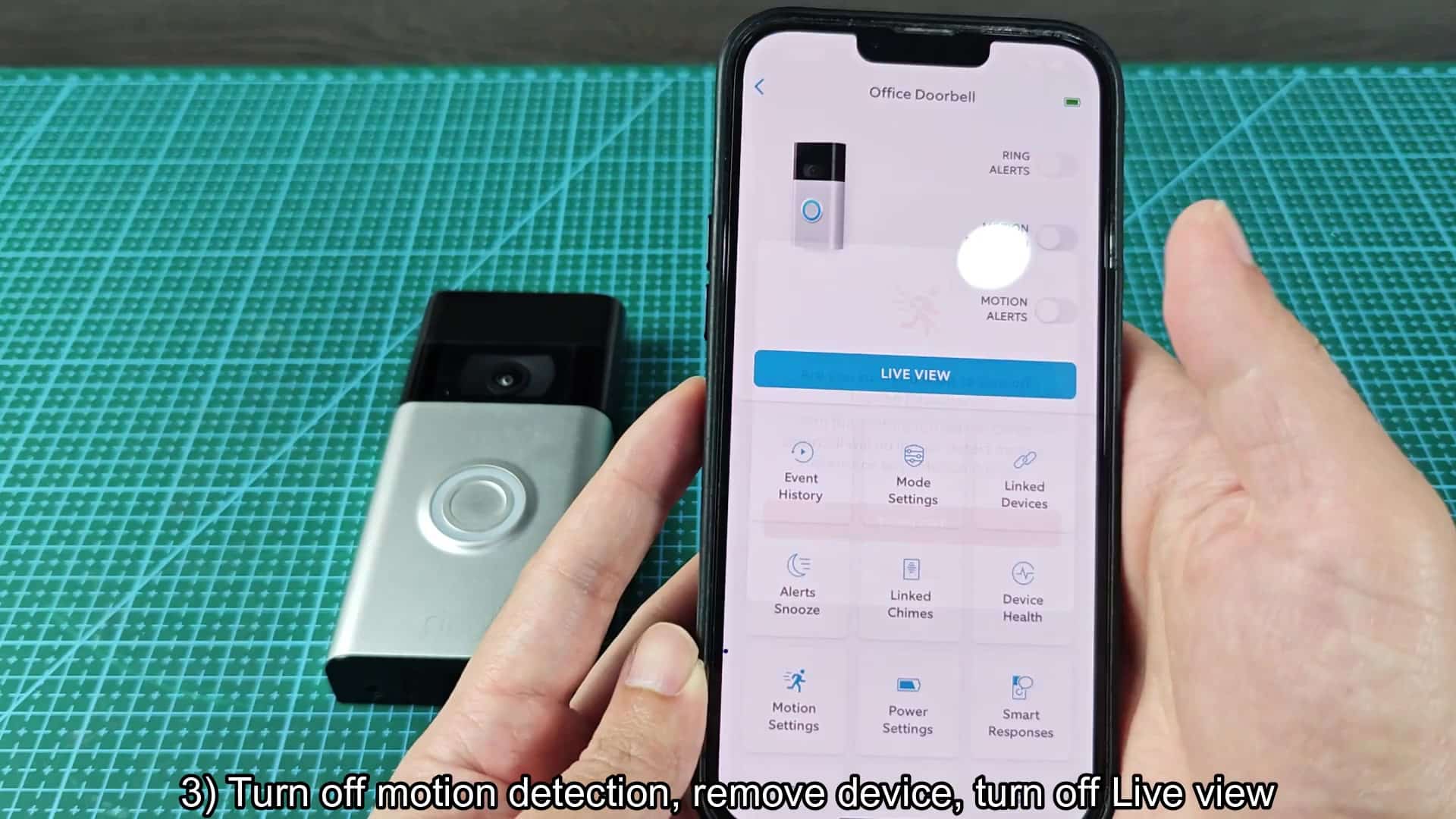
From there, scroll down until you see the option to enable/disable motion detection. When this setting’s disabled, camera won’t record anything happening in front of your door. Nor will it alert you with a motion pop-up on your phone screen.
The prompts go on, and you have to tap to confirm you want to disable motion detection. Another window will appear asking you to confirm. It wants to know: Are you certain? There’s an option to turn it off, which is what you’re after here. Tap and continue.
Immediately, the app changes to show you that it won’t detect any motion now. That right there saves tons of storage space and cuts down on data usage. You switch off motion detection, then look down at the screen where a status message tell you motion detection has been disabled.
The interface remains responsive and stable throughout this process. No more accidentally-recorded footage for you, it’s all good. It’s a software-based turn-off and there’s no reason why it couldn’t of been switched back on again later if you want to.
If you’re looking for a deeper digital disconnection, disabling the device within your account can help with that as well. Head into your doorbell’s general settings menu (it will vary depending on what brand you have). Down near the bottom of the list, you’ll see a button that says “remove device”, tap it. This will revoke the doorbell’s access to your network credentials and delete it from your profile. No data will flow back and forth between the doorbell and your phone.
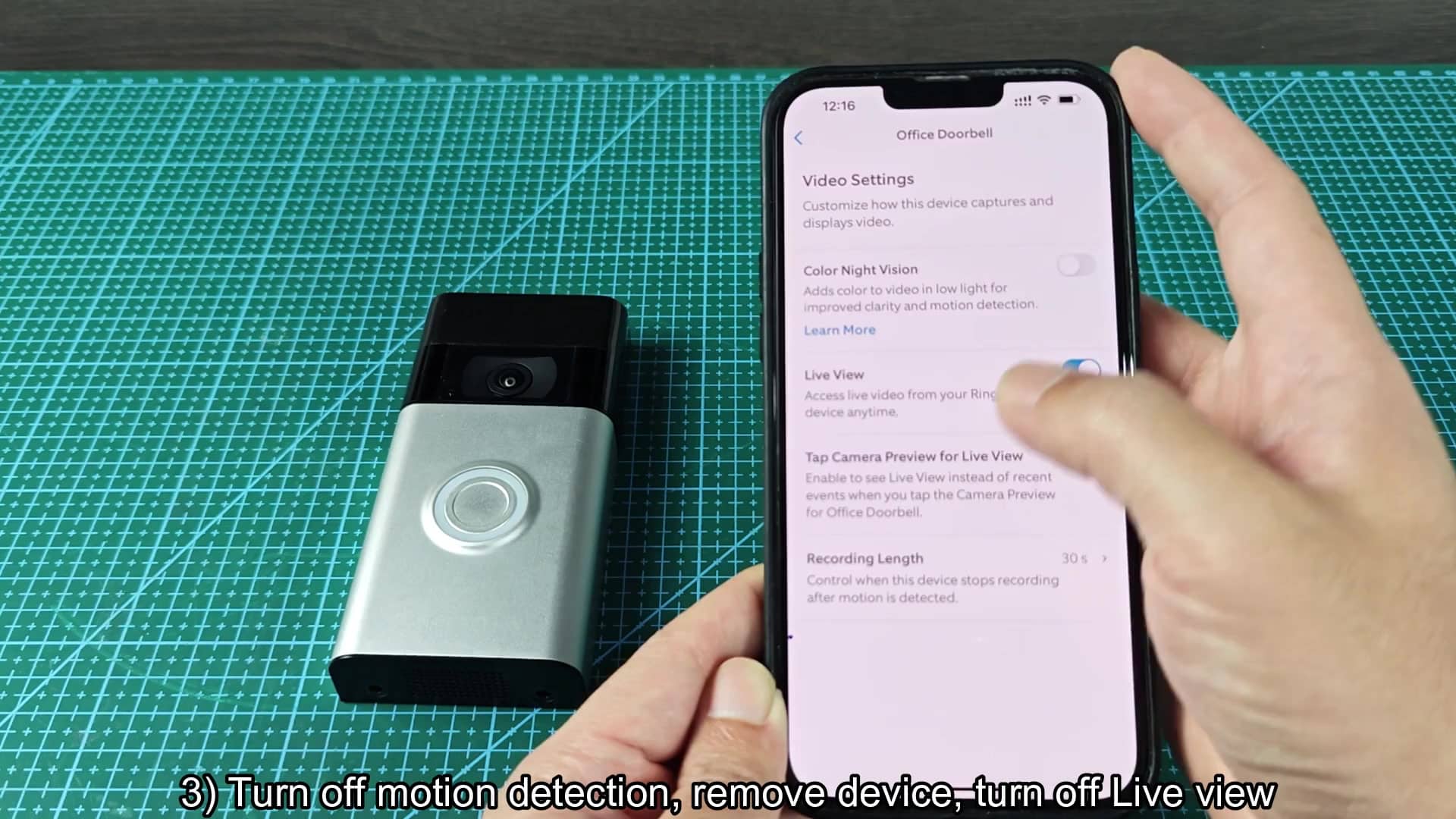
Oh, and there’s also an option to turn off Live View if you want to be extra sure nobody will see your camera in action. When enabled, you’ll be able to manually check the camera feed whenever you like. By turning it off, you’re effectively preventing anyone from calling the doorbell from their phone.
To toggle that setting, head over to your video settings menu. It works just like the one above for motion detection. Now you see a dialog box asking whether you want to disable Live View. Tap on the corresponding button to confirm.
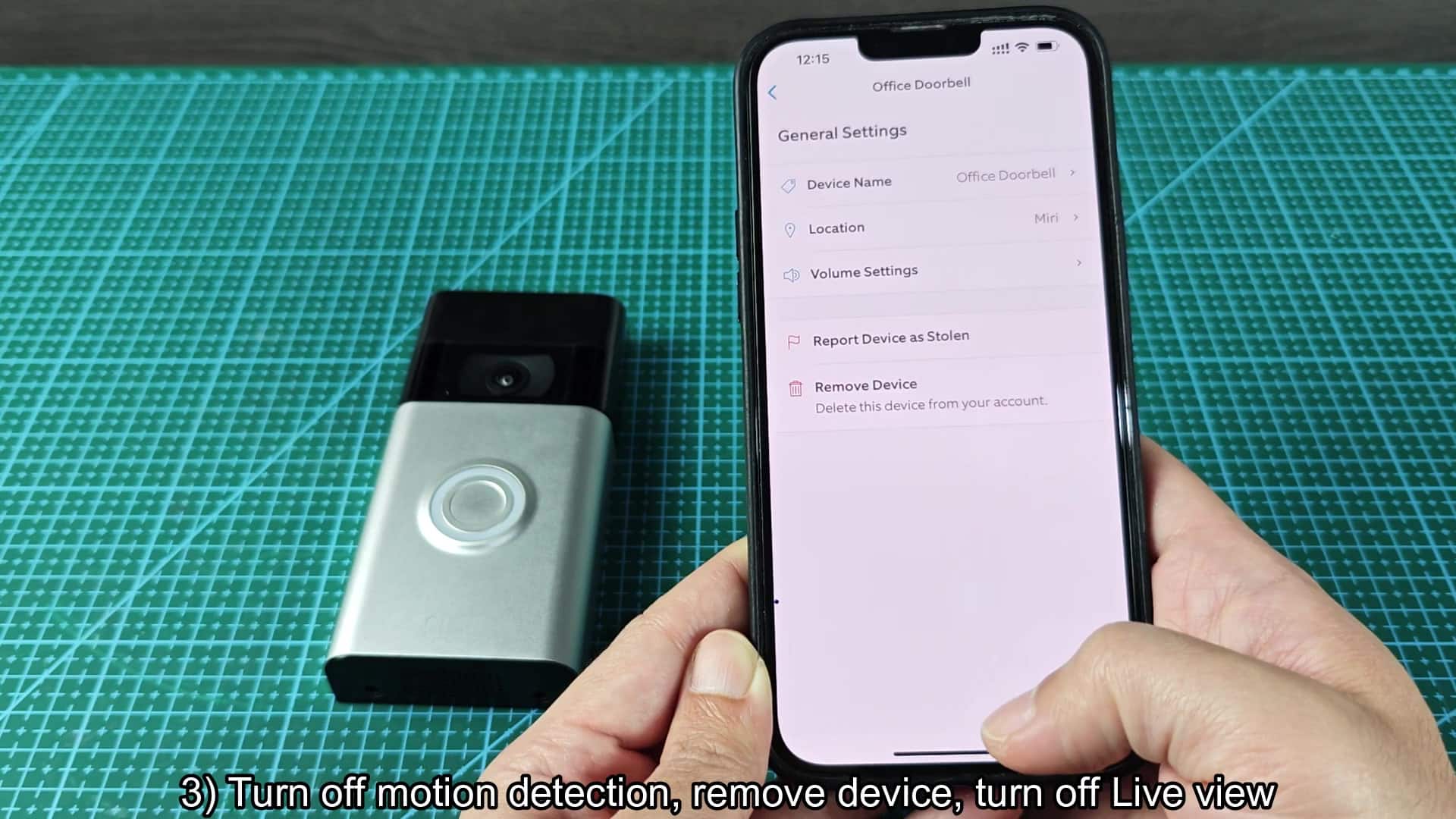
This time you tap to disable this option which means you won’t be able to initiate a real-time video call with the doorbell. Your settings screen refreshes with the toggle switch set to off. It’s all set and secure.
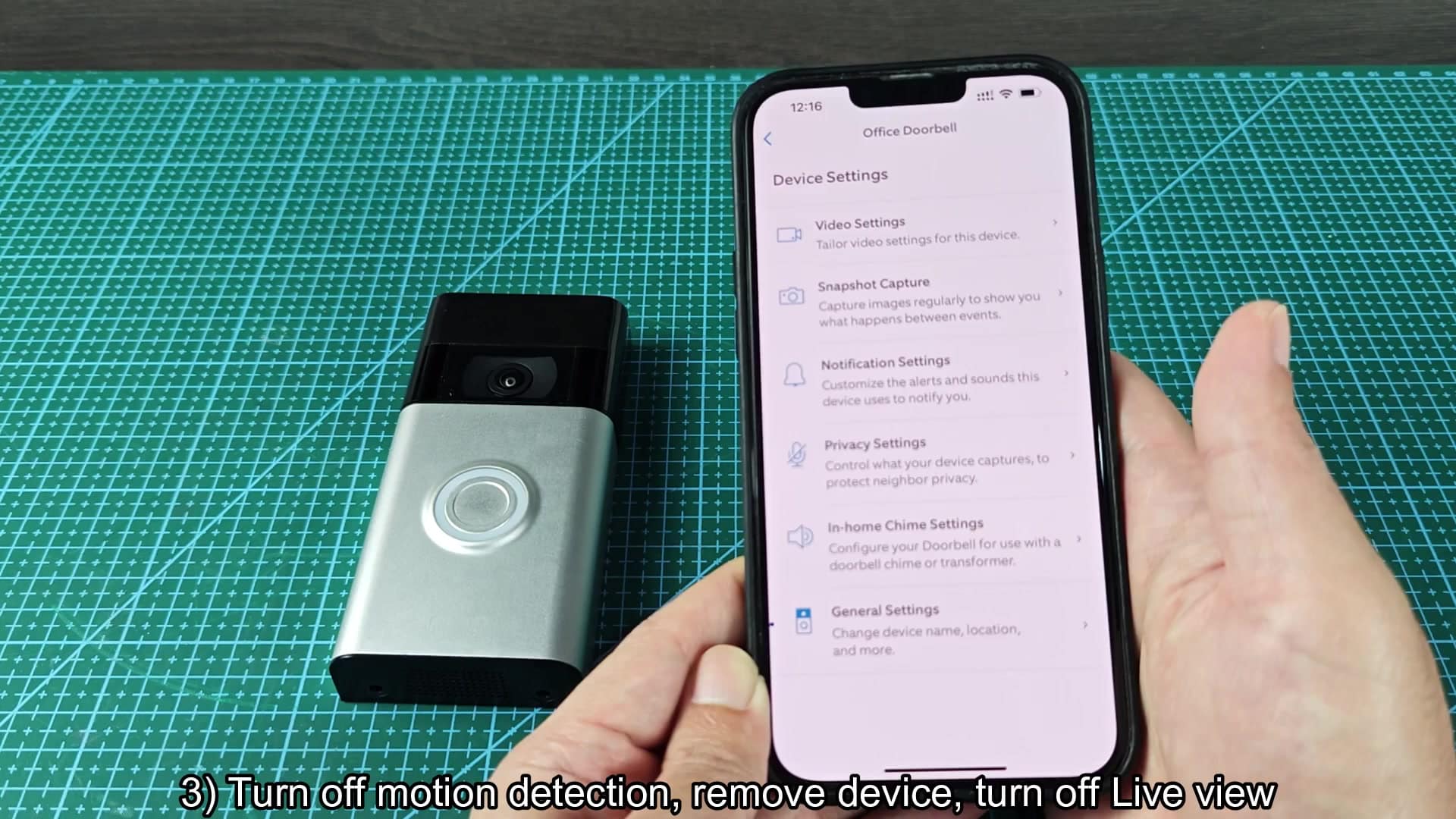
So there you have it: The doorbell remains in place on your wall (it’s not going anywhere), but it’s not doing anything of consequence. It does not detect motion or offer Live Viewing.
That means it’s sort of a halfway house. Depending on how much you value that privacy, this might be better then actualy pulling the thing off the wall each time you don’t want it working.