
If your Roku Voice Remote Pro isn’t responding, you can press certain buttons on it to reset. It’s not something that requires any software or tools, just a little patience and the remote itself.
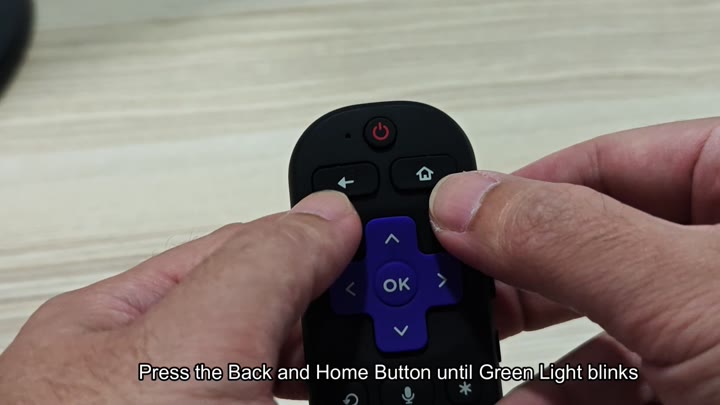
Here’s how it works. On your remote, find the Home and Back buttons. Press and hold those two buttons simultaneously. Don’t let up. For a second, nothing will happen (which is OK).
Force Pairing If Automatic Fails
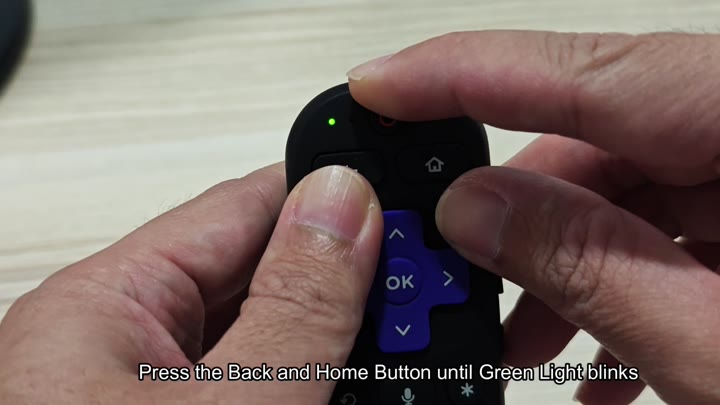
This requires a bit of persistence. You continue holding the Back and Home buttons down until a green light begin to blink.
It takes a little time and patience for this next step. Soon enough, you’ll see a green light blinking. When that happens, it means you successfully completed the reset process.
Let go of the buttons when you spot the flashing light. The remote have entered into pairing mode.
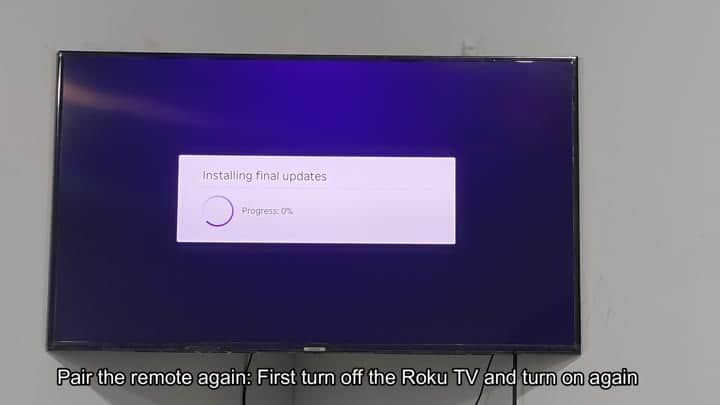
You then power-cycle your Roku TV.
Then you power-cycle your Roku TV. That’s right: Turn it all the way off, and then immediately back on. Sometimes there will be a notification saying it’s installing the last updates. Maybe the progress bar say that it’s at zero percent.
This step, waiting for the system to restart, is important; it needs to sync up again with the TV. It also needs to detect the remote anew. After the TV comes all the way back online, the interface kicks in.
Once the TV has fully restarted, you hit a button on the remote. Usually, at this point, the remote should just pair itself again automatically. But you wait. Nothing happens.
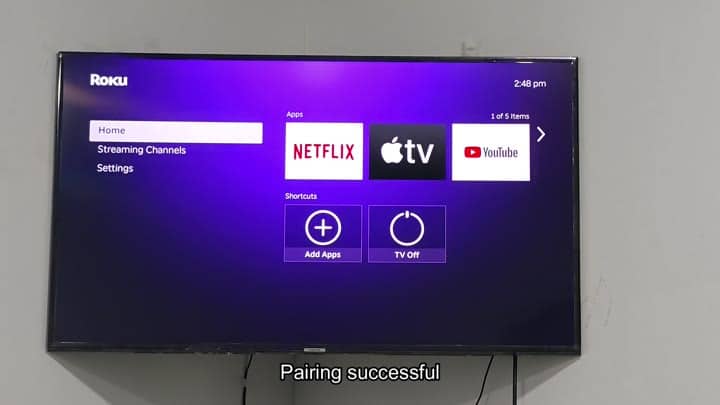
You watch the screen for a response. The devices pair in seconds most of the time. There’s the home screen, and then the menus. You see streaming channels such as YouTube and Netflix. “Pairing Successful,” says the message.
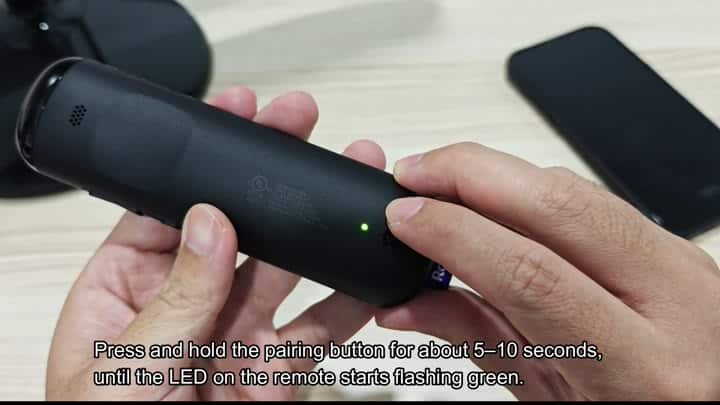
Sometimes they don’t pair automatically. If that’s the case with you, there is a button on the back of the remote that will force it into a pairing mode.
To find the pairing button, look at the back of the remote. Sometimes it is small and set in a bit. Press and hold the button down for a few seconds. Again you are looking for the little LED indicator. Once it flashes green, that means it has paired.
When it doesn’t do this automatically, use this manual option because it forces it to try to find a device to pair to. No need to turn off the TV yet. Simply give it a moment.
Note: You need to mash down the Home and Back buttons at the same time. Pressing either one won’t work. Hold them down until the light responds, which takes a beat, so be patient.
This is easy enough: just power-cycle your TV. Turning the TV off and back on resets the handshake. If your TV’s auto-pair doesn’t work, don’t skip this step. It ensures that both devices is ready.
The whole thing only lasts a couple minutes. It is quick and painless. In most cases, no firmware updates is required. Simply physically reset it and power cycle. Boom.
Remote is back to life. Control TV once more. Unresponsive button issue solved. No need to call for help. Saves you hassle and time.
Most connectivity issues are fixed with resets. These step should make you appreciate how simple they are. It is better than getting new hardware. Once done, the remote still works properly. It is overall an easy fix. It added convenience without any difficulity. It should of been easy. It is better than getting new hardware. Once done, the remote still works properly. It is overall an easy fix. It added convenience without any difficulity.
