
The very first thing you do is download the SmartThings app onto your smartphone. It’s available for both iOS and Android phones so there shouldn’t be any concerns about it working. Head to the app store and get it installed.
It’s easy.
Connecting Your Smart TV
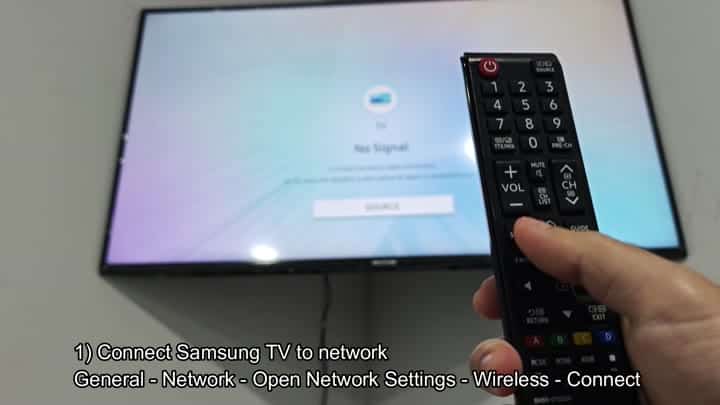
First: You need to connect your Samsung TV online. Then you use the remote to point at the TV. And you see “No Signal.” Um… What? It seems confusing since you just bought it.
So you click over to Settings, then General. Next, you pick Network and open up Network Settings.
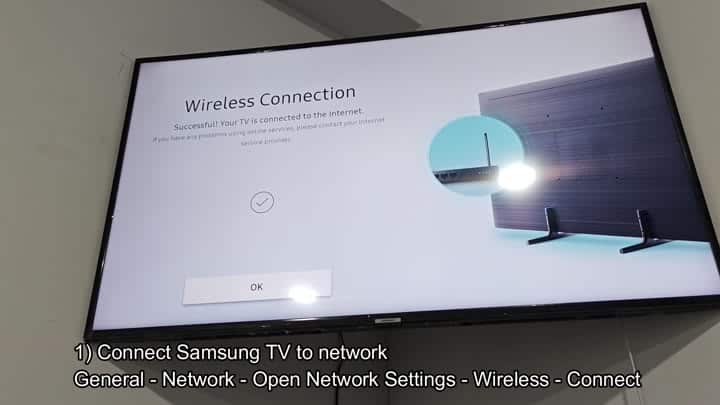
You must get Samsung TV online, and then you’ll connect over your home Wi-Fi (which you select via the Wireless option).
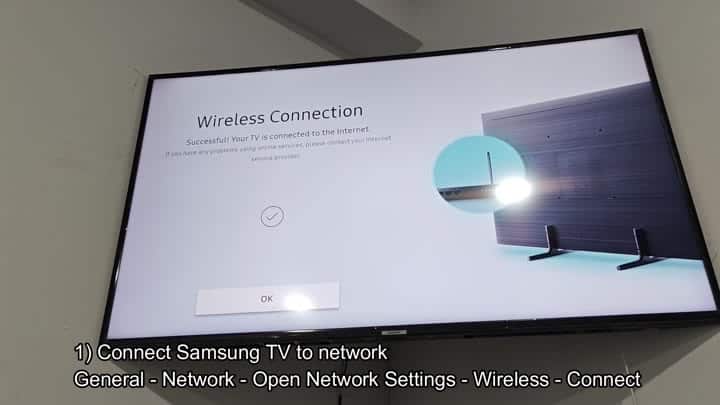
A Wireless Connection message pops up on the screen to confirm connection. Below that, an OK button displays. Pressing that takes you forward. A graphic on the right side of the screen shows the TV and router confirming the connected link.
Pull out your phone. Open the SmartThings app. If you haven’t created an account yet, create one now. You signs in with your existing login info.
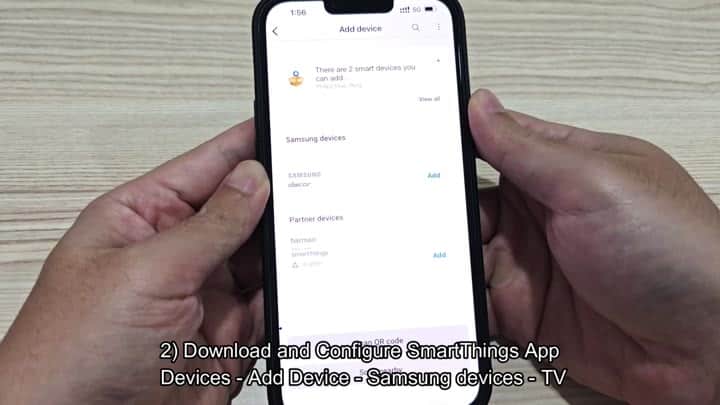
It’s an attractive, straightforward interface. From the main screen, you tap Devices. Next, tap Add Device.
The app asks you what kind of device it is. Scroll down, past Refrigerator and Projector, until you get to TV. That choice are located under Samsung Devices.
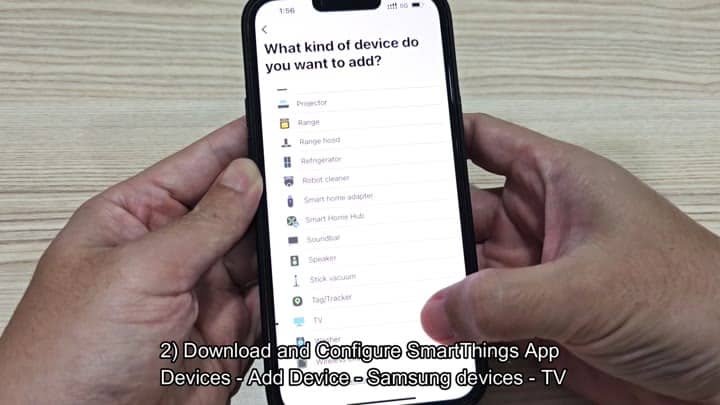
The pairing process begins by selecting the TV. The phone shows a preparation screen telling you to switch the TV screen on if its off.
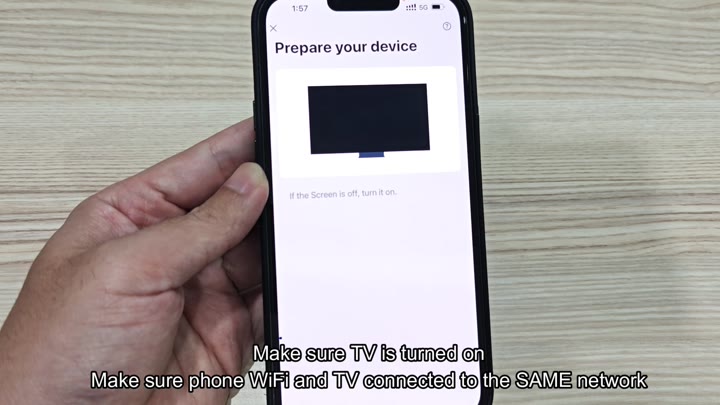
Check to see if the TV is on.
But here’s where it gets tricky. Your TV and phone need to be connected to the same Wi-Fi network. Just double-checking your phone’s settings.
A screen will appear in the app that says, “Connecting to device.” It will instruct you to hold your phone close to the screen.
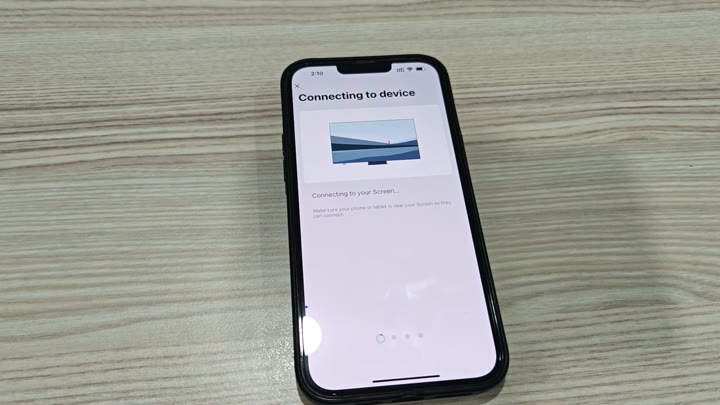
And you hold it close to the TV stand. During the connection process, a PIN pops up on the television set. And suddenly, a PIN pops up on the television set. You enters the code on your phone.
It’s confirmed. No lag time. Nothing wrong with it.
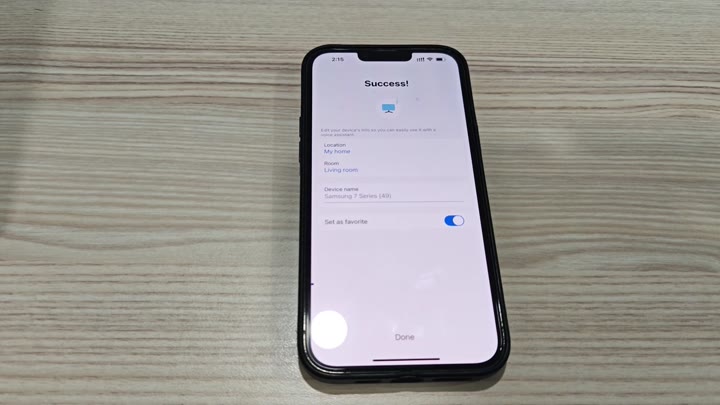
A Success screen appears on the app. Your Samsung 7 Series TV has been successfully added and registered into your home layout. It was placed in the Living room area. The Set as favorite toggle are left enabled.
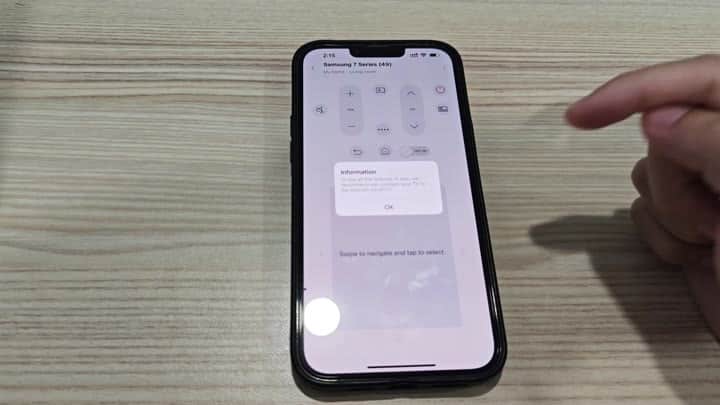
It is so much easier to access now.
Now that it’s registered, you’ll be able to operate the TV from your phone. The app has a remote interface matching the button layout of actual remote. You’ve got access to the same controls: volume, channel, power, input and more.
It even pops up a reminder to get the phone connected to Wi-Fi so it can reach the internet.
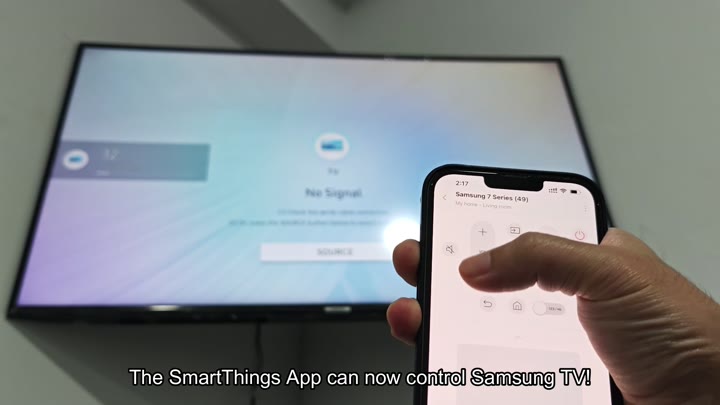
Set up a solid data connection.
The Samsung TV is completely controllable via the SmartThings App. No more fumbling around with that physical remote. It just works. It would of been worth it.
