
Control your devices around the house with Samsung’s own SmartThings app. From TVs to lights, it all get controlled through the same app.
Getting the TV paired requires a little patience, but once you get it right, its easy enough. To begin, make sure the TV has an internet connection. Without one, there’s no way for the app to locate the TV.
Final Expert Settings Configuration
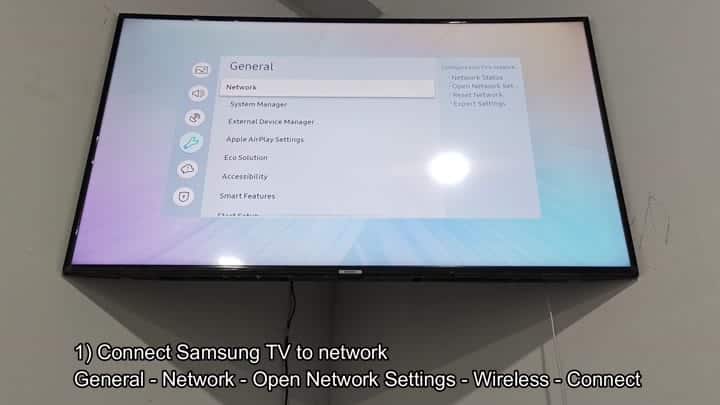
Go into your TV’s on-screen menu and go to General settings menu. Then click on Network. From there, you will see some options; open your network settings. Choose to set it up wirelessly (versus connect by a cable).
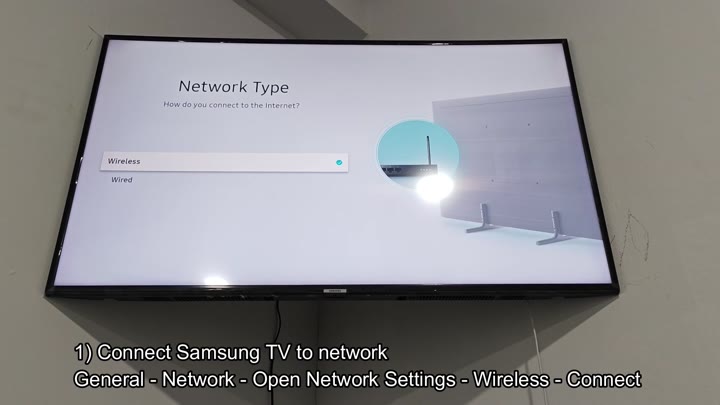
For the majority of users, wireless connectivity are easier and faster.
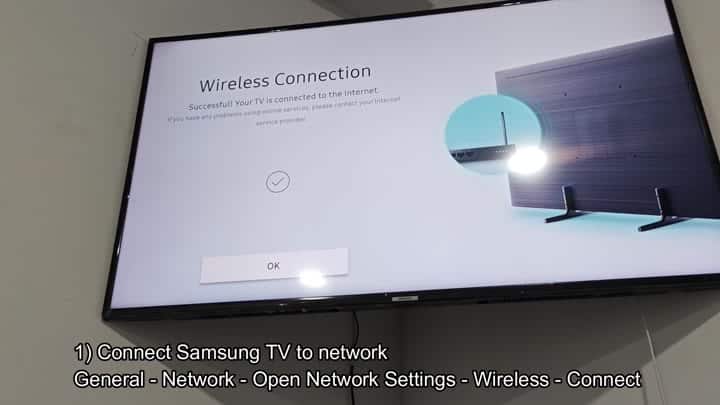
Next, the screen ask what kind of network you want. In this case we’ll choose Wireless by clicking it. It will search around for wireless networks and just connect. There’s a message saying it connected successfully. Click Ok to dismiss the message. Now the device is ready to pair with some software.
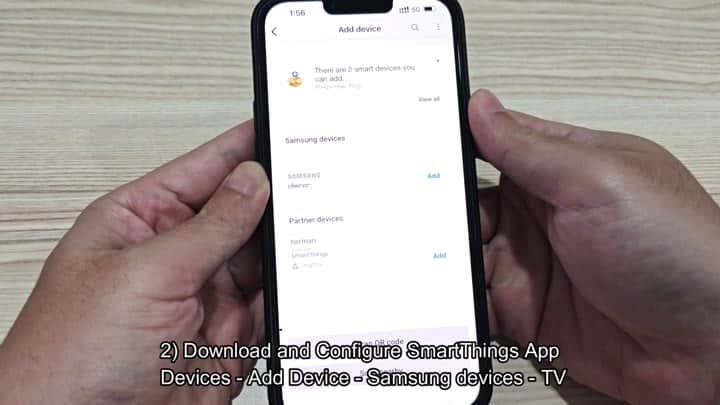
Next up is your smartphone. Open the SmartThings app and tap the Devices tab. Tap the Add Device button to start a device search. A long list of partner devices appear… Some from Samsung.
You scroll through the list to find the television category.
Scrolling down, you come upon television.
What sort of device do you wish to add? You browse categories: Microwaves, Fans, Dryers. At first glance it’s easy to miss TV. Make a point of selecting Samsung devices. This narrow things down to your compatible TVs.
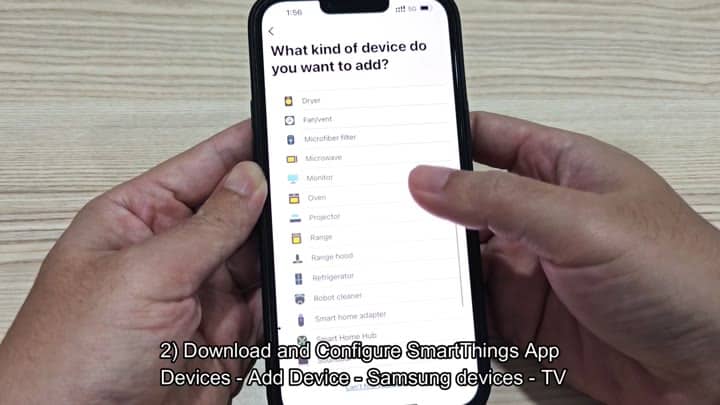
You tap on the TV option to proceed.
And then you tap the TV.
Then it starts to download, prepping the device in the app. There’s a progress bar that indicate how much has been downloaded. It jumps fast to 97%.
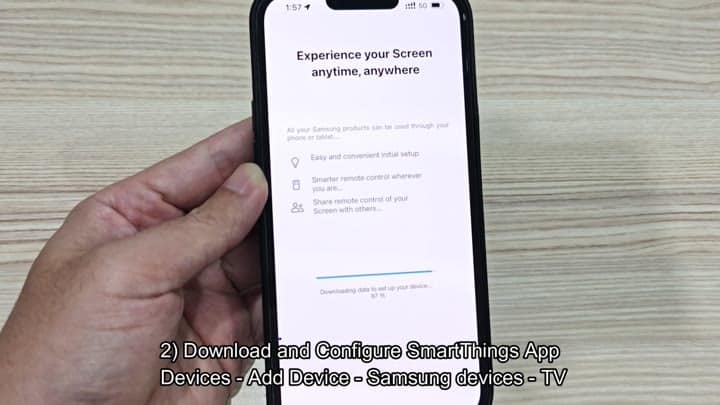
And then there’s something about accessing this content any time from anywhere. That could be handy when you want to use it remotely. Then you wait until it downloads fully.
A progress indicator shows the percentage complete and reaches 97% quickly.
After that, you’ll see the AirPlay prompt appear on the TV. The TV then shows a six digit PIN number on its screen. You input that into your phone as confirmation of the pairing request. This make the pairing secure.
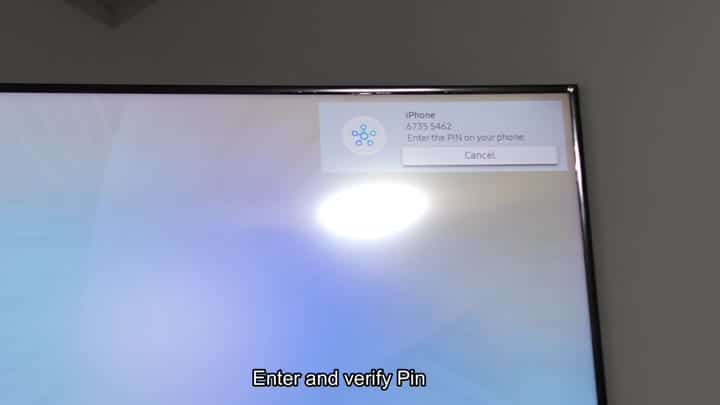
The numbers get typed out in the app with much care.
Your phone’s screen switches over to display registration status. The app indicates that your Screen is being added to SmartThings. Loading… The dots move around on the screen, which means your TV are connecting with your phone. Don’t touch anything at this time.
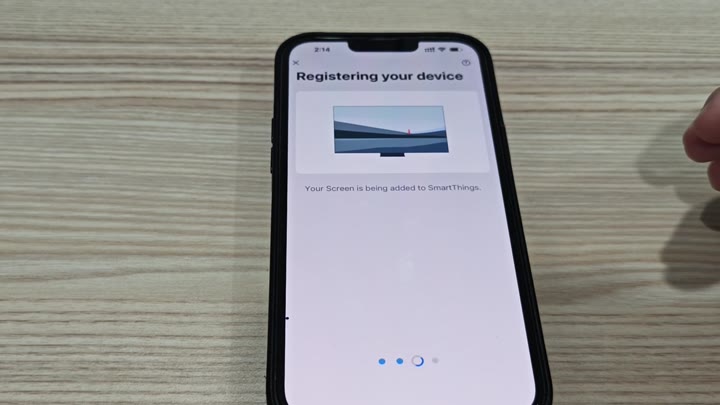
A loading animation with three dots cycles on the display. This indicate the handshake between the phone and TV is happening. You do not touch anything during this phase.
The next moment, your phone shows a success message. The Samsung 7 Series TV has been successfully registered. It’s part of the home profile, under the Living room.
You can turn the toggle on to make this a favorite device. That way you know where to go when you’re looking for it. Pressing Done completes the registration process.
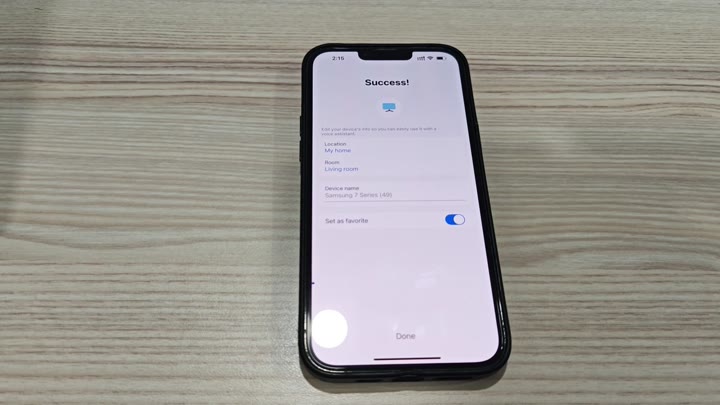
But there’s another important setting that you should of check to get it all working. Go back to the TV network settings menu. This time, you navigate from the network settings menu to Expert Settings.
Navigate to Expert Settings until you find the PowerOn with Mobile & IPv6 option. Turn it on. It enable the app to wake up your TV when it’s off.
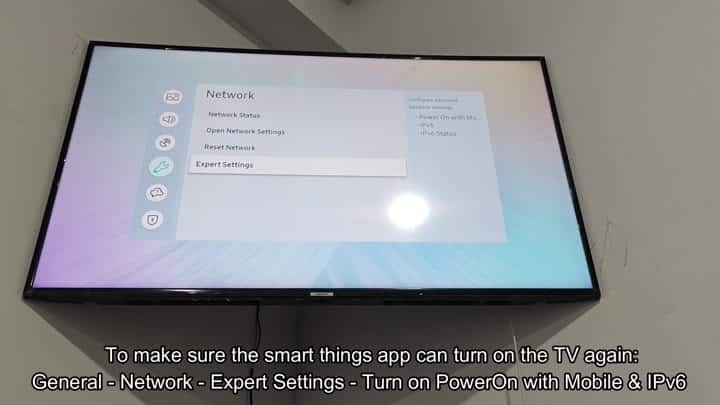
Everything is set up and you test out the remote control interface. On your phone are buttons for input, power, channel and volume. You hit the power button on the app screen. Instantly, the TV in the background lights up. It is much more convenient to be able to control the television from the couch.
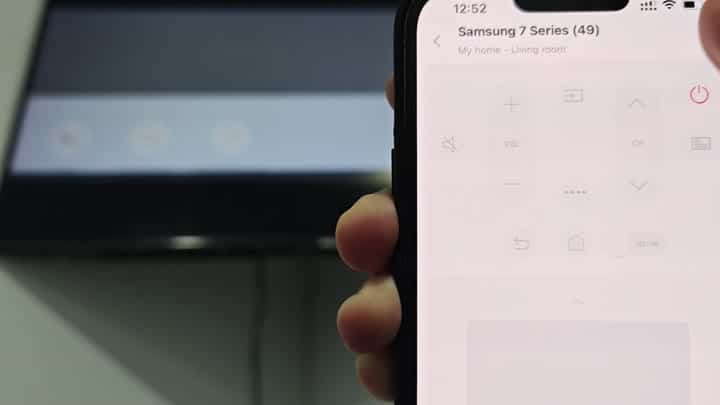
Once you’ve got your expert and network settings right, however, it’s seamless integration from there on out. Before long you find yourself reaching for the app every day as a way of watching TV. No more fumbling around for that physical remote.
All told, it doesn’t take but a few minutes to set up. Easy peasy.
