
If you work with more than one computer, getting a nice workspace is a must. That means no juggling between several mice and keyboards.
For that reason, it’s good to have a KVM (keyboard-video-mouse) switch like TESmart‘s 4K hdmi kvm switch. This lets you use one set of peripherals to control two computers. In our case, we has a Windows PC and a Mac Mini sitting on the desk waiting to be hooked up.
Setting up your dual computer workspace
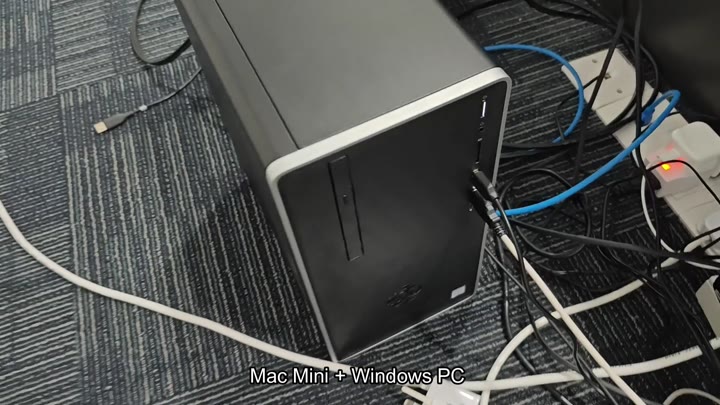
Next we connect all of the cables from the computers to the KVM unit. Make sure you have everything hooked up correcty.
Once they’re all plugged in, turn on the power strip and it will light up indicating that the units is getting power. That’s an important part of making sure they run steadily.
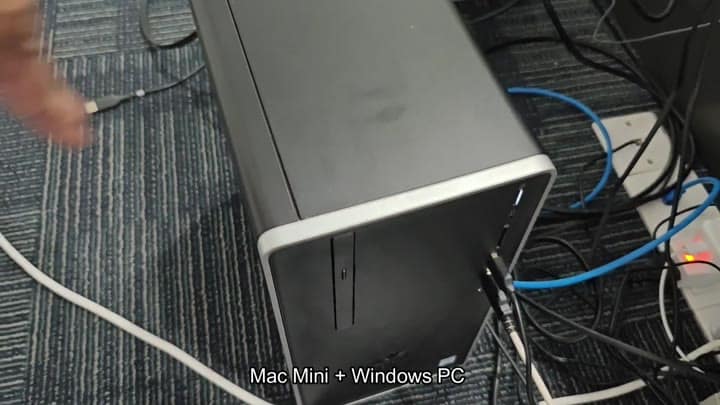
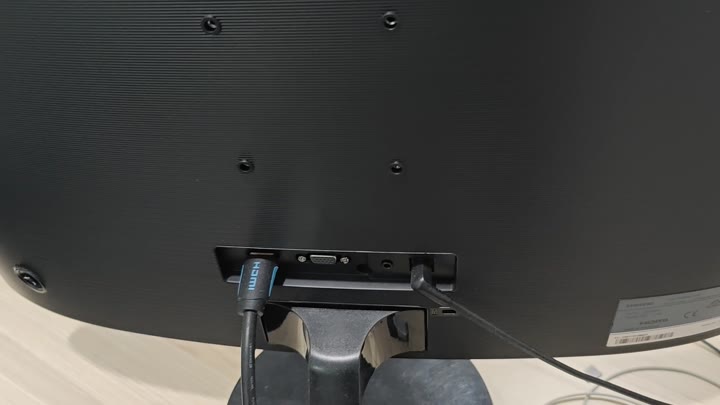
Connect monitor cables next. Plug both Samsung displays into the KVM switch. This allows you to share two monitors between your two computers.
The Windows desktop appear on one monitor. A macOS interface appears on the other. Dual monitors make multitasking so much easier. Both systems use just one mouse and keyboard.
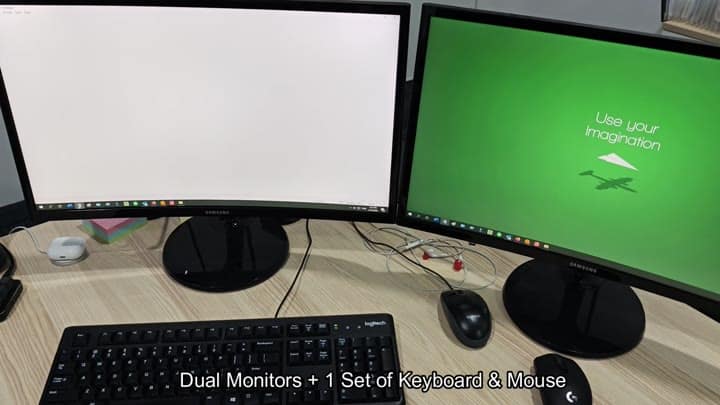
It also frees up quite a bit of desk real estate.
You do it with a hot-key combination on the keyboard. Press the Scroll Lock key twice. Next, you press the number 1 or 2 depending on which computer you wish to access. The number represents the computer. No unplugging of cables required.
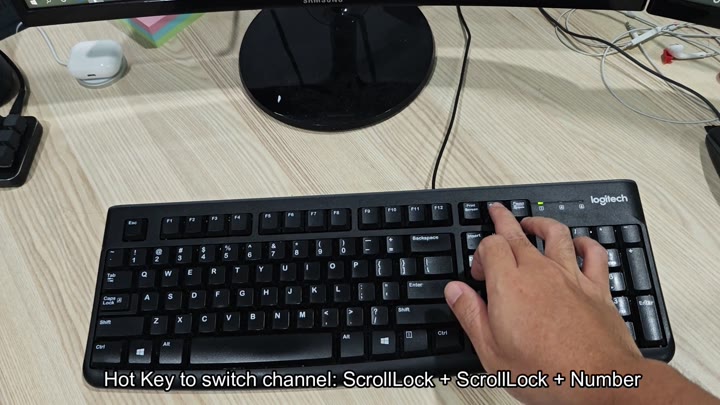
The tool is easy to use, and it’s quick
Try it several times and see how the switch happen. Press Scroll Lock. Then Scroll Lock again. Then 2.
It happens instantly. Now you have the macOS dock on your left display. The green desktop background are on your right display. It’s smooth as butter. There is no flicker. There is no lag at all.
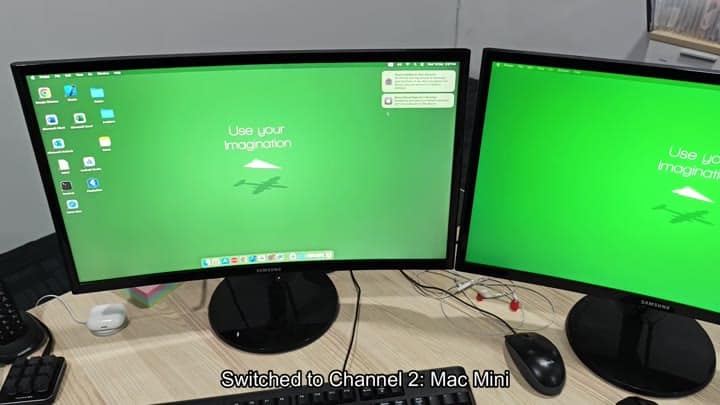
Make sure that all of your physical connections are good. Is the HDMI connected correctly? The back of your monitor have ports, right? Make sure it’s in there. Does it have a solid connection? Are any of your cables loose? If so, fix them. That helps you get a solid signal.
Both monitors display 4K resolution and it look great on both.
The image quality is sharp.
It’s a nice looking screen.
This KVM switch help simplify your workflow. If you’re using both macOS and Windows, you’ll be able to toggle between operating systems in an instant.
The hot-key approach works well. There’s no need to stretch out and grab one of the buttons on the device. It’s all keyboard-based. It’s very efficient. You won’t have to fumble around with several different mice anymore.
One big plus is dual-monitor support.
You’d be surprised at how few KVM switches can supports multiple monitors. It’s usually just one screen. This guy supports two. And it keeps ’em in sync with whatever you’re using on your main computer.
This matters, because you don’t want to fiddle with moving things around to get used to the new setup. Just switch computers and everything else remains as-is.
That’s where the “4 x 4 x 4” comes into play. That means four ports for monitors, four computers, four USB devices. So, perhaps you’d have just two computers. Maybe you won’t even use all of those USBs. But the space is available should you need it.
Quality of construction is solid. There’s no rattling around. You know how sometimes something feel flimsy? This thing doesn’t. It stays put on the desk and keeps quiet.
The design is simple which is something that you should of been thankful for. There’s no fancy software involved. It is plug and play.
The hot-key combo is easy to remember. It may take a few tries to get the timing right, but once you do, it becomes second nature. Now it’s automatic.
It’s an elegant solution to a perennial dilemma for hybrid users. Many people run both Windows and Mac computers. It can get messy with peripherals.
This switch cleans it up. It brings control together. So you don’t have to think about the cables, just the work. And so far we’re liking it. No problems at all. It simply works.
