
Out of the box, you plug in the dehumidifier and set it up. When you turn it on, top panel blinks to indicate that it’s waiting for a connection (the Wi-Fi indicator). It is time to pair.
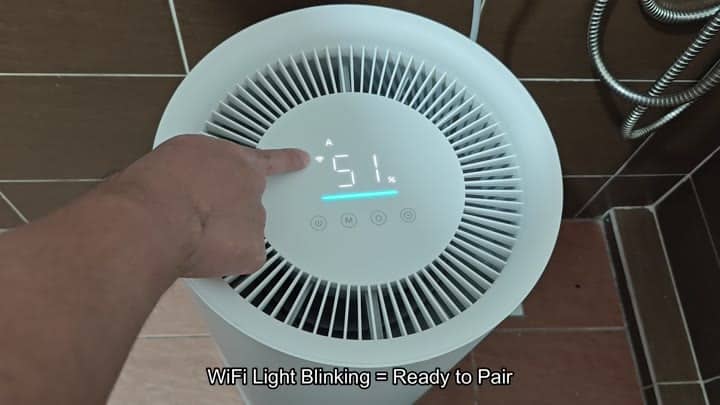
This are a good thing.
Open the Xiaomi Home app (or the MiJia application if you like) and install it on your smartphone. Log in with your details after completing first setup options inside the app. Setting up an account is easy; only a couple of minutes is needed for the whole process.
Resolving Regional Restrictions
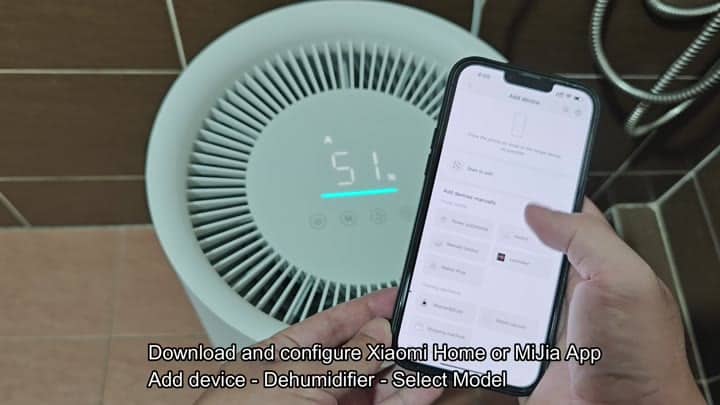
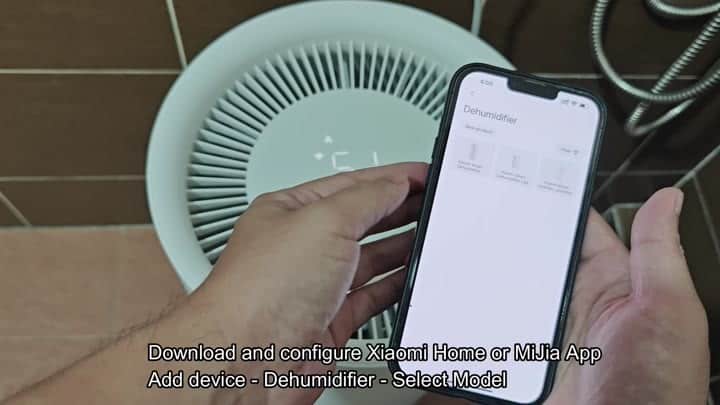
After launching the app, you’ll want to tap on “Add Device” and then choose the Dehumidifier category when prompted. It will display list of compatible models and allow you to tap on matching model number for yours. That’s critical so it can be recognized correcty.
Some Xiaomi dehumidifiers is locked to the Chinese Mainland region by default.
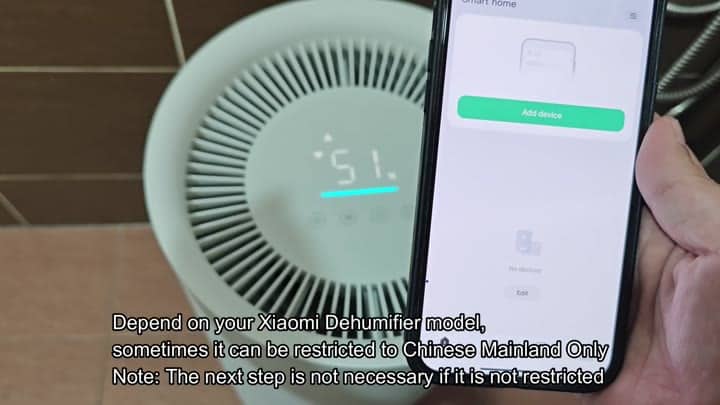
By default, certain Xiaomi dehumidifiers locks down to the Mainland China region. Because of this restriction, many users cannot connect their devices outside from Mainland China.
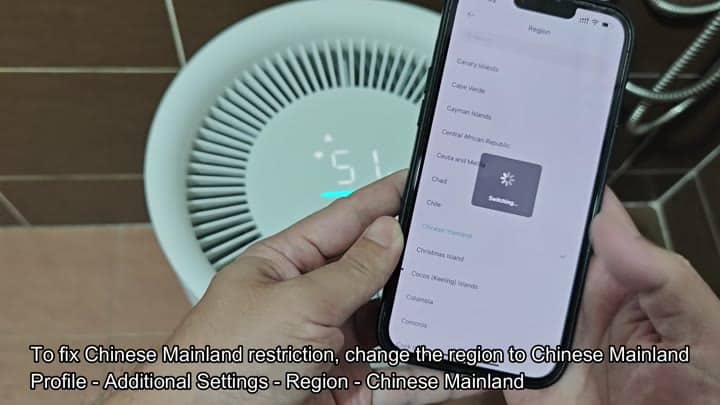
If that’s where you got stuck, don’t fret, it is possible to remove the region lock, which is found under Profile on the app. Go down to Additional Settings and locate Region. Clicking on that let you switch to Chinese Mainland, bypassing the restriction and letting the setup continue.
That makes a lot of sense.
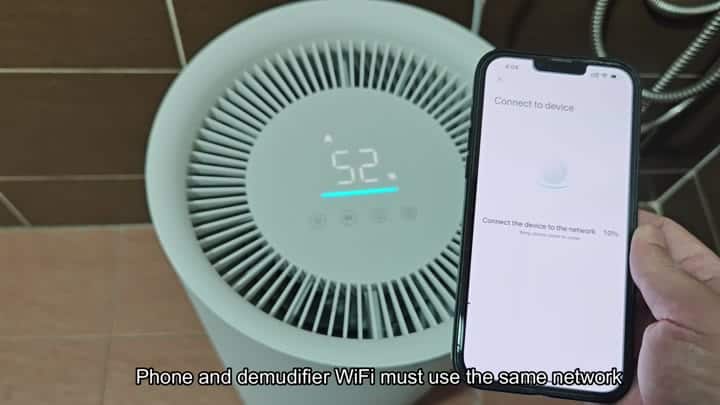
To begin the real-time pairing, first ensure that your phone is already connected to the Wi-Fi network where you wish to operate the dehumidifier. Because it needs to communicate with both devices using same network, you’ll start this process in-app, after which you’ll see progress bar appear on your phone’s screen.
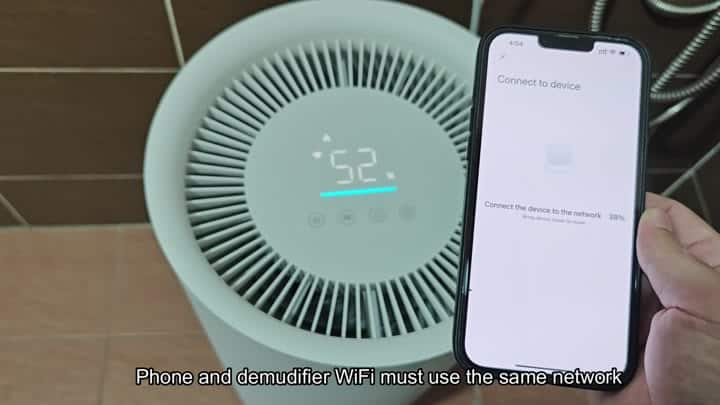
Once connected to the router, the device will take a moment or two to connect, the screen shows you how much of that progress have been completed. Meanwhile, display on the dehumidifier flashes just a little when it’s connecting. It might be a little slow going initially, but it does gets there eventually. It is worth waiting for.
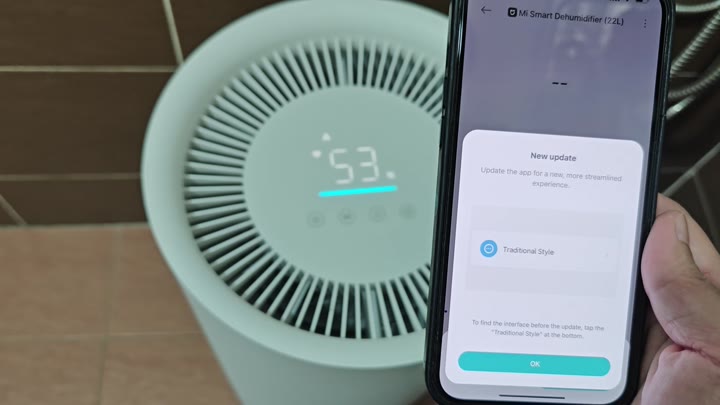
Once that’s done, the app will mark device as updated, including a notification saying it has something special for you: A sleeker user experience. Click to approve update and access the latest features in its interface, so you can enjoy more options for controlling your dehumidifier.
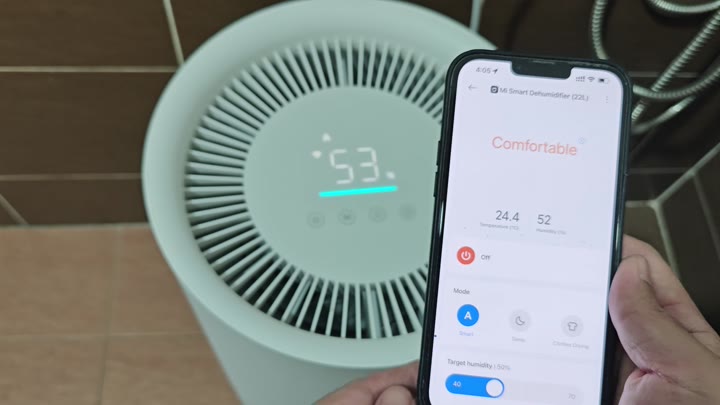
Last but not least, you can operate the dehumidifier directly from your smartphone. You can also set target humidity level (I keep mine at 50 percent) which is displayed nicely on app with current humidity/temperature. It updates in real time as you change things on your phone and mirrors what’s on actual device, so that part is nice now too.
