For instance, why wouldn’t it let you share access to your cameras by just sending an invite link? That’s common among most moddern apps.
In Blink‘s case, there is no native button within the app itself that lets you shares select cameras with someone else who has their own separate account. You can search every part of the settings page and you still won’t find it.
Managing Multiple Accounts
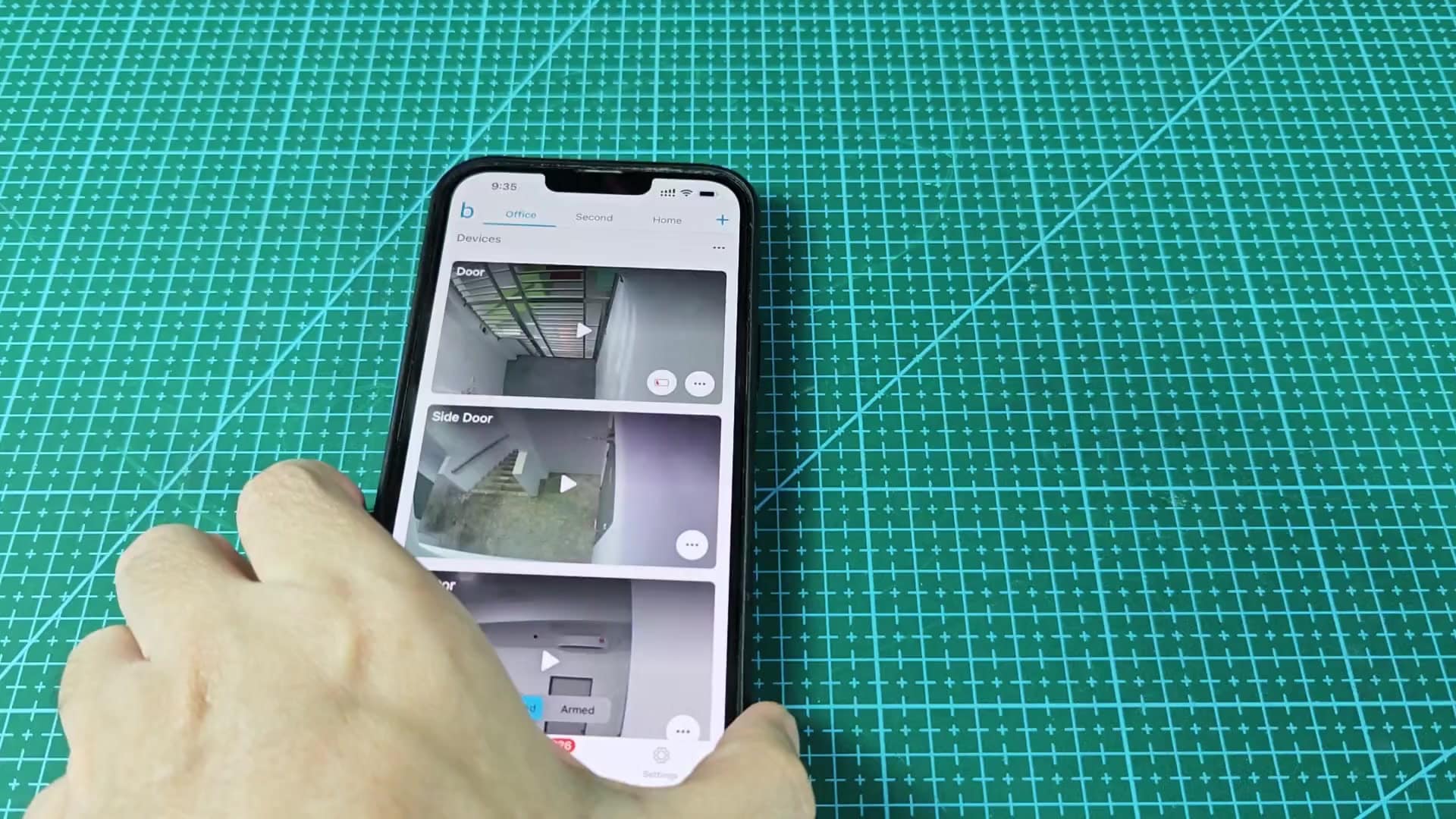
The app lack a native button to share specific cameras with another person’s separate account.
That’s right, you need to log into the same Blink account/profile on two different phones. That means you have to give your roommate/spouse your password and email address. Sure, that’s less than ideal if you’re a security purist. But it works as intended.
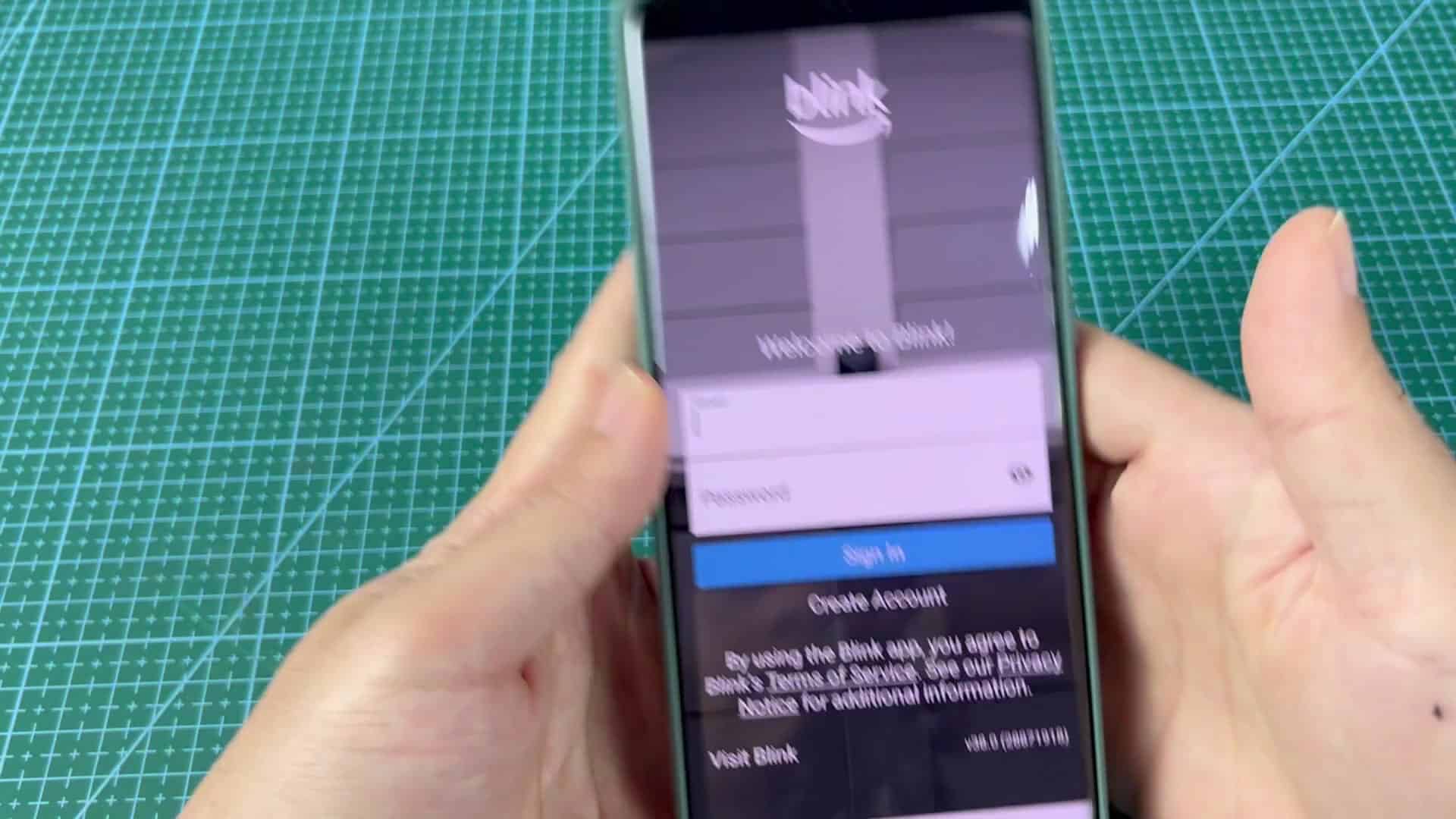
To try this out for yourself, simply get the app installed on another phone. Then login with your main credentials and you’ll see all of the cameras. This is one shared account, so it takes some discipline to manage it. It’s a mess if you have too many devices logged on at the same time.
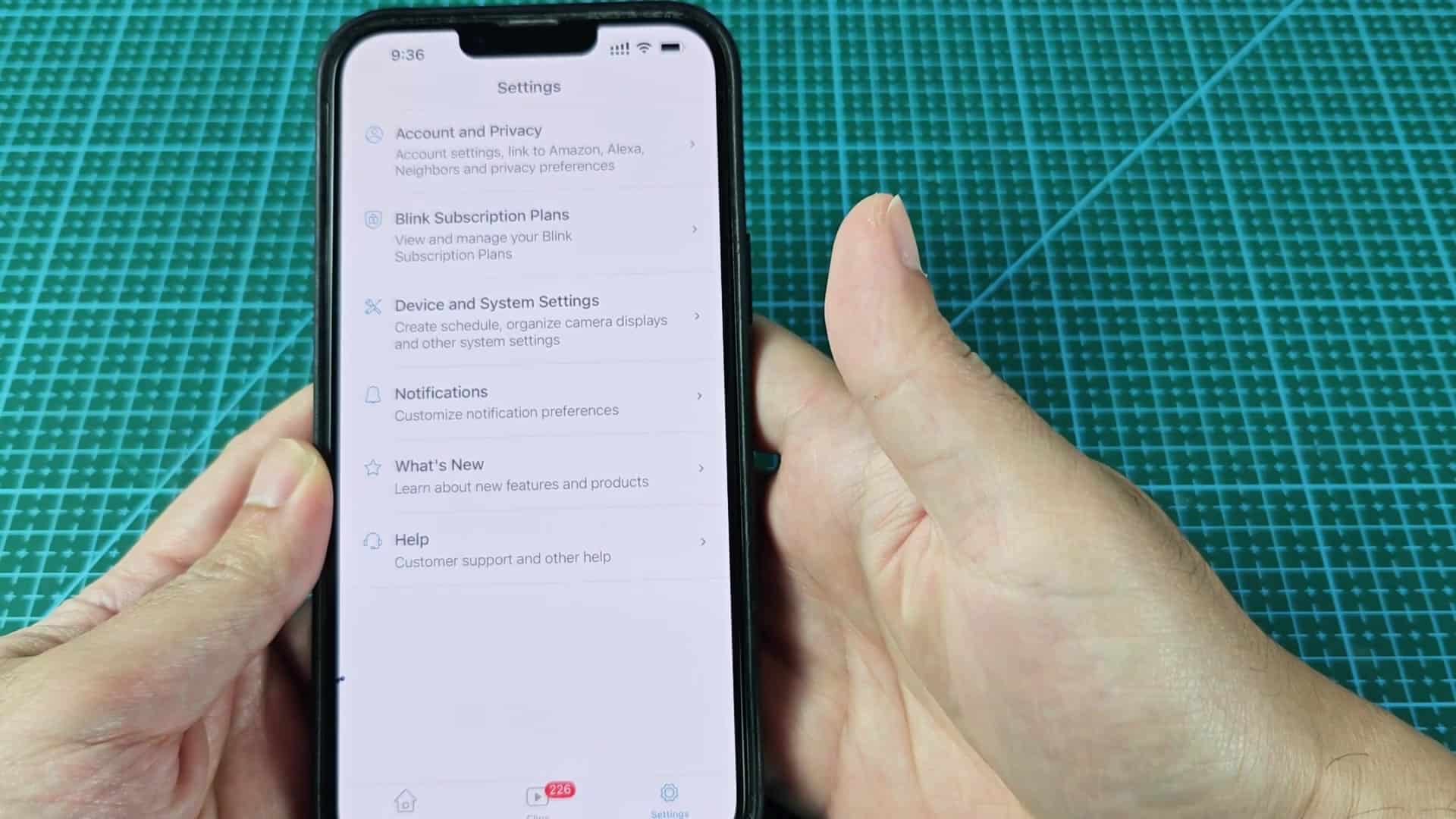
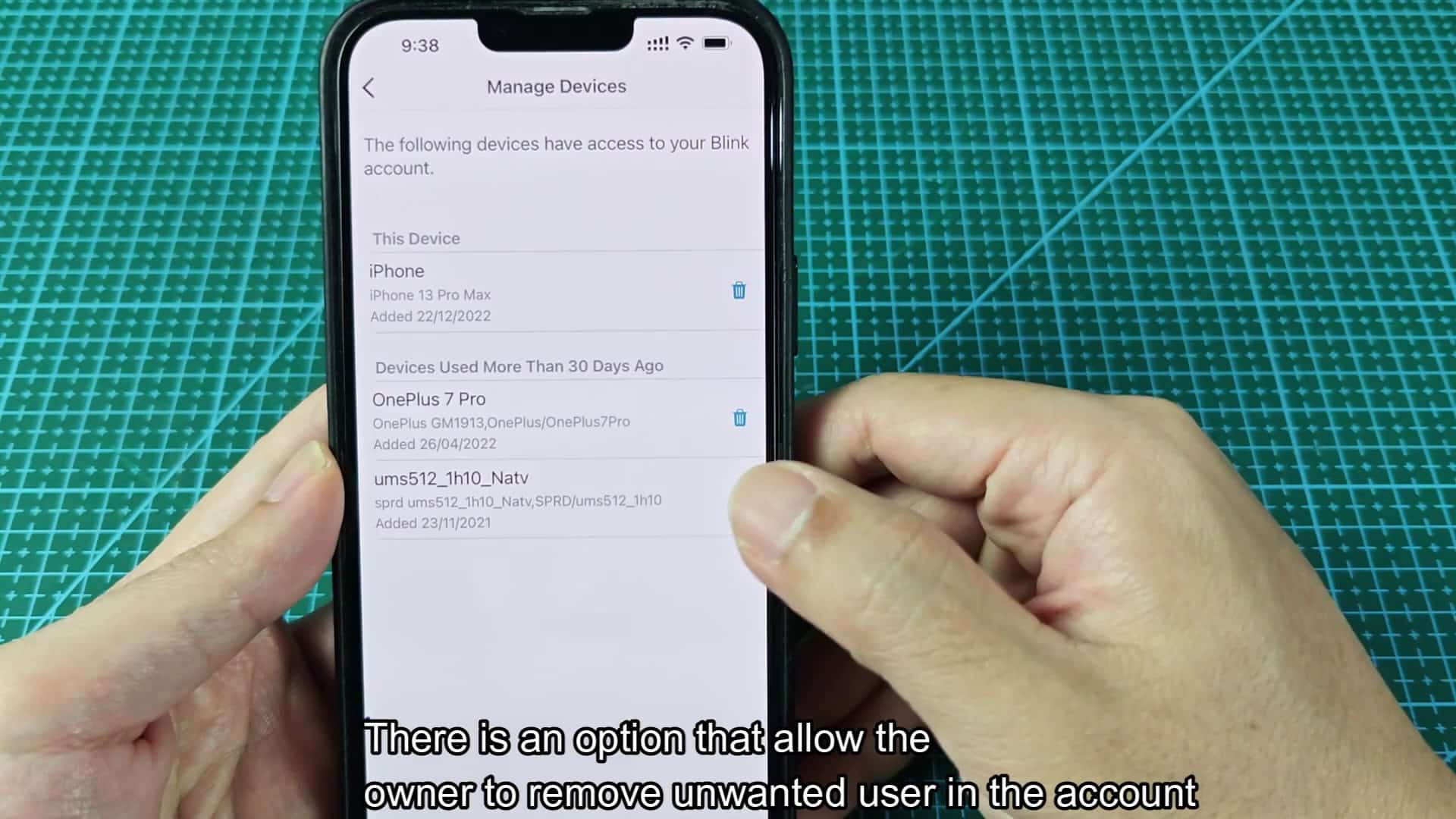
If you don’t need certain phones anymore, you can take away their access. Cleanup happens from the settings menu. Your profile is tied to a list of authorized device. It’s annoying when you see your old phones still listed. You’ll have an old iPhone, maybe some random Android phone from years back that still shows up as active. They take up space in the connected devices list.
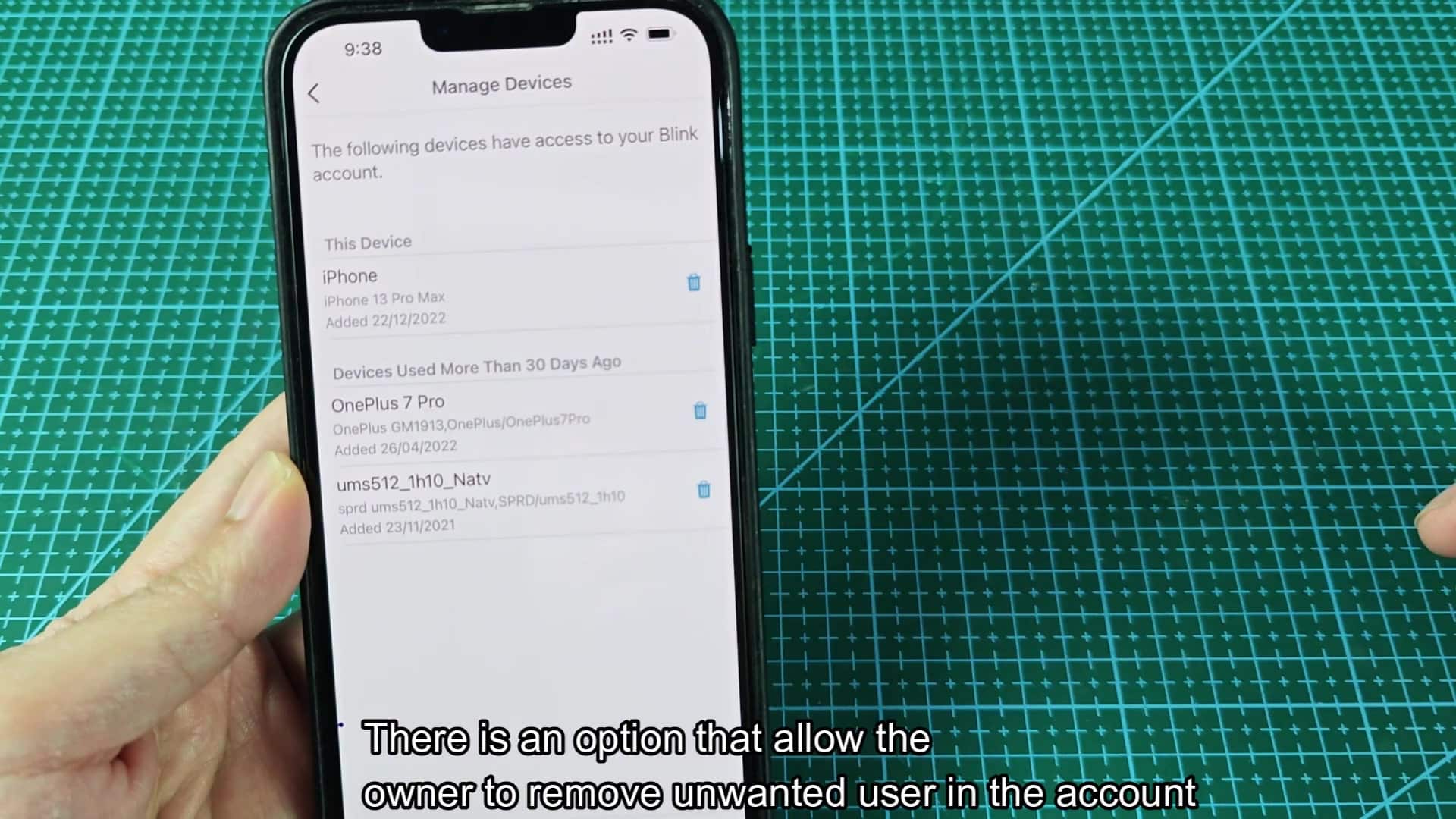
Deleting it is simple. Tap on the delete icon next to what you don’t want there. A confirmation dialog appears asking if you’re sure you want to kick them off. After confirming, the old phone is removed from the list. That’s good, because it clears some brain-space. And it prevents you from having to deal with a lost phone resurfacing in your security system (or worse: a phone you’ve already sold).
After this sort of reset, the app will send a verification code if someone tries logging in from a new phone. This provides another level of security on top of the shared account workaround.
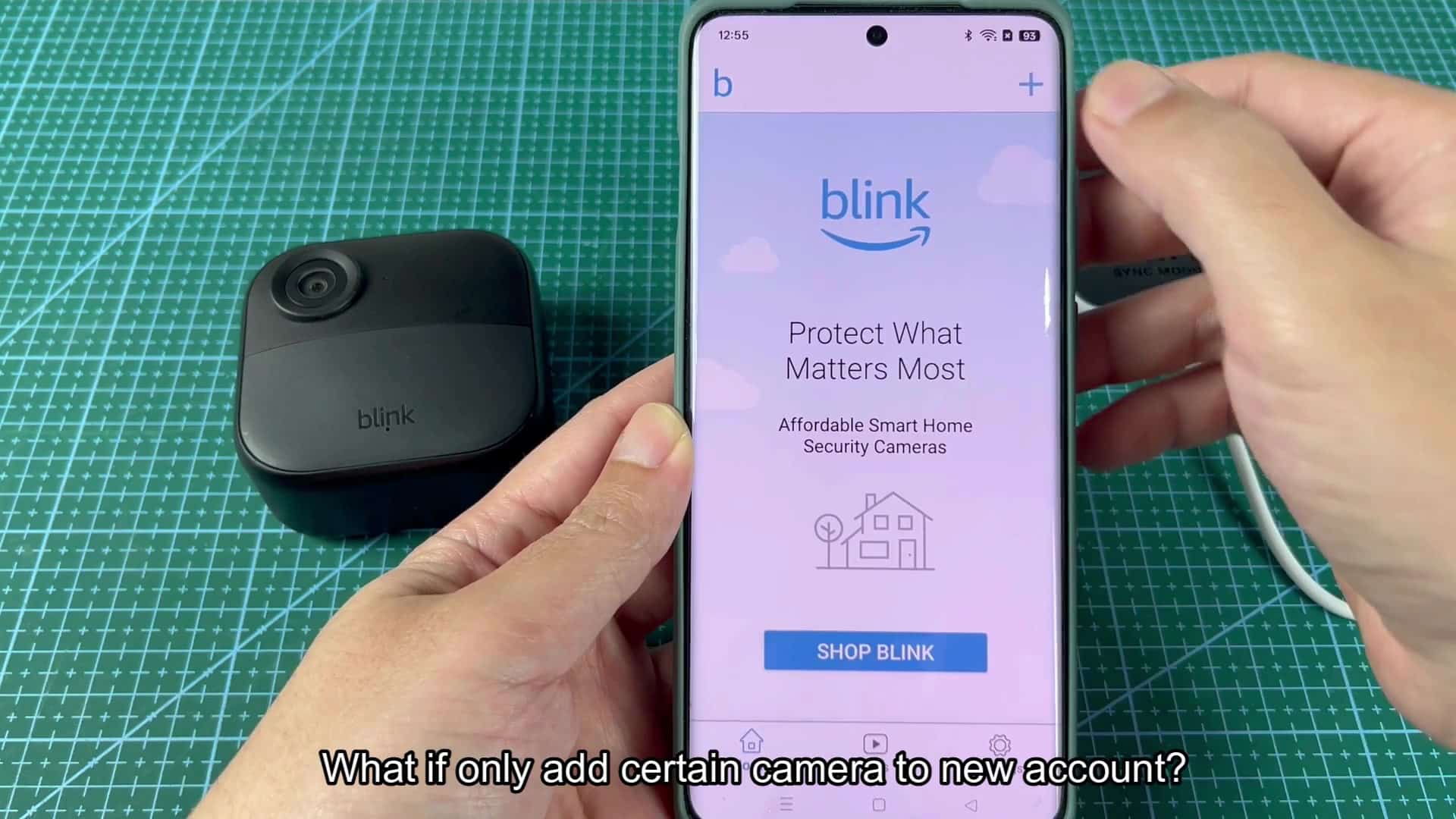
You might wonder if you can split the cameras up instead.
Perhaps, you’re thinking, maybe you just split the cameras across multiple accounts? Put the backyard camera in one account and the front door camera in another. That is organized.
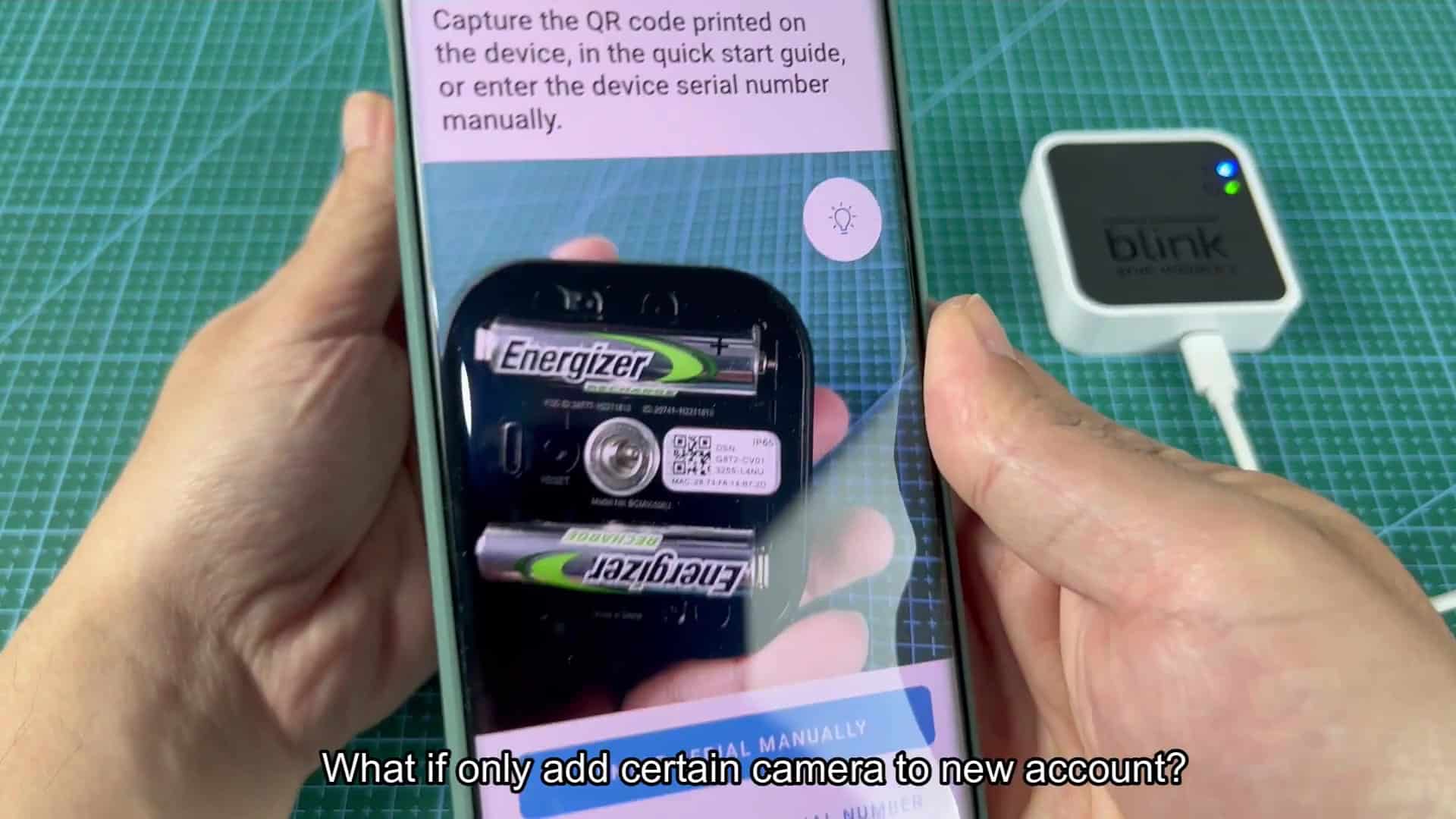
If you create a brand new test account and add a camera, it doesn’t work. Immediately there’s an error flag. The serial number has been registered somewhere else. This means that there’s only room for one camera per account. This isn’t something you can copy and paste onto another login. If you need complete coverage across multiple phones, then it doesn’t work to split them up.
There’s no way to share except with the single-account approach. Everyone has to stare at the same dashboard. No partials is permitted. Managing several Blink accounts across one iPhone sucks. It is painful to sign in and out all the time. It is inconvenient to type those passwords every time.
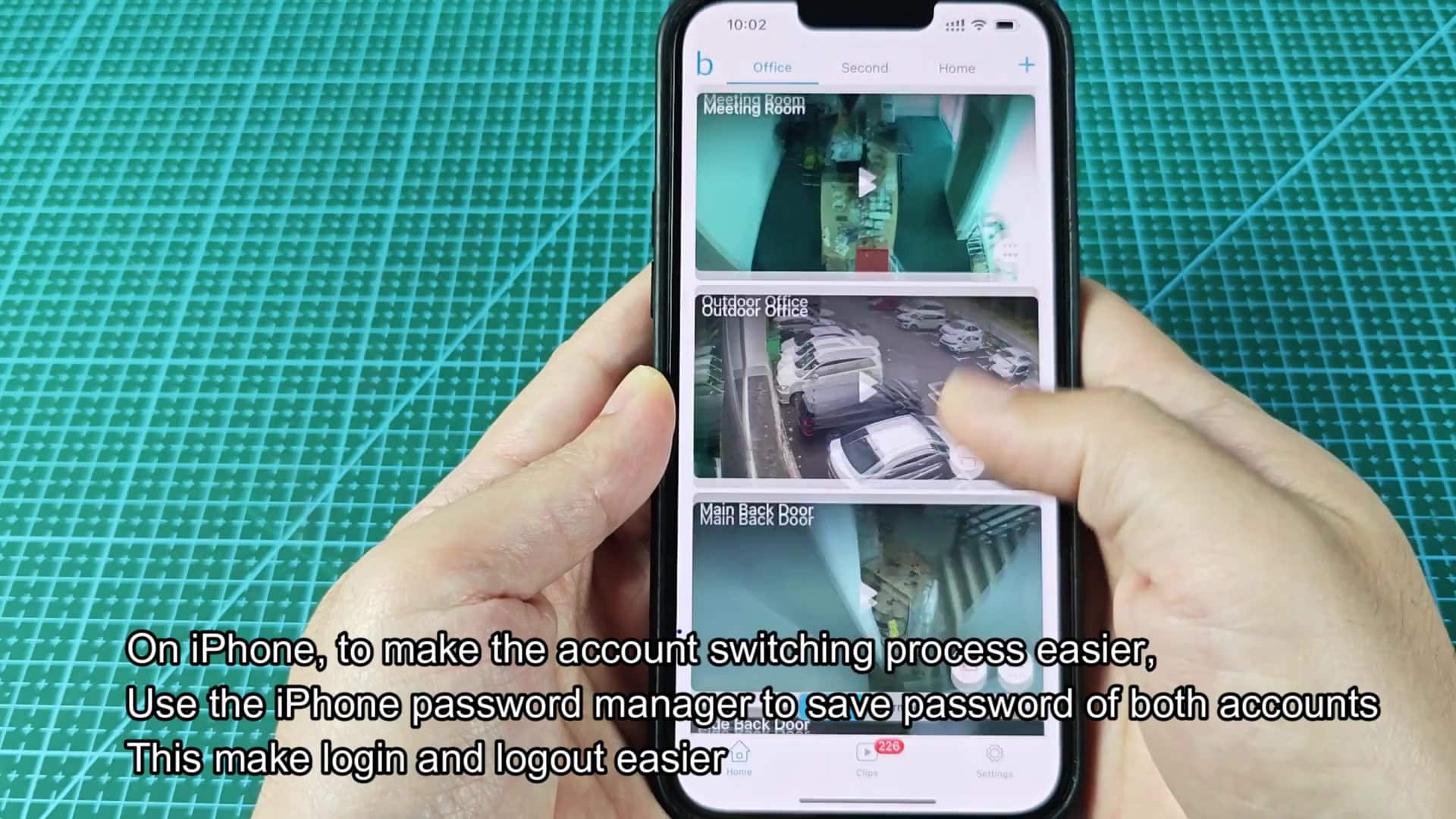
A solution is to use a password manager app, which lets you switch between your profiles with ease (it will just auto-fill them for you). It makes perfect sense based off your workflow. There’s no “multiple users” toggle within the Blink app on iOS. You get one open session per device.
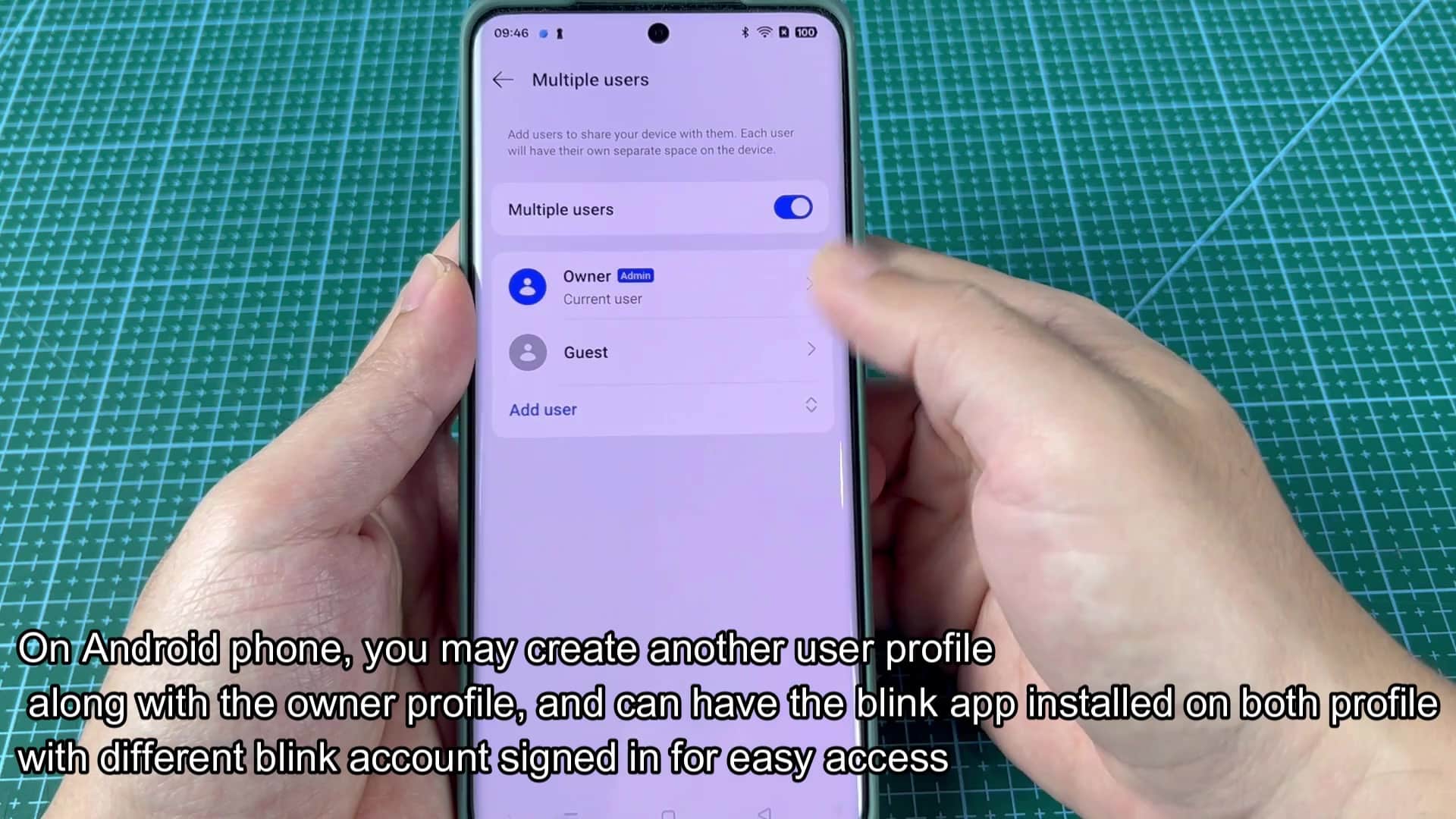
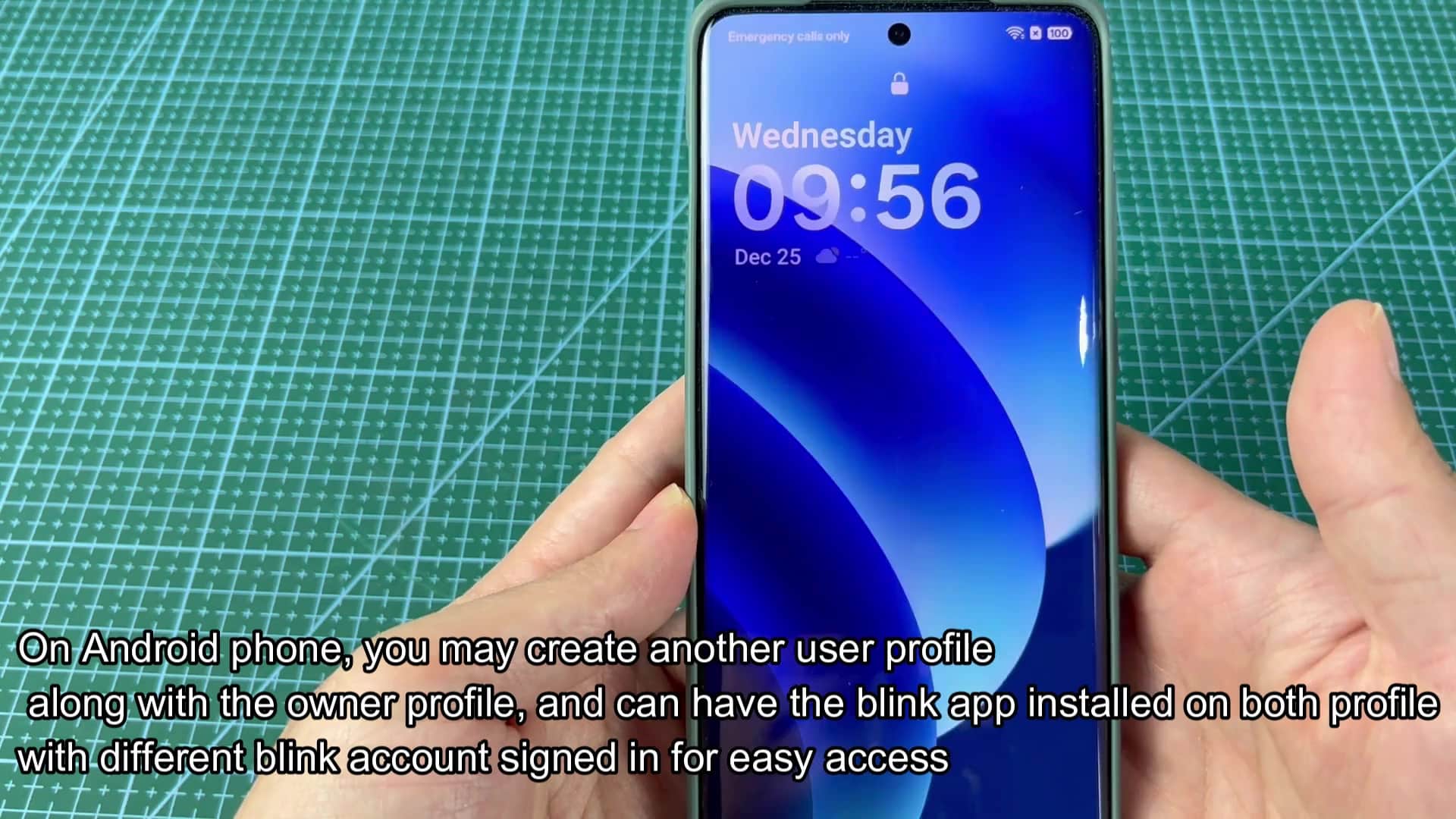
There’s an entire workaround that involves something outside of your security application. Using a third party feels like a band aid. It protects your primary account and allows you to peek into the secondaries as necessary. Android phones handle this much better natively, however. The operating system include a feature that lets you add multiple user profiles directly from the OS settings.
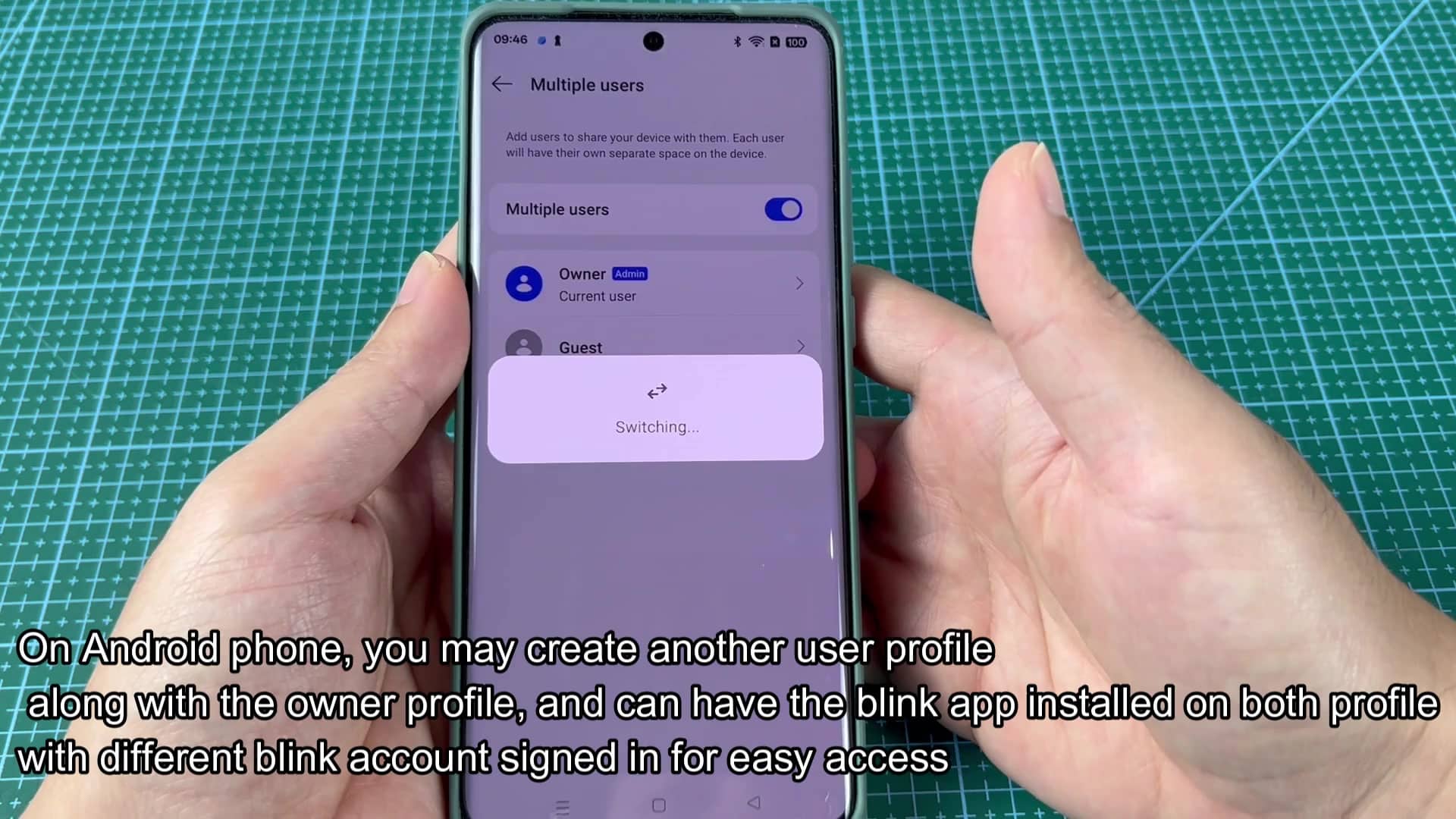
It creates two profiles, a main owner profile and a “Guest” profile. They’re essentially sandboxes. Try setting up another user on your Android tablet. It’s all immediate. There are no caches to clear, no need to sign out. Both profiles remains logged in to their respective Blink accounts. For example, you could have one on your main Blink account and another with a totally separate login. It ensures that each app remains secure and separate from the other. It is far more polished than the iPhone workaround. Just to be safe, make sure you install the Blink app on each profile. Log into the Blink app from the guest profile using a set of test credentials.
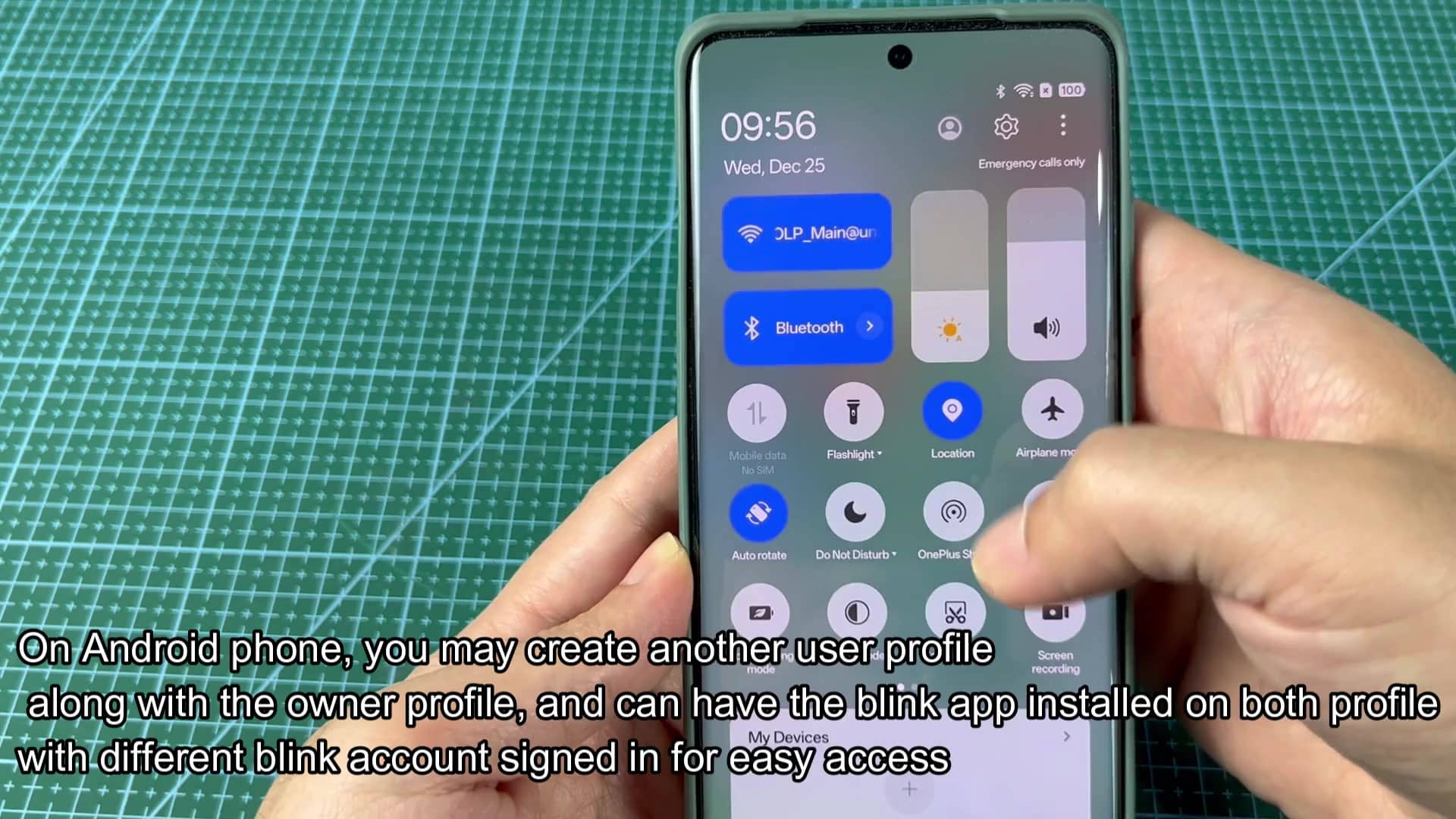
Then switch over to your primary owner account. There’s no funny business whatsoever. You can access both groups of cameras without them seeing one another… No cross-contamination. There are only these two ways to truly share camera access. If you have iPhone-using friends who just need things made simple, give them your password. For Android folk who must keep accounts separate, enable the multi-user profile. Both solutions aren’t ideal, but they work. Adapt your system accordingly. Stop searching for a non-existent solution. It is a simple fix.