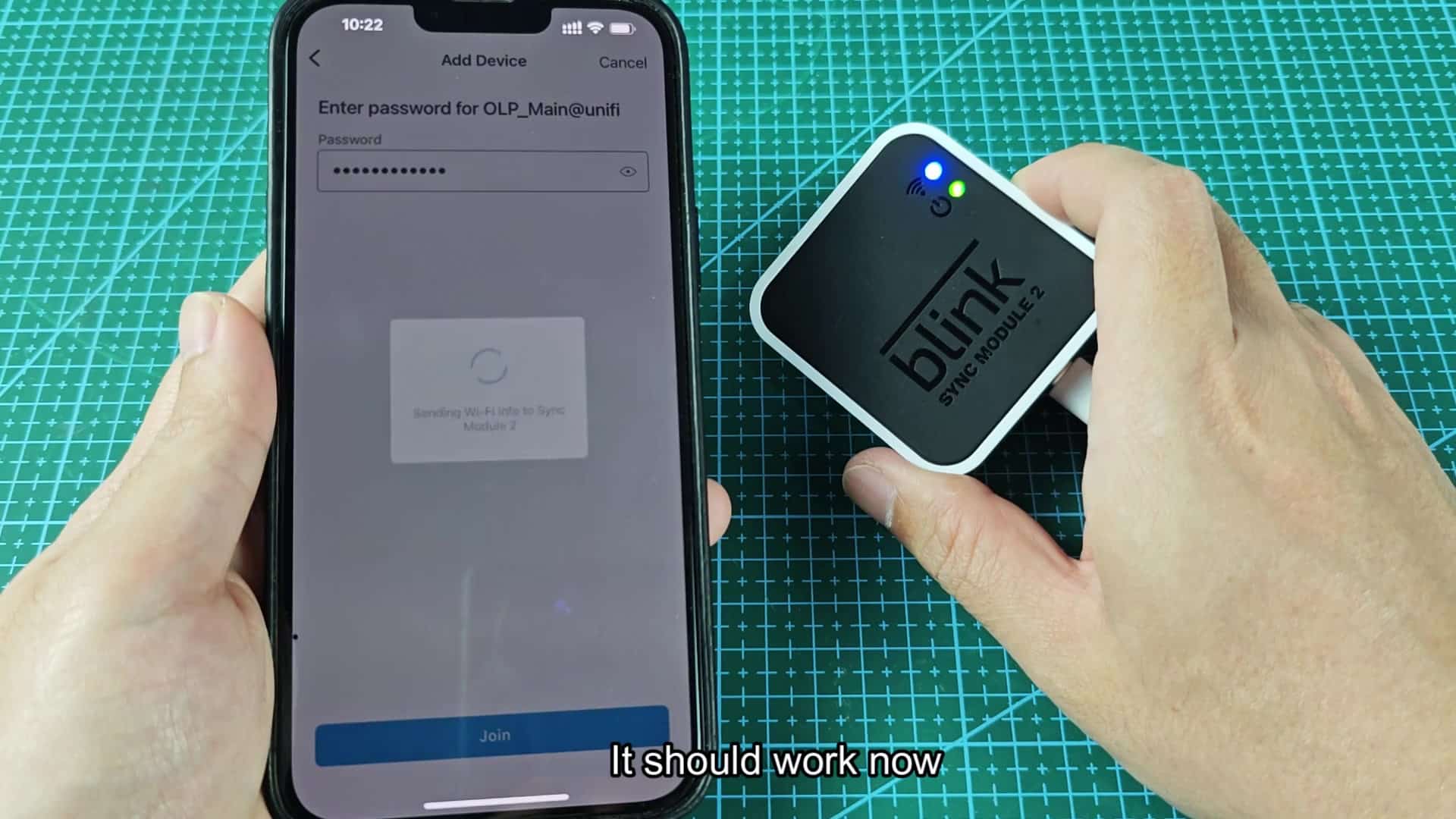
The Blink Sync Module 2 install process is simple enough: plug it in before opening app to enter your credentials. But right away, most folks run into a problem… The system spit out an error saying they entered wrong Wi-Fi password. The trouble seems to crop up despite checking their router setup many times and having solid connection with no dropped packets.
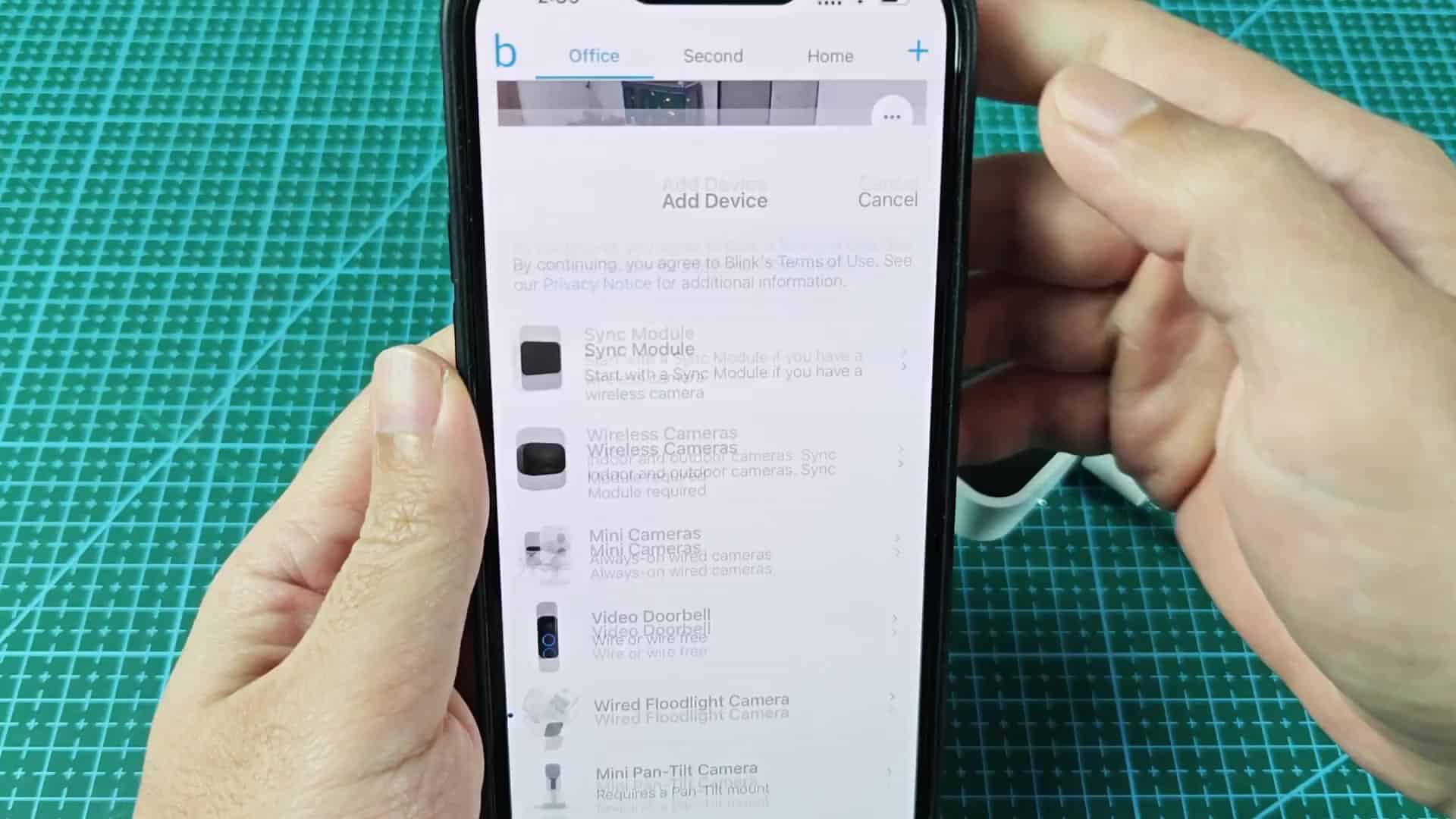
It’s almost never a case of the wrong password, nor is it typically a case of user error when entering that password into device. Instead, something goes awry farther back in the system. Namely that the Blink server isn’t able to correctly read or interpret information being sent to it during the initial setup. It doesn’t make much sense initially, but I suspect that this is simply due to compatibility issues; certain characters don’t gets translated propery.
Troubleshooting connection failures
Before attempting any of these fixes, be sure to first try a hard reset, which will wipe out any cached error.
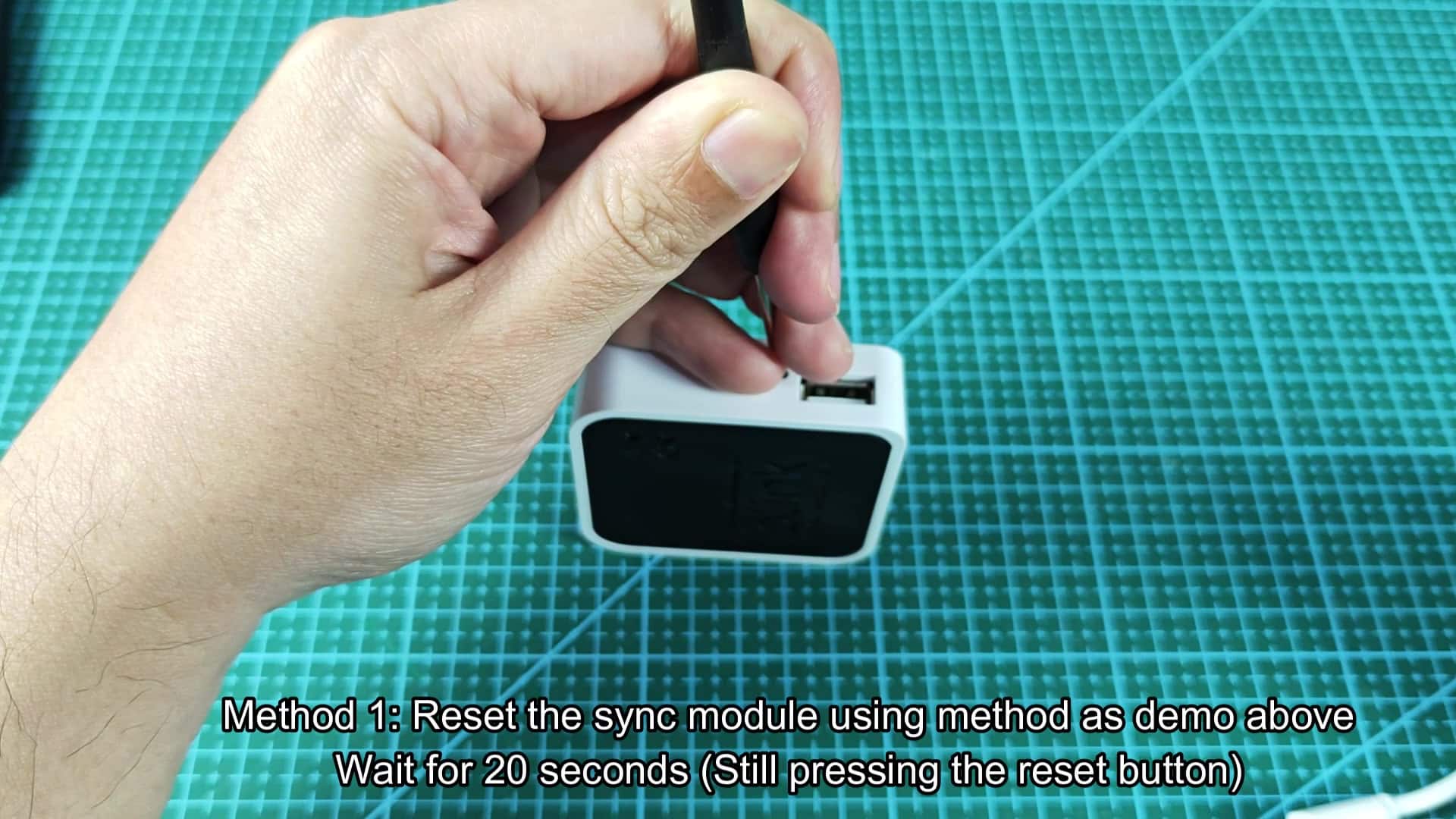
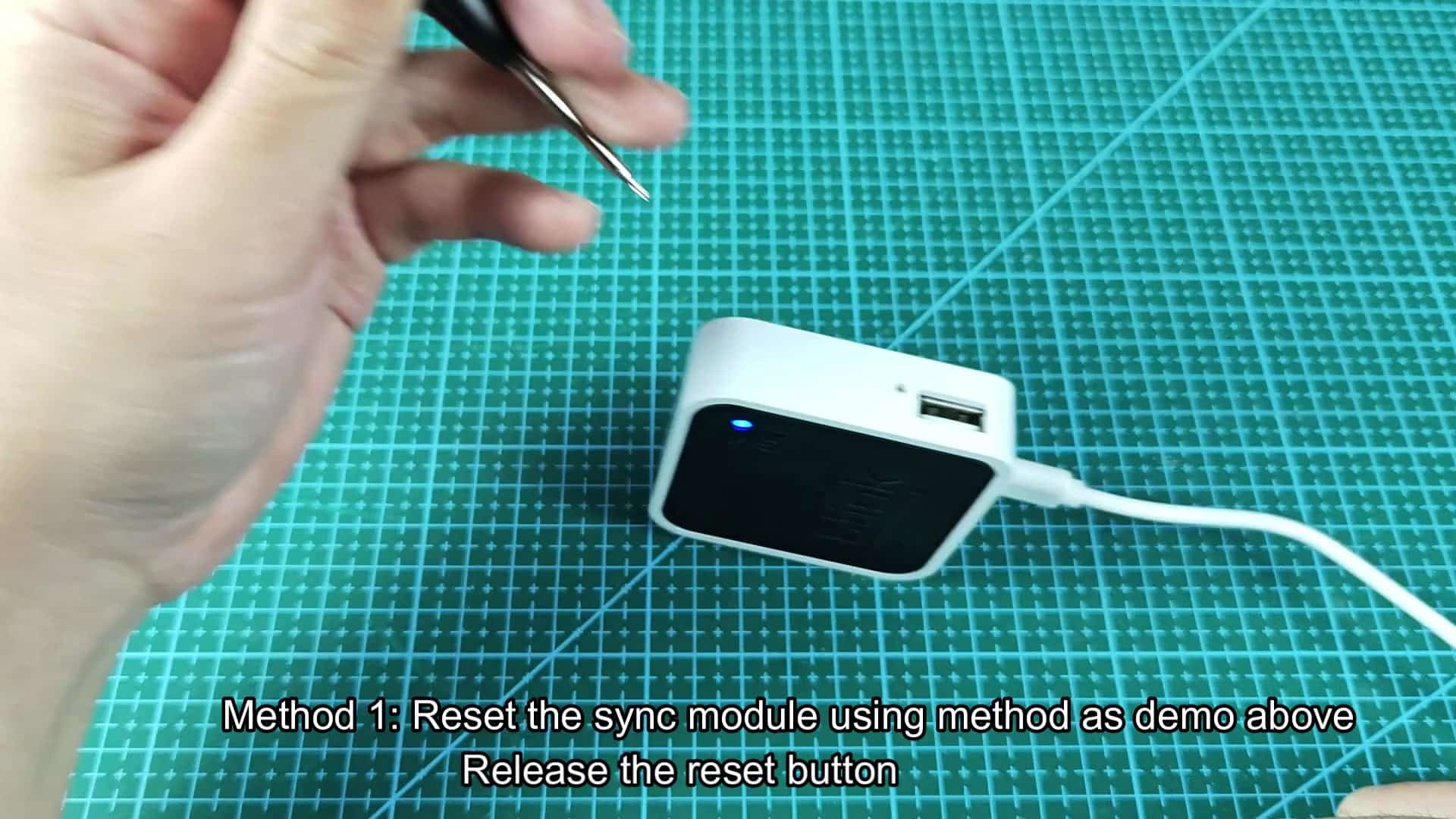
The little reset button is on your unit; don’t hurry through this part of the process, it’s important how you handle power as you press and hold the button. Hold the reset button down firmly and then remove the USB power cord while continuing to depress the button.
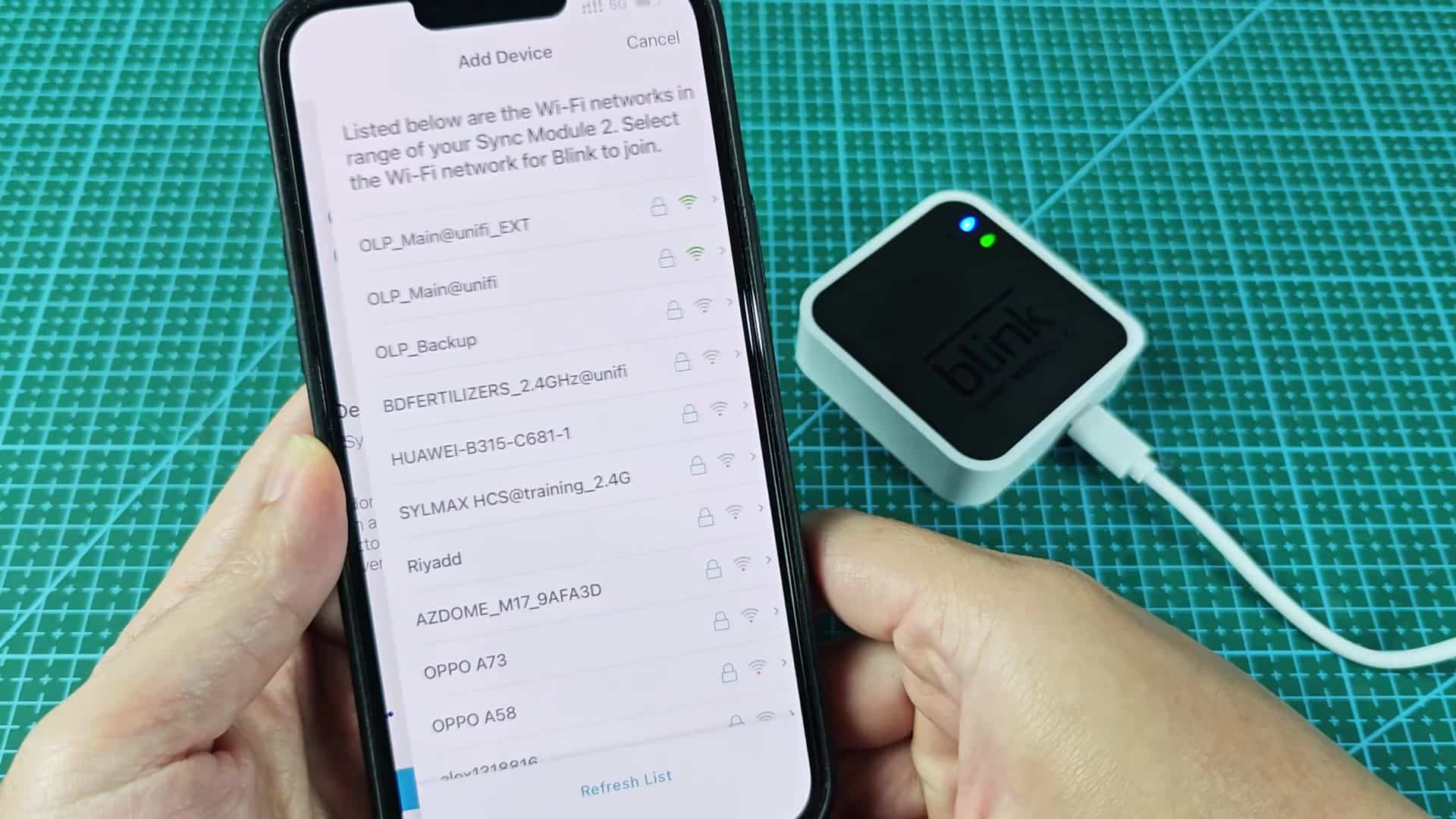
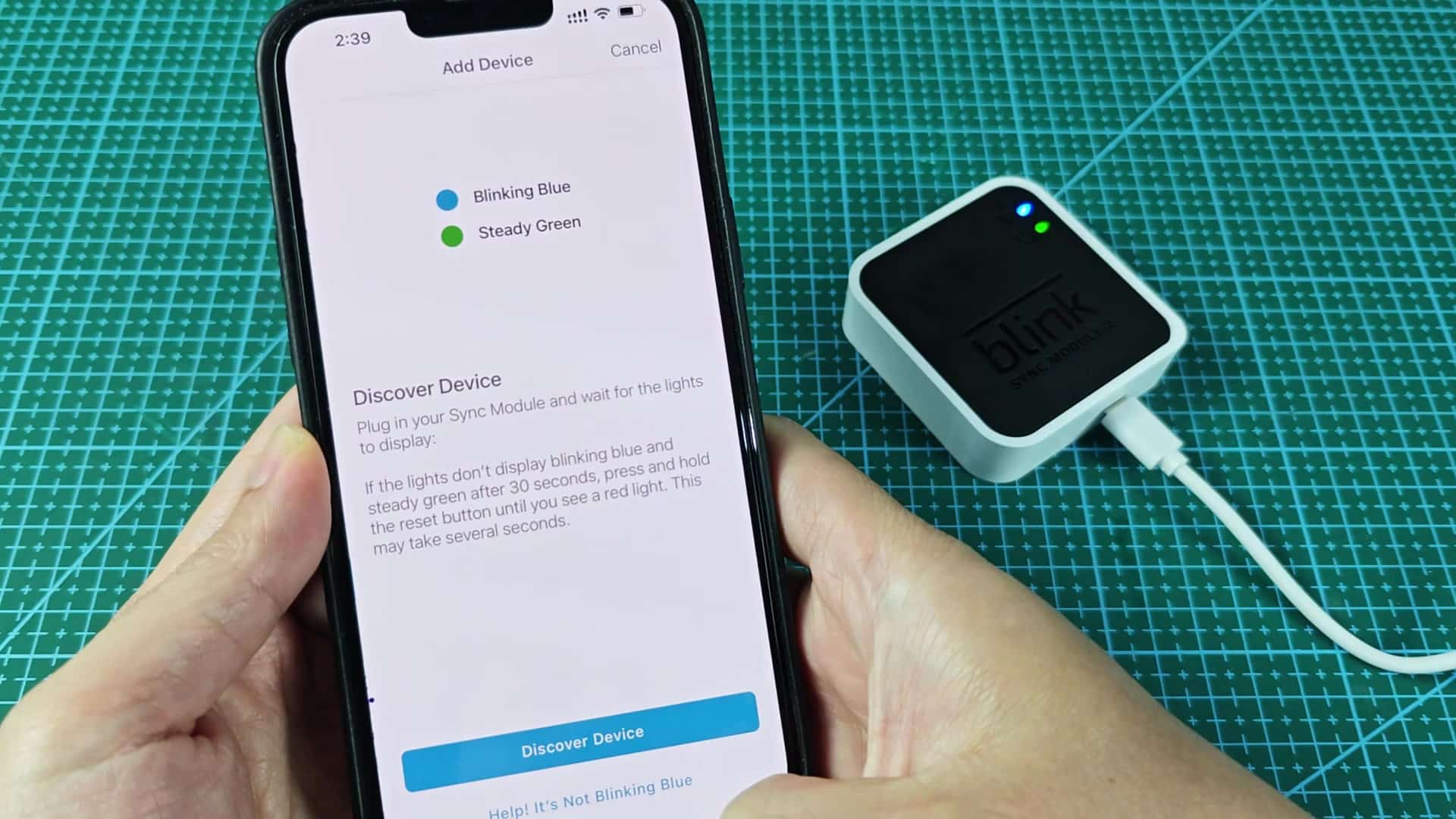
Plug the cable back in again but do not release the reset button yet. Wait a full thirty seconds to let everything fully discharge (all those capacitors), and then plug the cable back in. Once that’s done, wait another few seconds for the module to boot up. You’ll know when it’s good because LED status will turn blue instead of red.
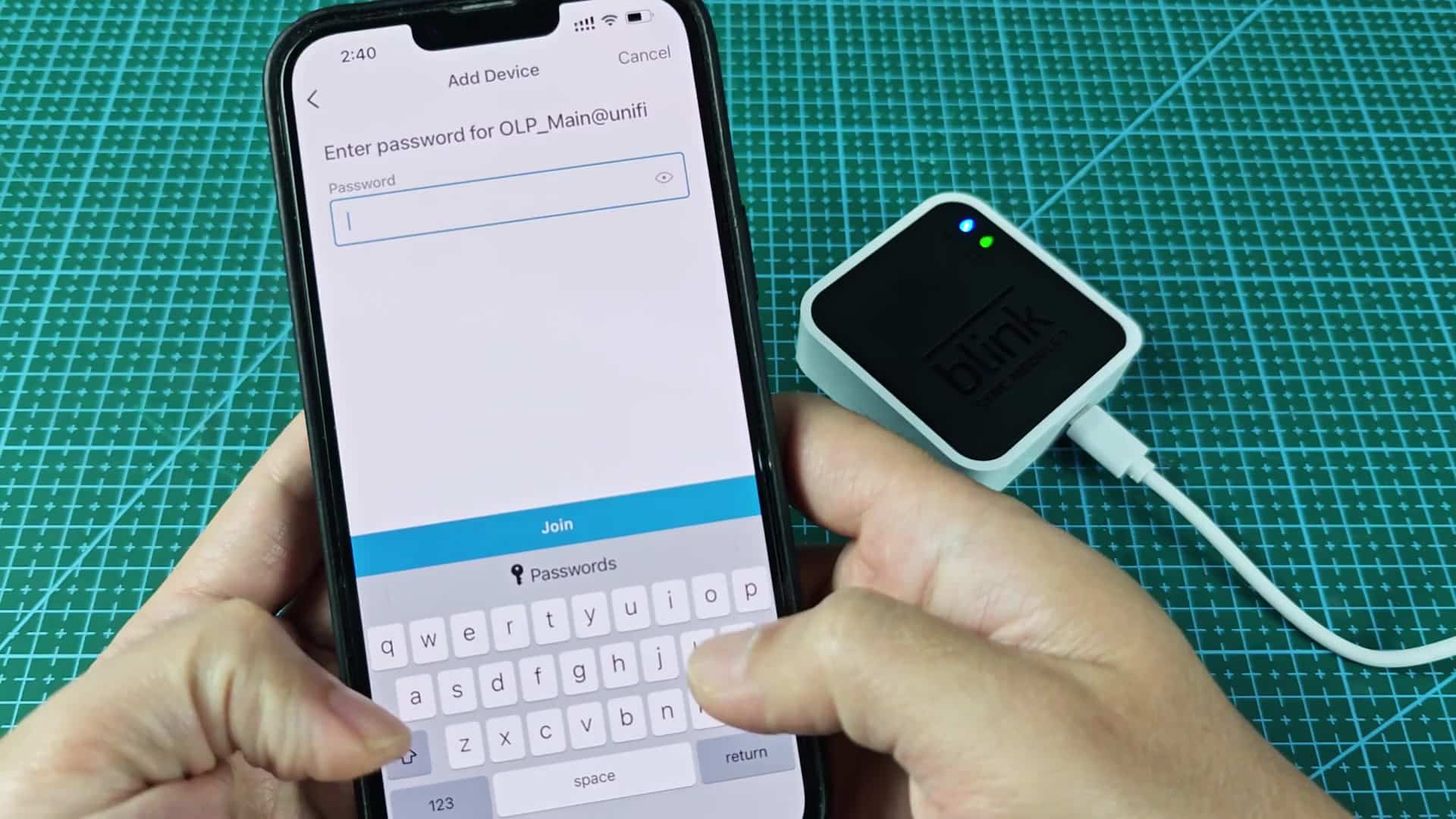
After that, open up the Blink app on your phone and it will begin to discover the devices for you. Without any problems, it’ll locate the Sync Module quickly enough then you’re off to the races, re-entering your Wi-Fi network information as prompted. The Blink app lists available networks; tap your network’s name and re-enter the password.
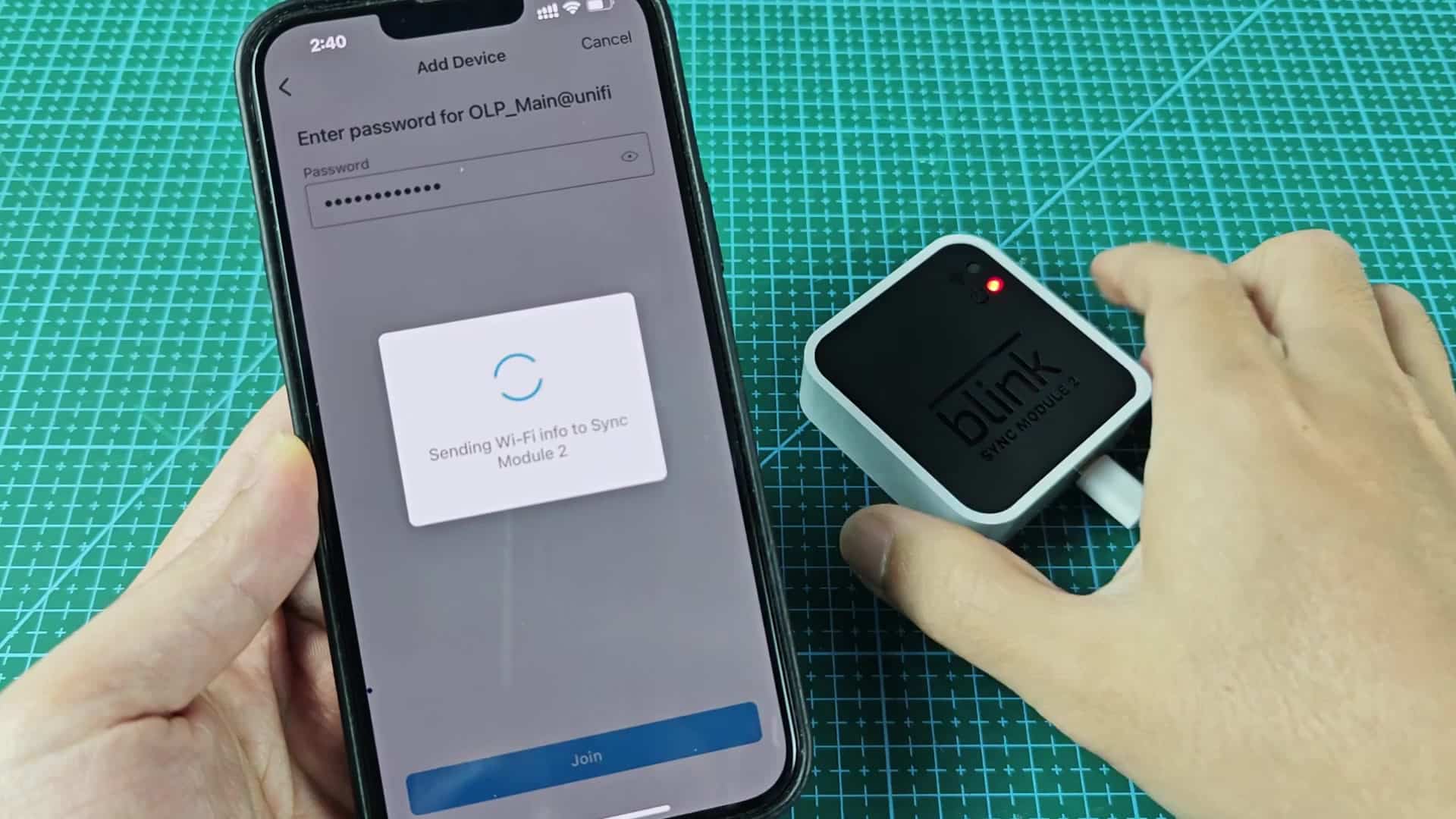
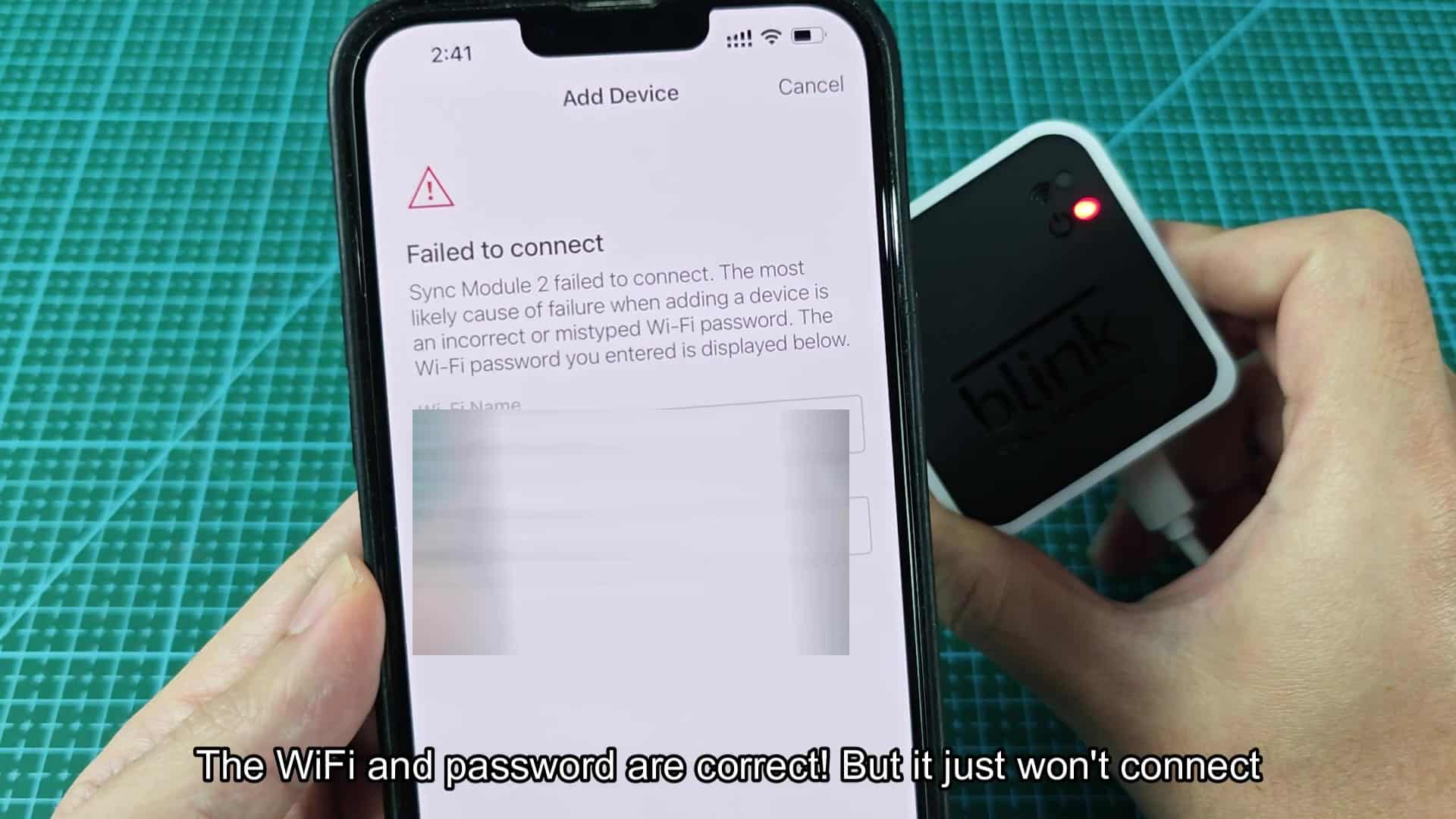
Try again but this time enter exact information and it will still not work as the error message comes back complaining once more. Visiting your router admin page, you’ll see the password matches exactly. This means there is no typos. This supports the idea that the server process is the problem and can not handshake with the router correctly.
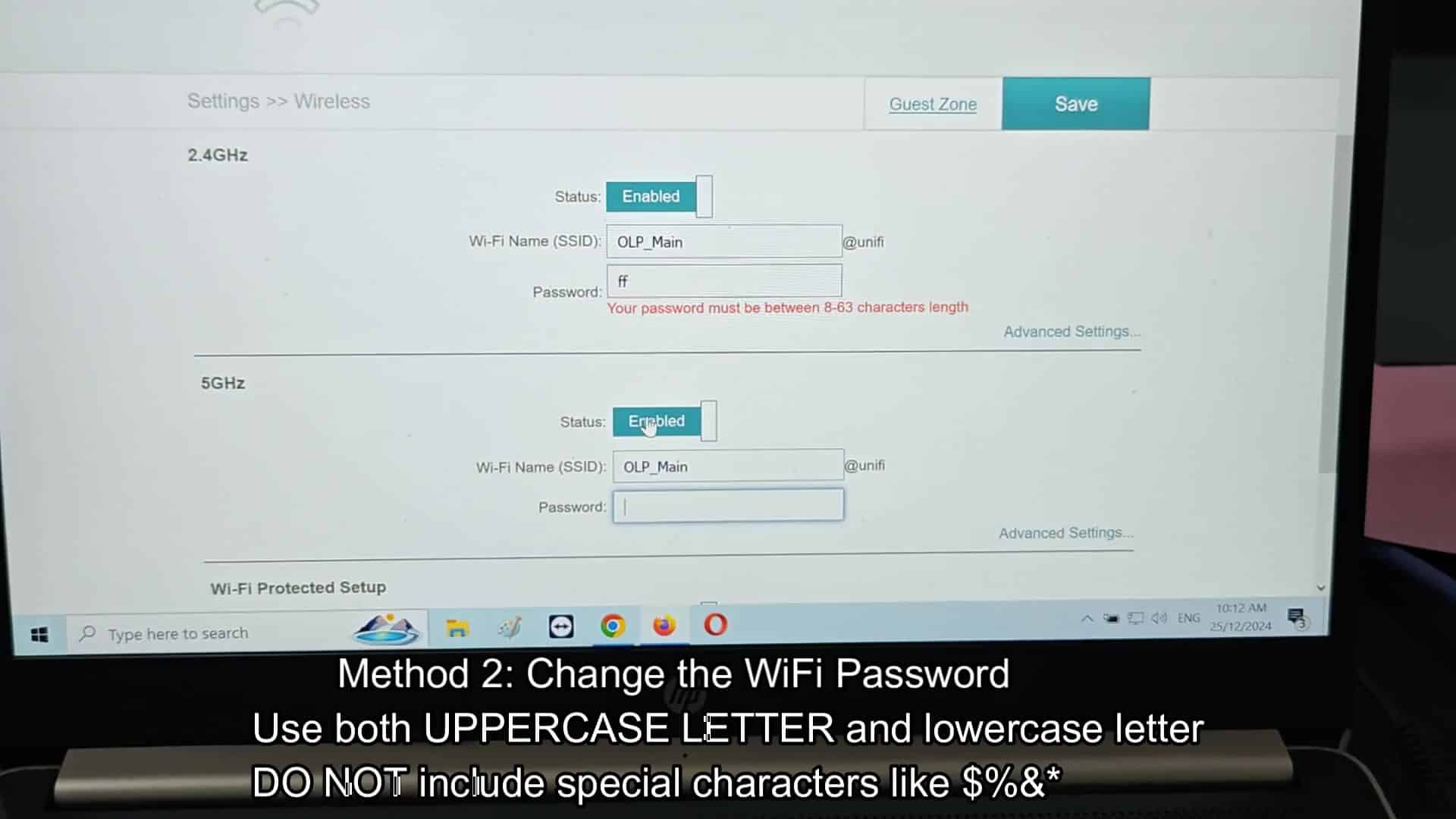
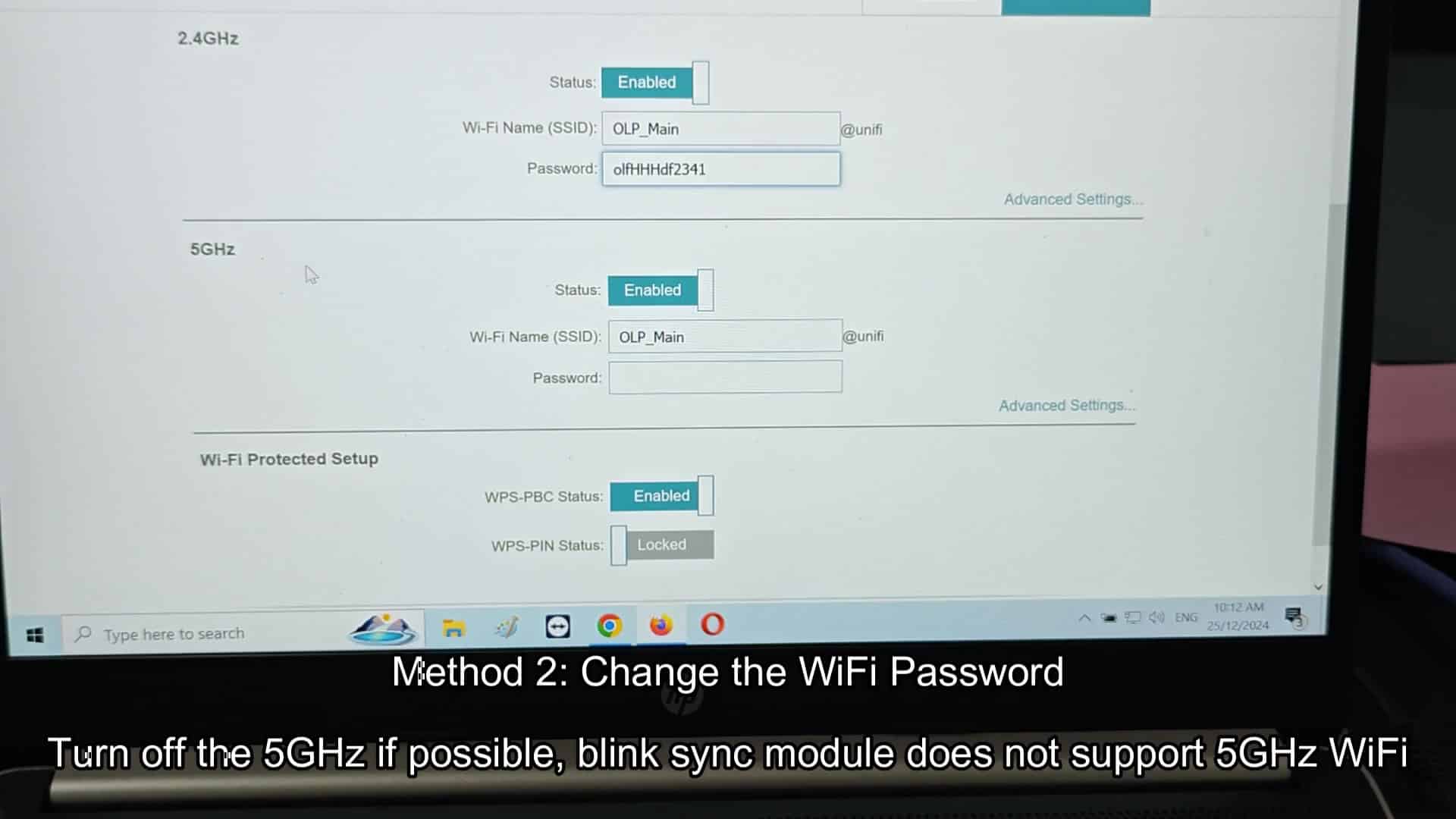
If resetting doesn’t do it, perhaps it’s time to go back to drawing board, literally by resetting your Wi-Fi password completely. Use a web browser to log into your router settings page and update the previous complex password with something much easier to remember. Stick to letters (both lower and upper case are fine; just keep it simple) if possible.
Do not use any special characters such as ampersands, dollar signs etc since this might cause issues during setup handshake. You also don’t want complex characters because that may increase the possibility of parsing errors. A clean, simple alphanumeric password would of do just fine for easy data transmission.
Click Save changes on the router and, presto!, your network updates its broadcast almost immediately. Re-run the setup process in the app. This forces the Blink module to rescan for networks again. This time it should pick up the updated SSID without issue, then you type in the plain-text password in the appropriate field.
Now that it has all of the new information, the system should immediately accept it and you should see no stuttering pauses in the progress bar. Your phone seems to be communicating smoothy with the module. The LED light on the Sync Module turns green. It’s connected to the cloud successfully and there is absolutely zero evidence left of any of those errors.
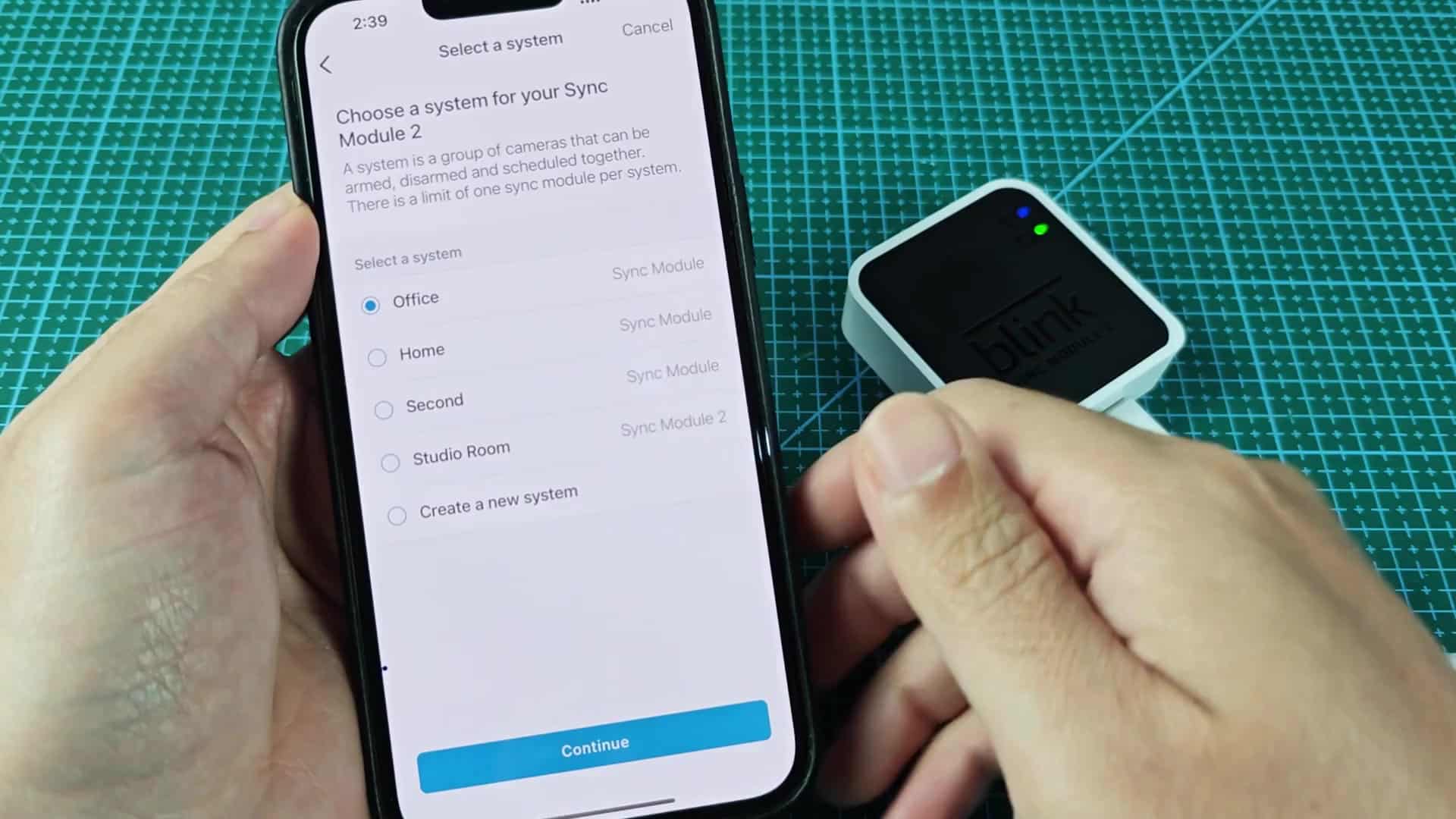
The last step is adding device to your system. You will see a check mark on your confirmation screen. This shows it has successfully joined the setup for your studio room. The solution explain why it wasn’t connecting in the first place. So changing the password format was easier than I thought and made the device do what it’s supposed to do.